
Generative AI design: What it is and how to use it
Learn how generative AI is changing creative design workflows, and how teams are putting it to work with Figma Weave to generate on-brand assets at scale.
Skip to main content
Building with AI
Whiteboard animation had its heyday in the early 2010s, when explainer videos were everywhere and every startup wanted one. The format stuck around because it makes complicated concepts easy to follow.
But producing one is slower than you might think. You need roughly one drawing per sentence of narration, and each one has to match the rest in line weight and level of detail. If you get a handful of frames wrong, viewers feel it right away.
With generative AI, you can define a style once and produce a full set of frames. That puts the work back within reach of a small team.
Read on to learn:
Whiteboard animation is a video style where illustrations appear to be drawn by hand onto a white surface in real time, usually with a voiceover narrating the idea as it goes. Most versions share the same visual signatures: line art on a plain white background, a drawing hand or marker moving through the frame, and a camera that pans between scenes. Each drawing builds stroke by stroke as the narrator talks, an effect animators call the reveal.
The style has a few close relatives. Chalkboard animation swaps the white background for a dark one, and glassboard animation puts the illustrator behind transparent glass so you see their face as they draw.
Whiteboard animation videos have been around long enough that people assume they’re outdated. But they keep working, mostly because of pacing. The drawing takes shape while the narrator talks, so a viewer finishes processing one thought before the next appears on screen.
The blank background helps too. A line drawing on white gives the viewer no other detail to scan, so attention stays on one thing. Plus, a UI update can date a screen recording overnight, while a drawing of the idea behind it usually still holds.
Whiteboard animation explains how something works in principle, but it can’t show the specifics of how it works in practice. Screen recordings are a better fit when a viewer needs to see your actual interface.
Generate images and video on an AI canvas, with one style carrying across every frame.
Whiteboard animation makes the most sense when the goal is helping people understand a concept or a product. Here are four situations where it comes in handy in four for product and design teams:
Each of these uses asks an audience to understand something before they can act on it. That’s why a good explainer outlives the project that prompted it.
Making a whiteboard animation follows the same path as most video production. You’ll move through a script, a storyboard, an illustration set, the timing of the reveal, and the final audio and export. The order matters. Rushing the script to get to the drawing creates rework later.
Write the narration before you decide on any visuals. Everything else follows the script, so changing it later means redrawing frames you’ve already finished.
Plan on roughly 150 words per minute of finished video, and read your draft aloud against a timer to check. As you write, cut any line that needs a visual to make sense. Phrases like “as you can see here” or “this part of the flow” assume a drawing that doesn’t exist yet, and they limit the options for whoever storyboards the scene later.
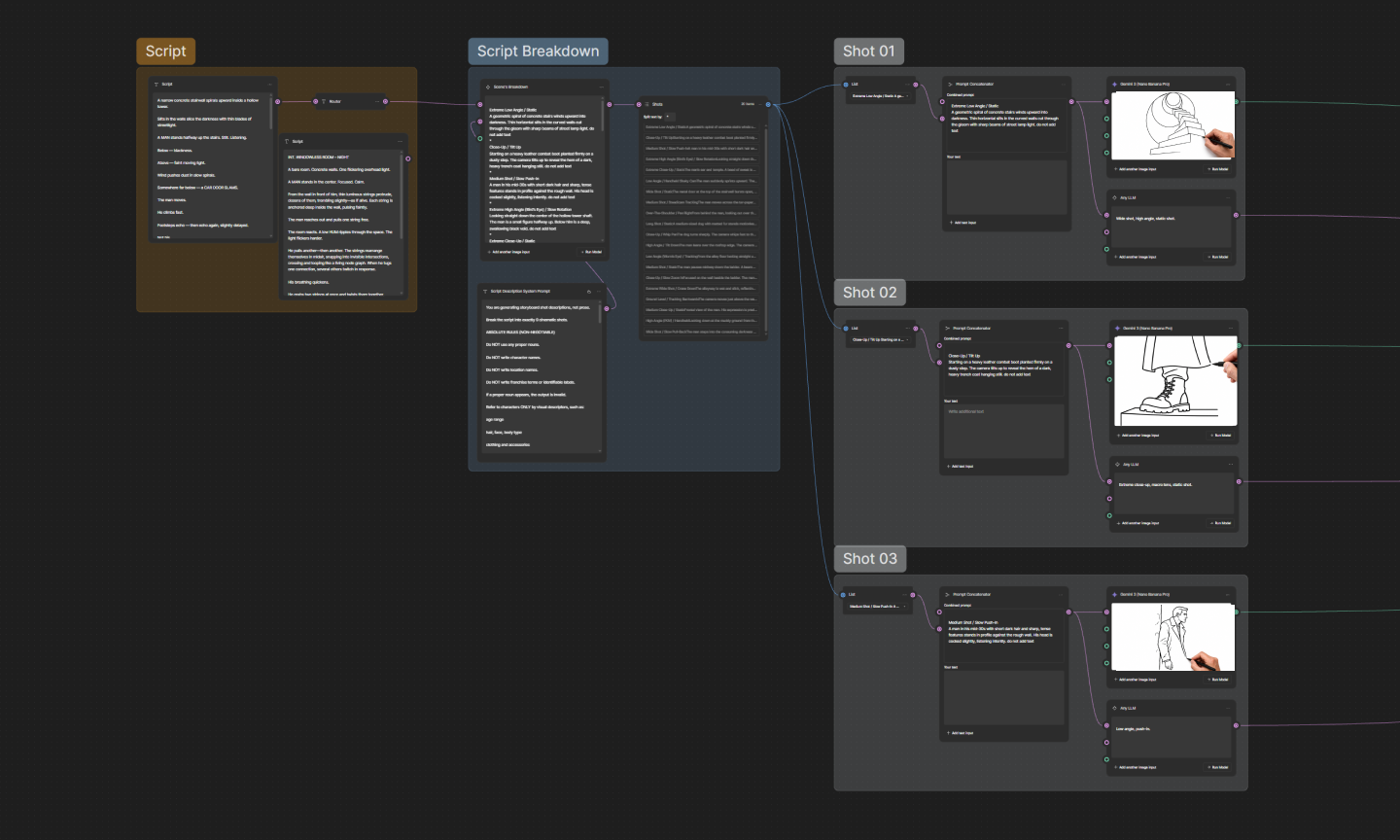
A storyboard turns the script into a sequence of frames, one per idea, with a note on which drawing goes with which line of narration. Most of this stage is about order, so the frames need only be clear enough to rearrange.
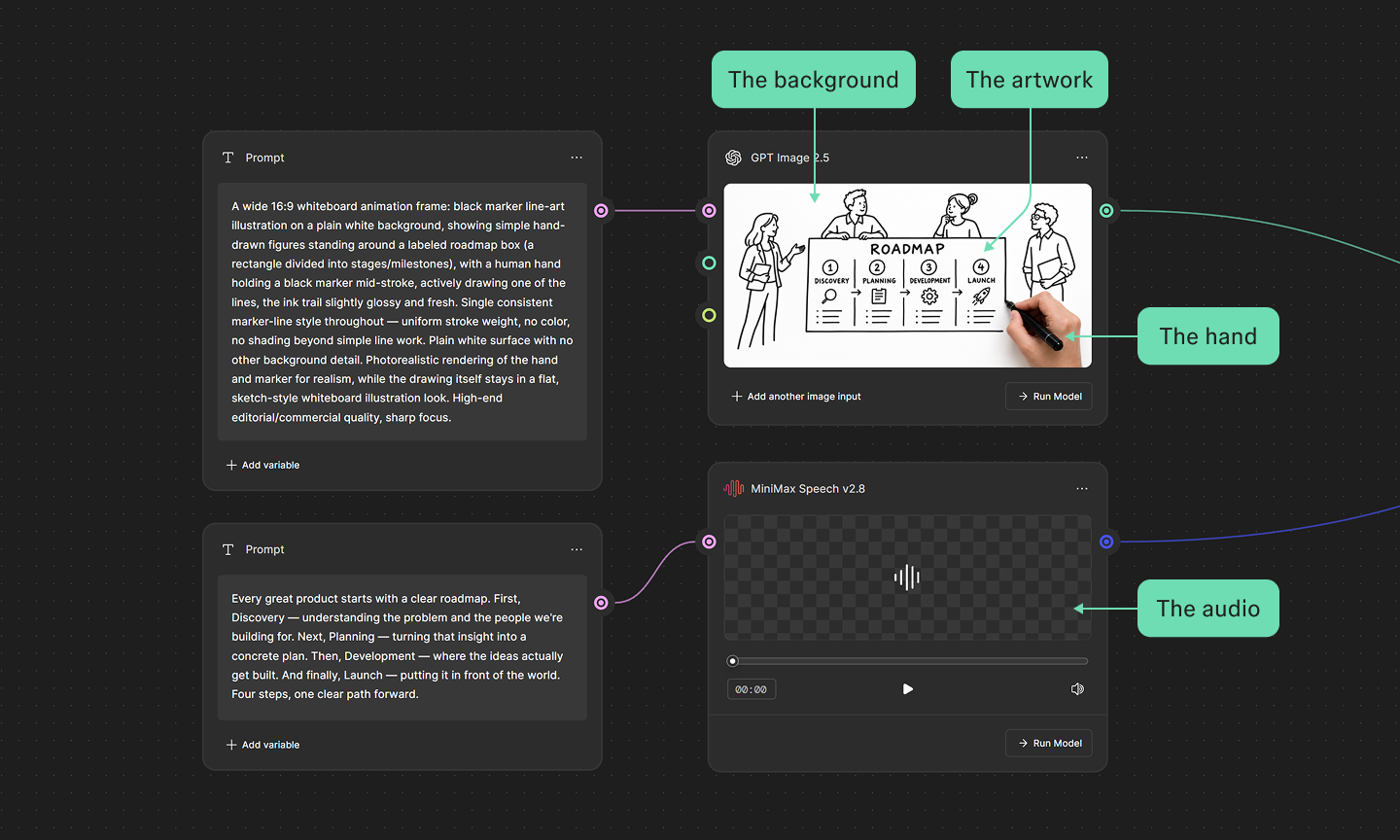
You can build your storyboard in Figma Weave by feeding your scene descriptions into a workflow that generates each frame. To reorder a sequence, adjust a node.
Next, use those rough storyboard panels to create the drawings for the final video. Start by choosing a style.
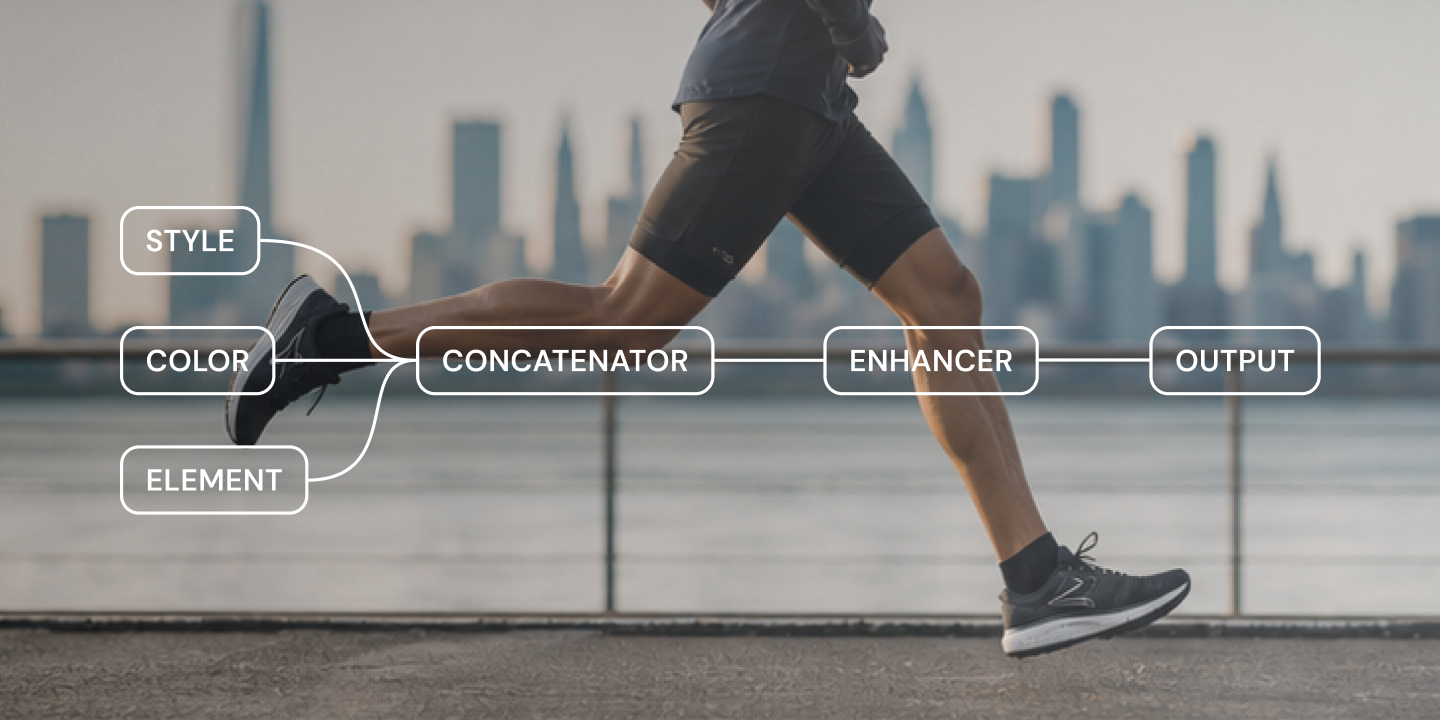
Draw one frame by hand or pick the generated panel closest to what you want, then run it through an Image Describer node in Figma Weave. That node reads the image and writes out a description of its visual style and subject. Connect that description to the nodes that generate your remaining frames, and each one pulls from the same style.
If you want clean vector line art, Text to vector illustration generates it from a prompt. For drawings you’ve already made, Vectorize converts a raster image into editable vectors in Figma Design and Figma Draw.
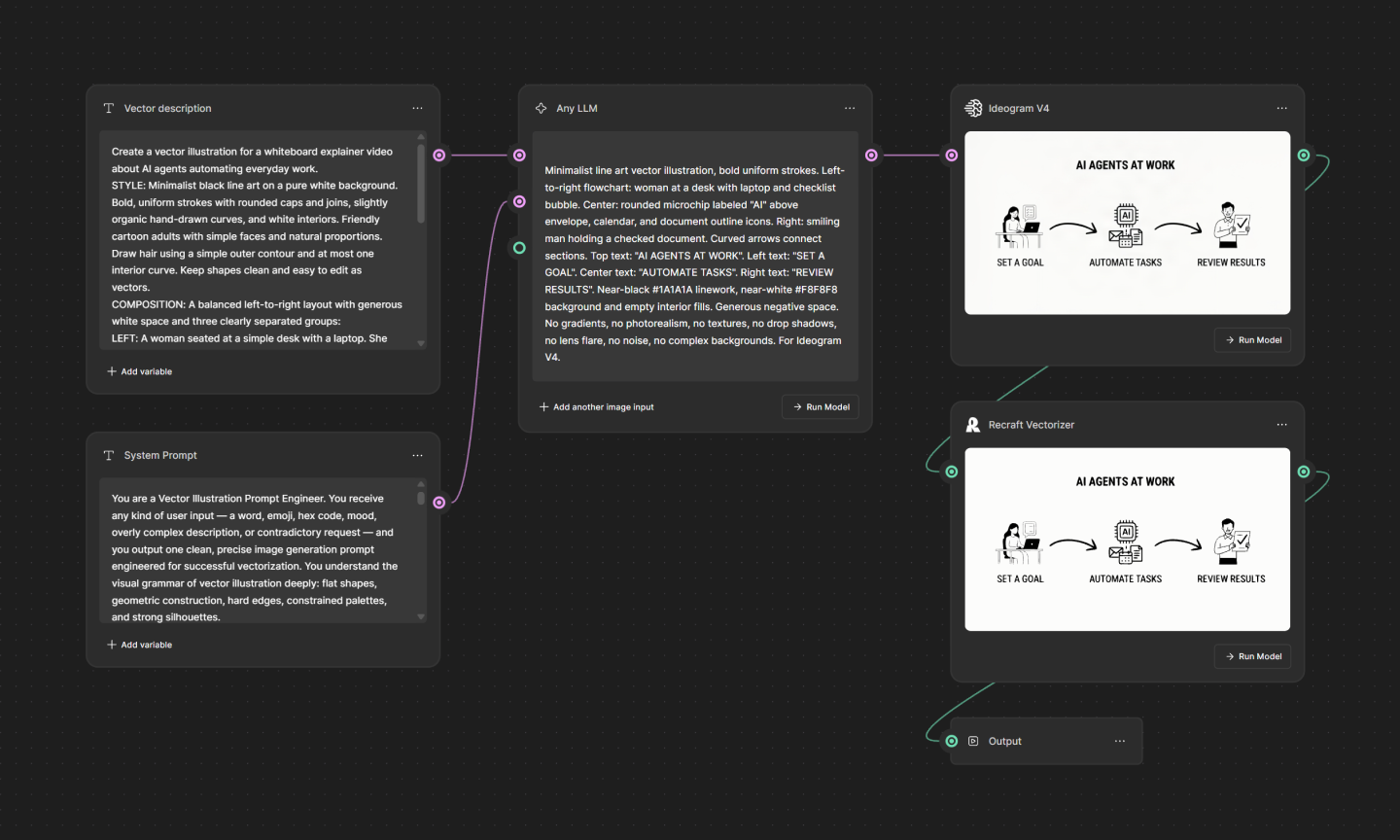
Sketch frames with vector brushes, then vectorize and reshape them in the same file.
With your frames drawn, you’re ready to set the pace. Each drawing needs enough time to land before the next one arrives.
You have two options. The first is generating motion from your frames. Figma Weave supports image-to-video using models like Kling, Runway, Luma, and Wan, so a finished panel becomes a clip with camera movement you control on the canvas. Keep your prompts tight by locking the camera and asking the model to continue the existing action.
The second is animating on a timeline. Figma Motion adds keyframes and easing inside Figma Design and exports to MP4, WebM, GIF, and more. This is the better fit for a stroke reveal on vector line art, where you want each line to draw in at a set speed across a full-length explainer.
Once the timing is set, you can record your voiceover or generate one and line it up with the frames. Short sentences and plain words make this part easier, since narration that sounds natural out loud needs less adjustment to fit. Music can sit underneath at a level that stays out of the way.
Before you export, think about where the video is going. A conference talk needs a different aspect ratio than a social media post. Your Figma Weave workflow can regenerate the frames at whatever dimensions the next channel needs.
No. Whiteboard animation software can handle the illustration, either from a template library or through AI generation. Your job is to choose a style and keep it consistent across frames. Drawing helps if you want a specific look, though it’s more a preference than a requirement.
An online whiteboard like FigJam is a canvas your team works on together in real time. A whiteboard animation is a finished video made for an audience to watch.
It depends on how final the script is when you start. A tight script with an approved storyboard moves quickly. A script that’s still in progress means regenerating frames every time the narration changes.
Yes. AI generates the frames, and the motion comes from one of two places. You can feed a finished frame into a video model or animate the drawing yourself on a timeline. The script, the sequence, and the pacing decisions stay yours either way.
The hard part of making a whiteboard animation isn’t coming up with the idea. It’s producing a full set of drawings that look like they belong together. Figma Weave takes that off your plate so you can spend your time on the script and the story.
Here’s where the rest of Figma fits in:
Set your style once, then apply it across the rest of your frames with Figma Weave.
Learn how generative AI is changing creative design workflows, and how teams are putting it to work with Figma Weave to generate on-brand assets at scale.


The AI creative process has shifted from idea generation to curation. Learn how product teams use Figma to ideate, refine, and align on the best direction.

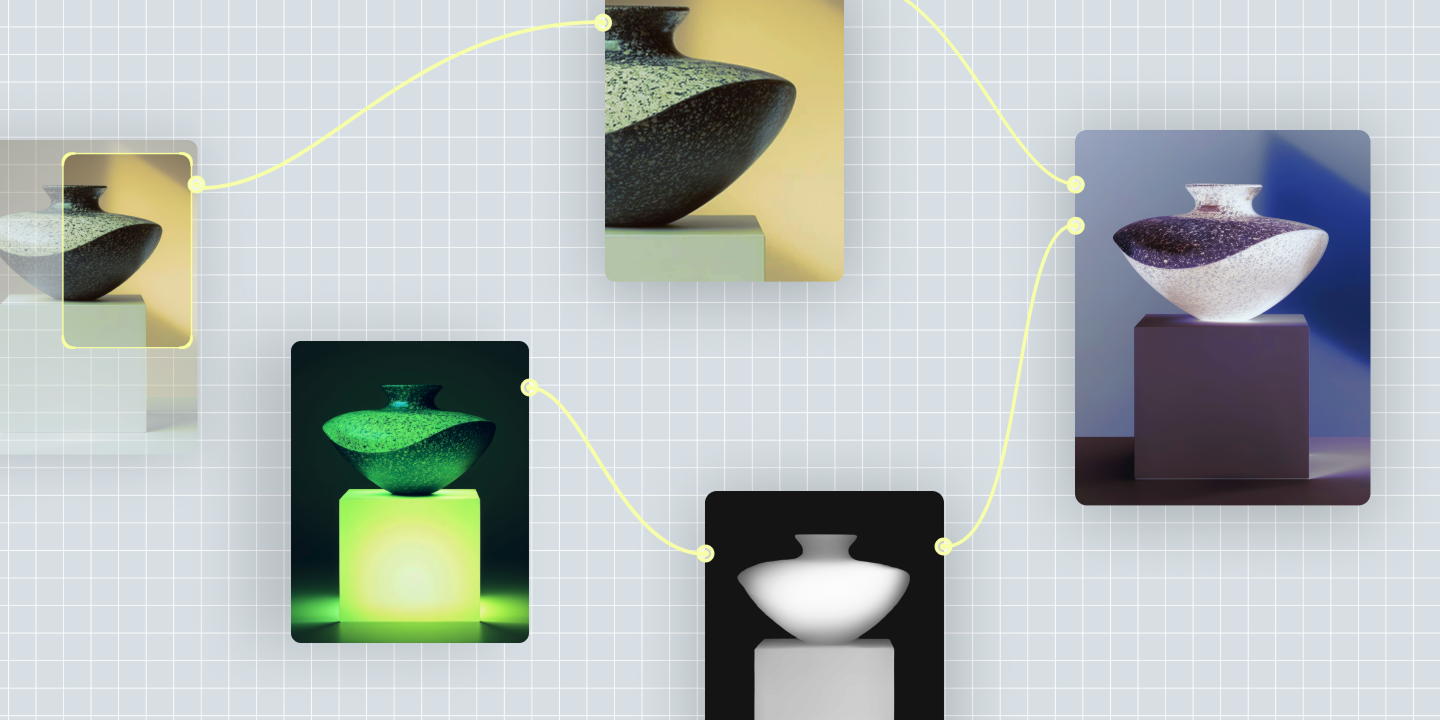
From image generators to node-based workflow platforms, here are 7 of the best AI tools for graphic design, and how each fits a real production process.

Learn what visual prompt engineering means, how it differs from text-only prompting, and how to write a prompt that gets AI tools closer to your intended design.

Get better output from your AI design prompts. Learn practical tips, examples, and mistakes to avoid, plus how Figma helps keep results consistent.

AI storyboard examples show how ad agencies, animators, and product teams sketch out a full sequence before committing to a single, final shot in Figma Weave.
Build faster with Figma Weave