
11 of the best AI design tools
Find some of the best AI design tools for 2026. Compare tool capabilities and benefits to streamline your design process and boost your creativity.
Skip to main content
Building with AI
This guide is published by Figma. Figma Weave is included in this roundup.
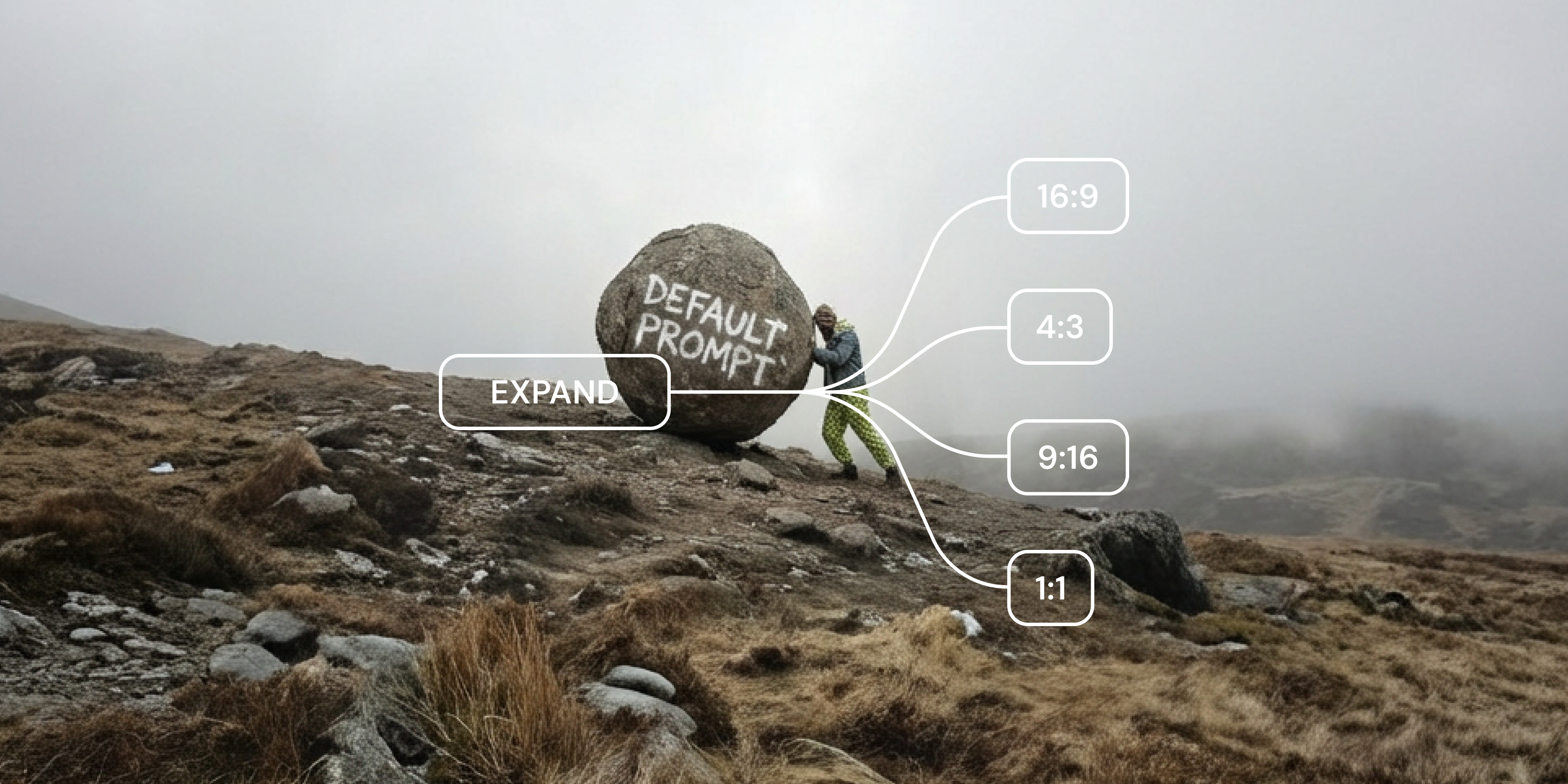
Say you’ve got a product shot ready to go, except the client needs it as a banner ad, a square social post, and a vertical print layout by end of day. But if you crop your shot, you lose part of the product. That’s the problem that sends people searching for the best outpainting AI. They need software that generates a new, matching background around an image instead of cutting into what’s already there.
The right AI image outpainting tool for the job depends on how much control you want. Some tools are built around a preset or a single upload step. Others hand you a full workflow you can save, tweak, and run again and again.
We compared 10 of the best options out there, including Figma Weave. Explore how outpainting fits into your broader set of graphic design AI tools and find the one that matches how your team actually works.
Read on to learn:
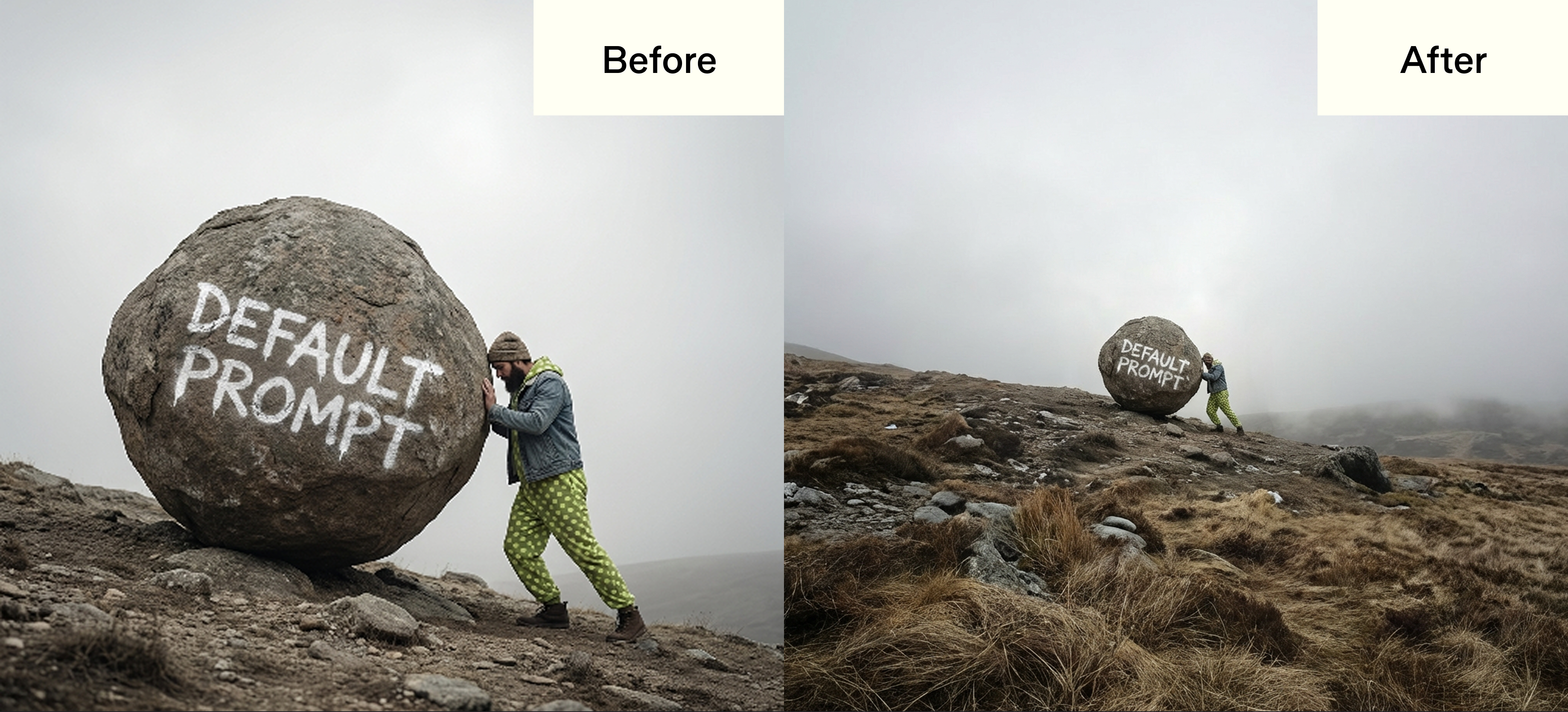
Outpainting is when AI generates new portions of an image beyond the original borders, extending the background, scenery, or setting to make the canvas bigger. It’s the reverse of how most editing starts. Instead of cutting an image down to fit a frame, outpainting builds the image out to fit the dimensions you need.
Most AI outpainting runs on diffusion models, which also power Stable Diffusion outpainting and other open-source generators. These models predict what should logically continue past an image’s edge based on the lighting, texture, and composition already present in frame. That’s different from a basic resize or crop, which either stretches existing pixels or throws part of the image away.
Outpainting adds new information and is part of a much bigger AI creative process that lets you refine an extension with masking, color grading, and compositing.
| Tool | Ideal for | Key features | AI capabilities | Platform |
|---|---|---|---|---|
| Figma Weave | Building reusable, on-brand image workflows with a team | Outpaint node, chainable with masking and upscaling, multimodel comparison | Runs outpainting across models like Flux and Gemini in one canvas | Web |
| Adobe Photoshop (Generative Expand) | Professional photo and creative editing | Generative Expand, layer-based editing, Firefly-powered fill | Aims to match the image’s lighting, perspective, and style | Desktop, Web |
| Canva (Magic Expand) | Quick social and marketing designs | Magic Expand, preset aspect ratios, drag-to-extend canvas | Preset-based background generation for standard formats | Web, mobile |
| Clipdrop (Uncrop) | Single-image extensions | Uncrop tool, simple upload-and-generate flow | Upload-and-aspect-ratio extension | Web, API |
| Pixelcut | E-commerce and product photography | Uncrop/outpaint tool, batch product photo editing | Extends backgrounds while keeping product detail sharp | Web, mobile |
| Claid.ai | Outpainting at scale via API | AI image extender, upscaling, batch and API access | Automated background generation built for volume | Web, API |
| OpenArt.ai | Concept art | AI image outpainting inside a broader generative art suite | Multiple AI models for stylized or realistic extensions | Web |
| Photoroom (AI Expand) | E-commerce and product catalogs | AI Expand tool, format flexibility, batch and API access | Extends space around a product without altering it | Web, mobile, API |
| Picsart (AI Image Extender) | Social content creation | AI Image Extender, aspect ratio presets, mobile app | Context-aware background generation for realistic results | Web, mobile |
| Krea | Comparing multiple models for digital artwork | Crop & Expand tool, separate Krea Realtime canvas | Fills the added canvas space so it blends with the original image | Web |
Ideal for: Teams who want to reuse and refine an outpainting setup
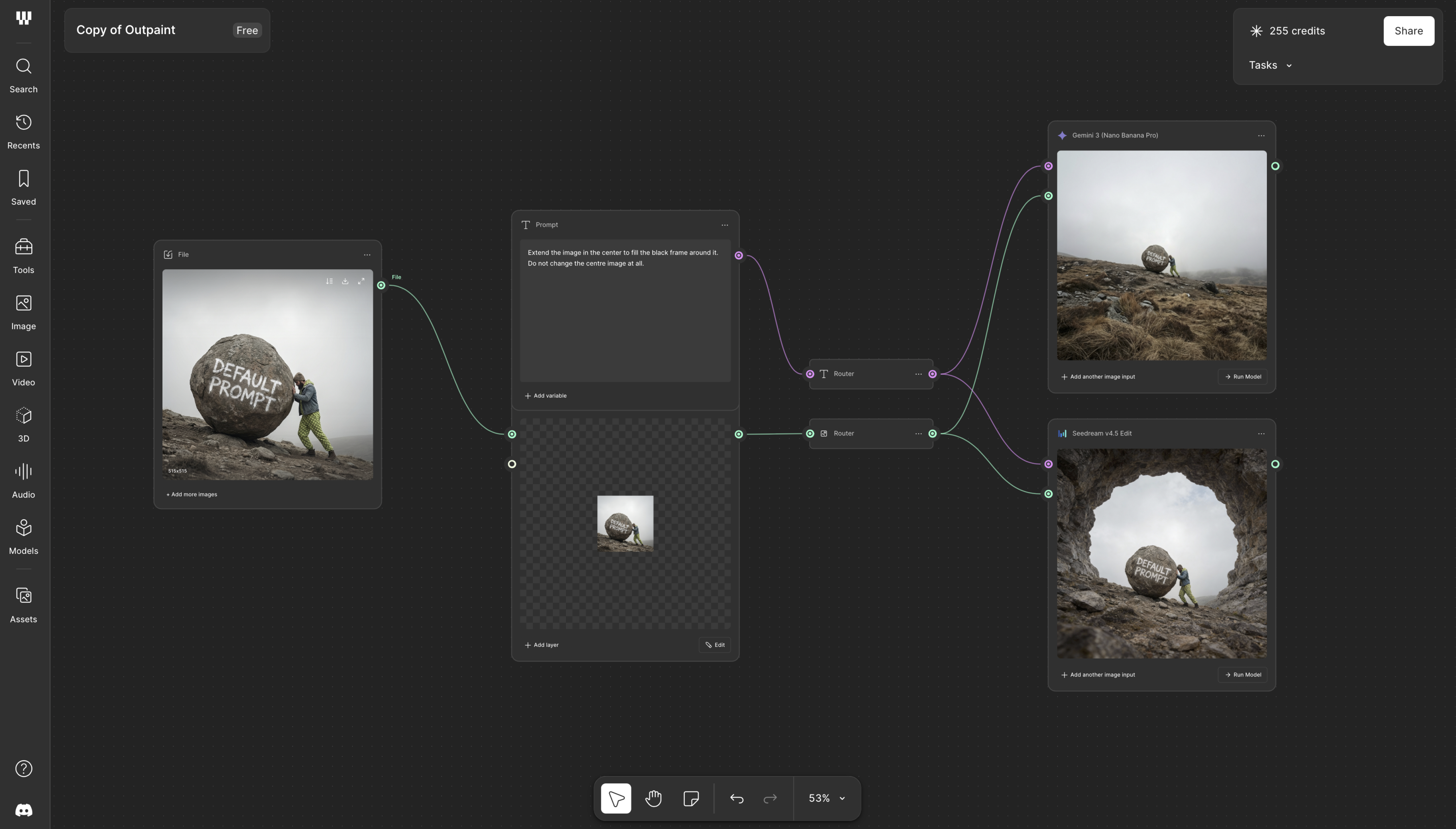
Rebuilding the same outpainting setup from scratch for every new image gets old fast. In Figma Weave, you build that setup once as a workflow around the Outpaint node, then reuse it on the next image.
Chain an Outpaint node with other nodes, like a mask extractor or an upscaler, so extending an image is one step in a workflow you control end to end. Run the same outpainting setup across multiple AI models like Flux and Gemini side by side, and see which one works best for the shot before picking a result and moving further into your workflow.
Unlike a one-off web app, Figma Weave is an AI outpainting tool that lets you save a working setup and hand it off to your teammate. There’s no need to rebuild each time. If you need the setup to work on image 50 the way it did on image 1, that repeatability lets teams reuse a saved process across images.
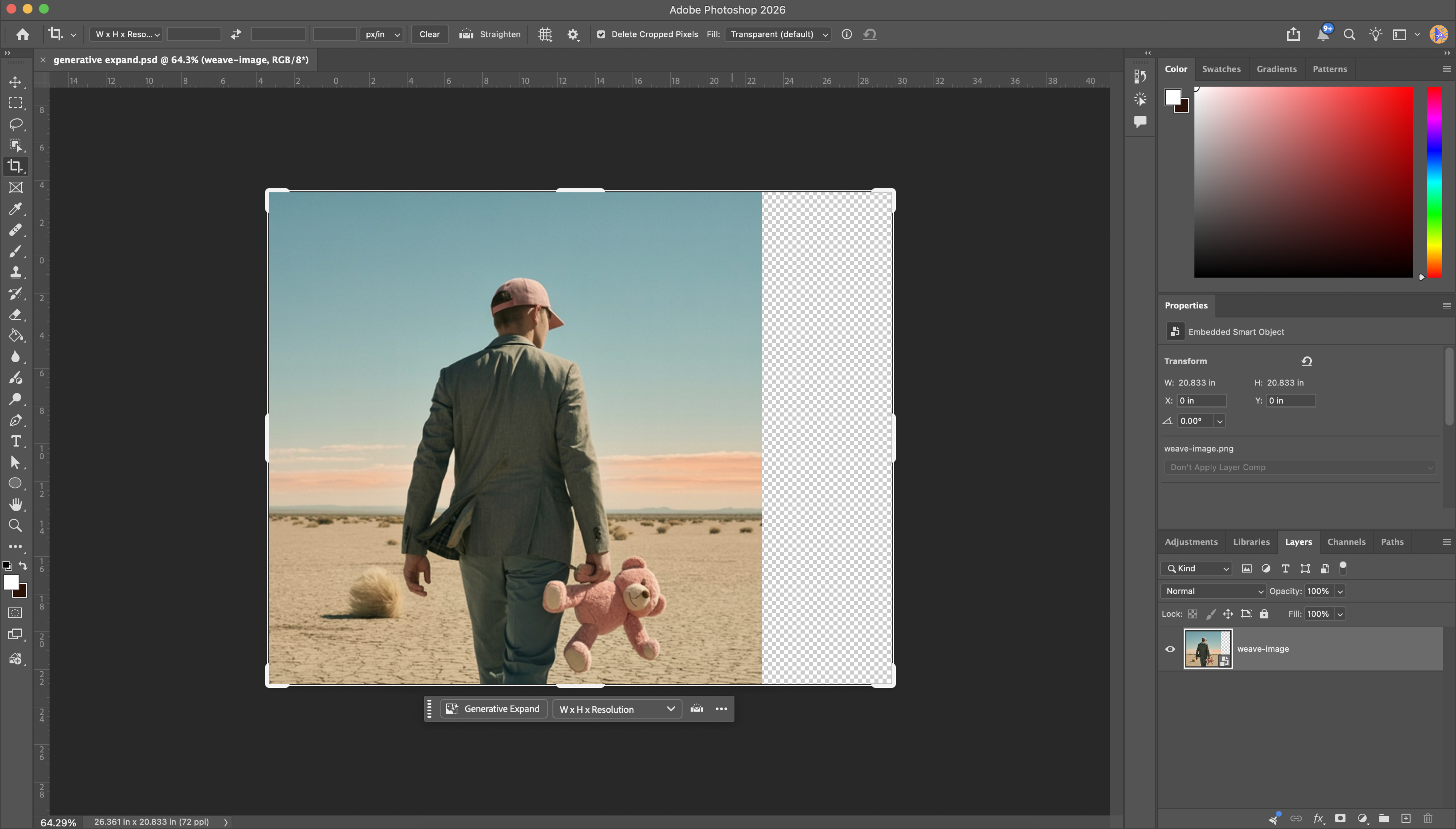
Ideal for: Professional photo editors and retouchers already working in the Adobe ecosystem
Going beyond basic photo editing, Photoshop’s Generative Expand brings AI outpainting into the familiar layer-based workflow. Powered by Adobe Firefly, Photoshop’s AI outpainting extends a canvas in any direction and fills the new space. Adobe says the result matches the original image’s lighting, perspective, and style.
Photoshop supports cloud-document collaboration, including real-time co-editing in beta, although availability and feature coverage vary. If your outpainting work already lives inside a full Photoshop retouching pipeline, that context matters more than any single feature.
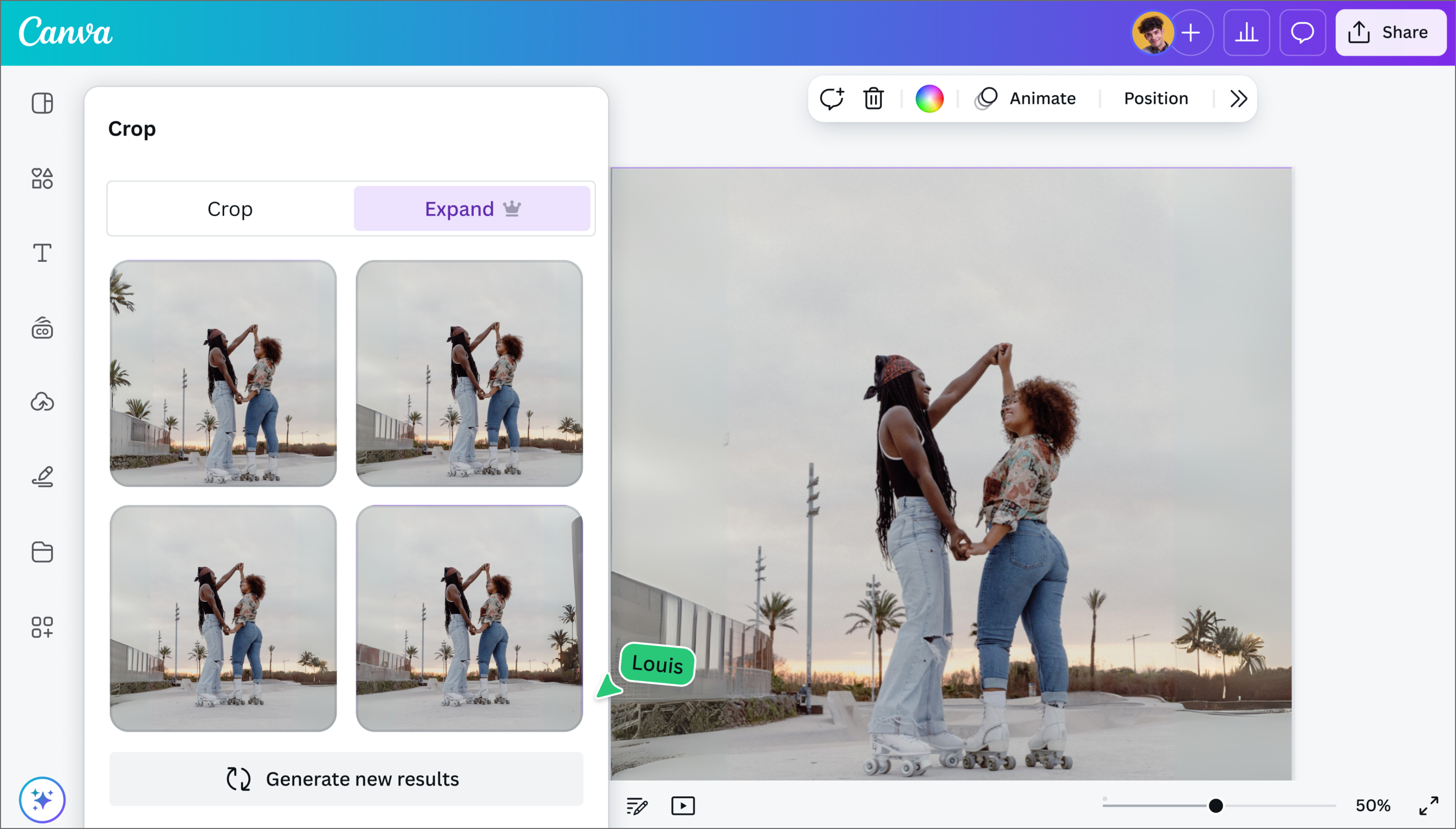
Ideal for: Marketing teams extending a background to fit a standard social or ad format
Canva’s Magic Expand is a preset-based way to extend an image. Select the photo in a Canva design, choose Edit, then pick Magic Expand. Choose a size or drag a crop handle to extend the image past its border, then select Expand. Not sure which dimensions a placement needs? Our guide to social and marketing aspect ratios lists the common ones.
Magic Expand runs inside the Canva editor, on a photo that’s already part of a design. If your team already builds social and marketing layouts in Canva, you can extend an image without opening a separate tool.
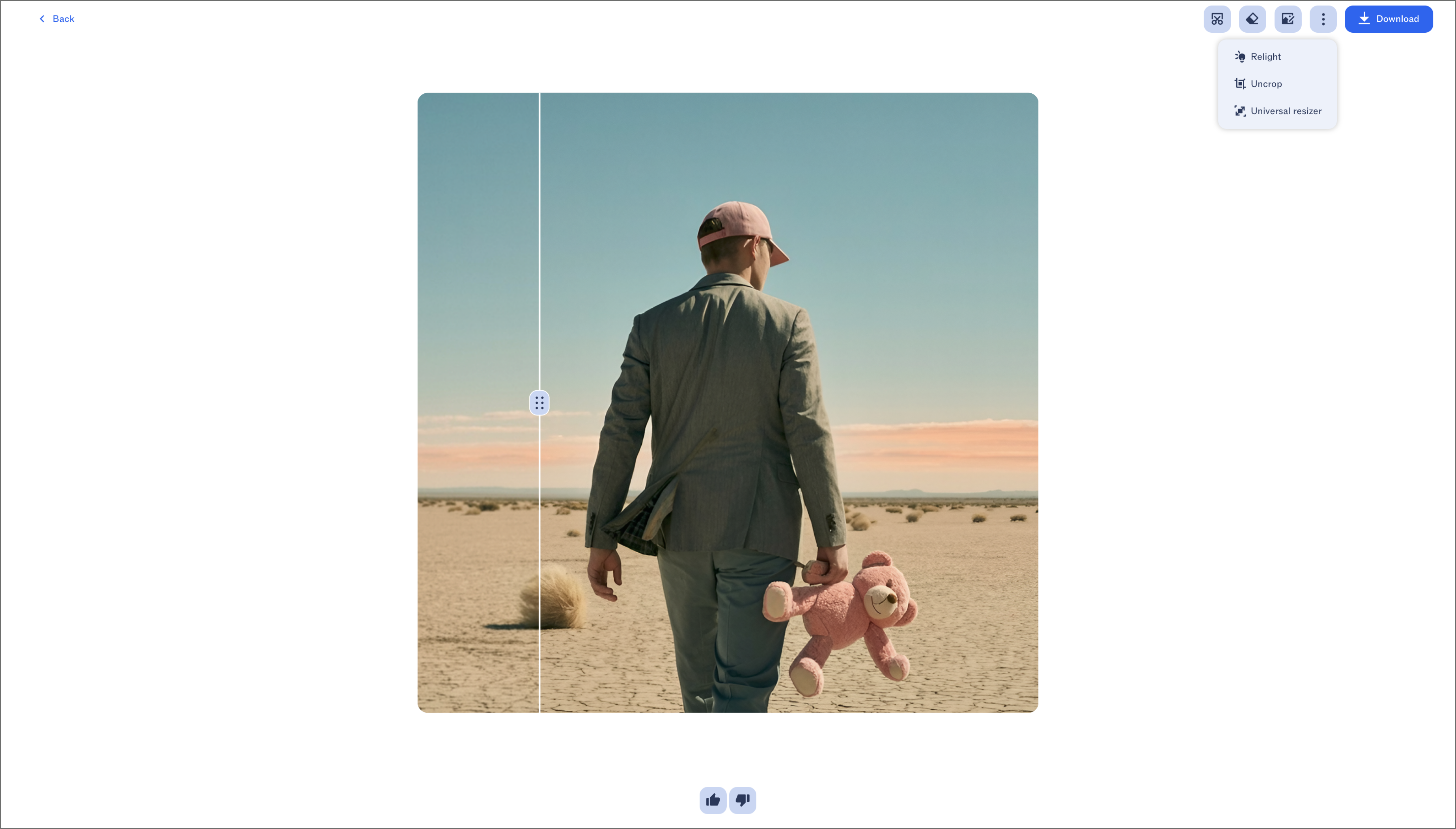
Ideal for: One-off landscape or portrait extensions
Clipdrop’s Uncrop is an upload-and-aspect-ratio workflow for extending a single image. Upload an image, choose an aspect ratio, and Uncrop generates the extended version.
Uncrop is a single upload-and-generate step with no workflow to configure, which suits one-off extensions you don’t plan to repeat.
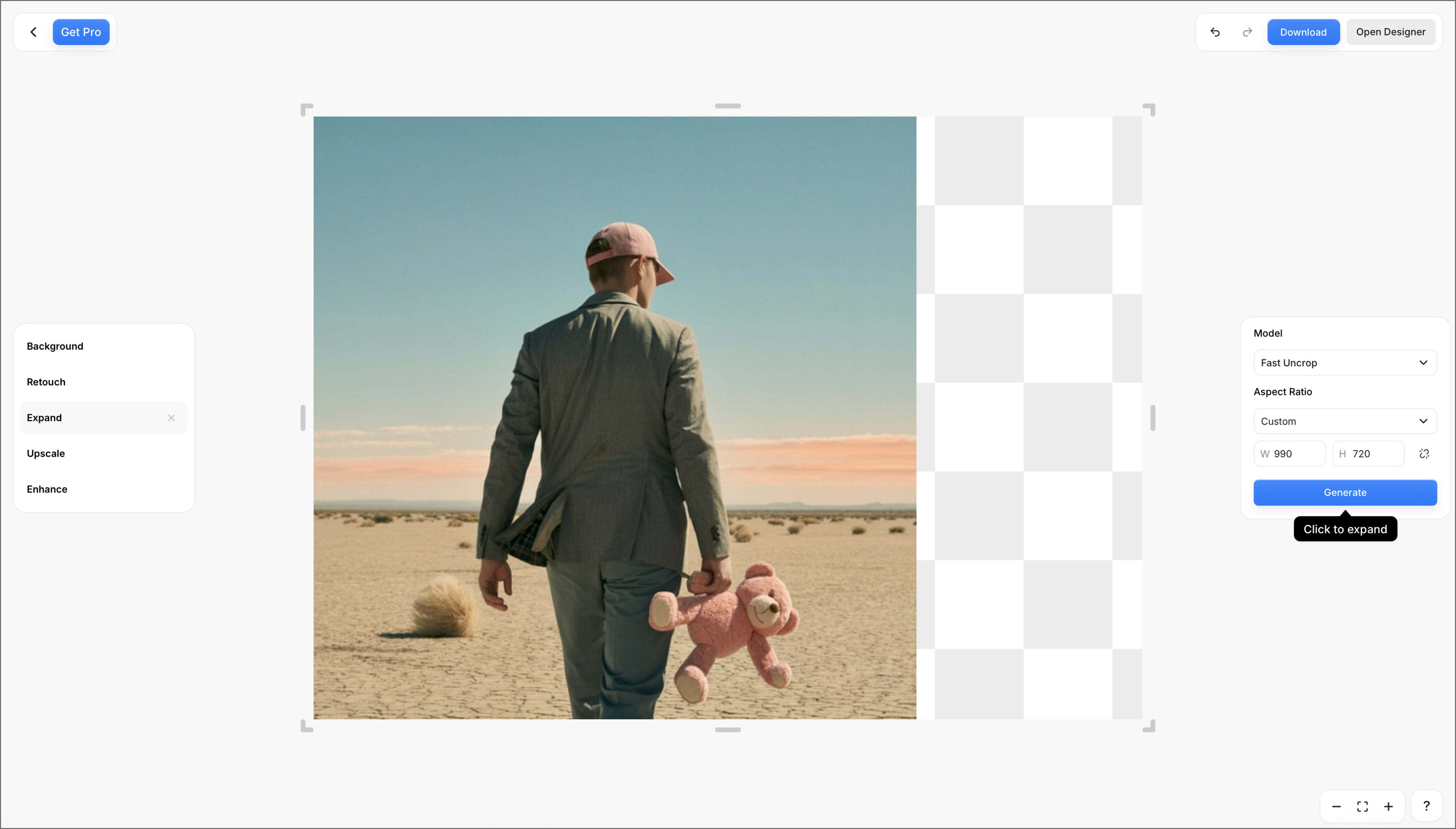
Ideal for: E-commerce teams extending product shots for different listing sizes
Pixelcut positions its outpainting tool, Uncrop, as one piece of a broader product photo editing suite, not a standalone feature. It’s aimed at e-commerce sellers who need to extend a product shot’s background to fit a new listing size without distorting the product itself.
Because Uncrop is bundled with background removal and batch photo editing, it works well when outpainting is one step in a bigger product photography workflow. It also runs as a mobile app, so sellers can extend and reformat photos on the go between listings.
Figma Weave brings outpainting into the same node-based canvas where you can mask, upscale, and relight, so you build a workflow once and reuse it on the next image.
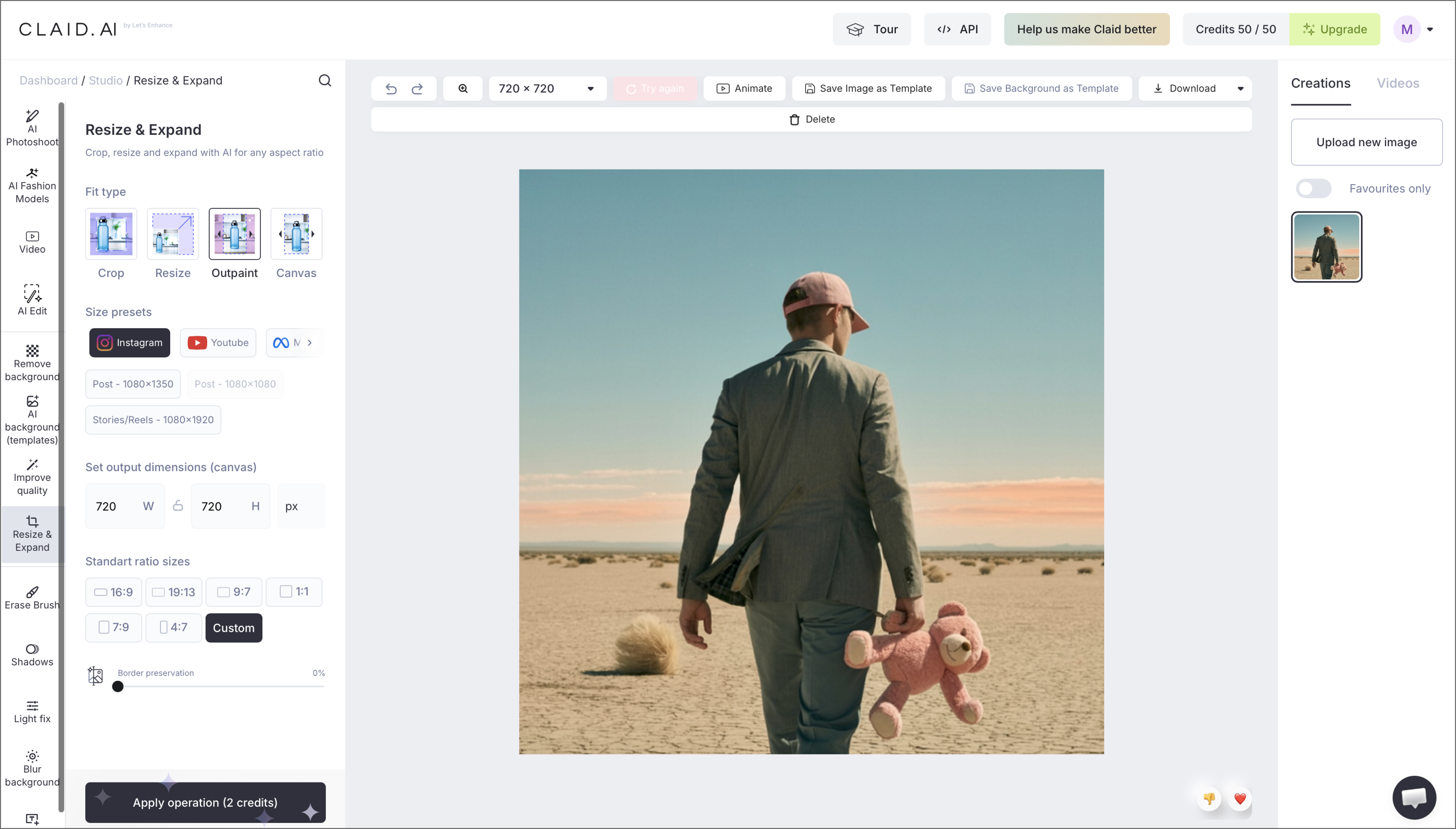
Ideal for: Teams automating outpainting across large batches of product or catalog images
Since Claid.ai is made for retailers and marketplaces, it supports high-volume API workflows. It extends an image’s edges while keeping the result realistic, with preset dimensions for specific marketplaces alongside custom sizing.
Outpainting is one part of a larger toolkit in Claid.ai. Batch processing and API access let your team plug the tool into an existing photo pipeline and upscale the result.
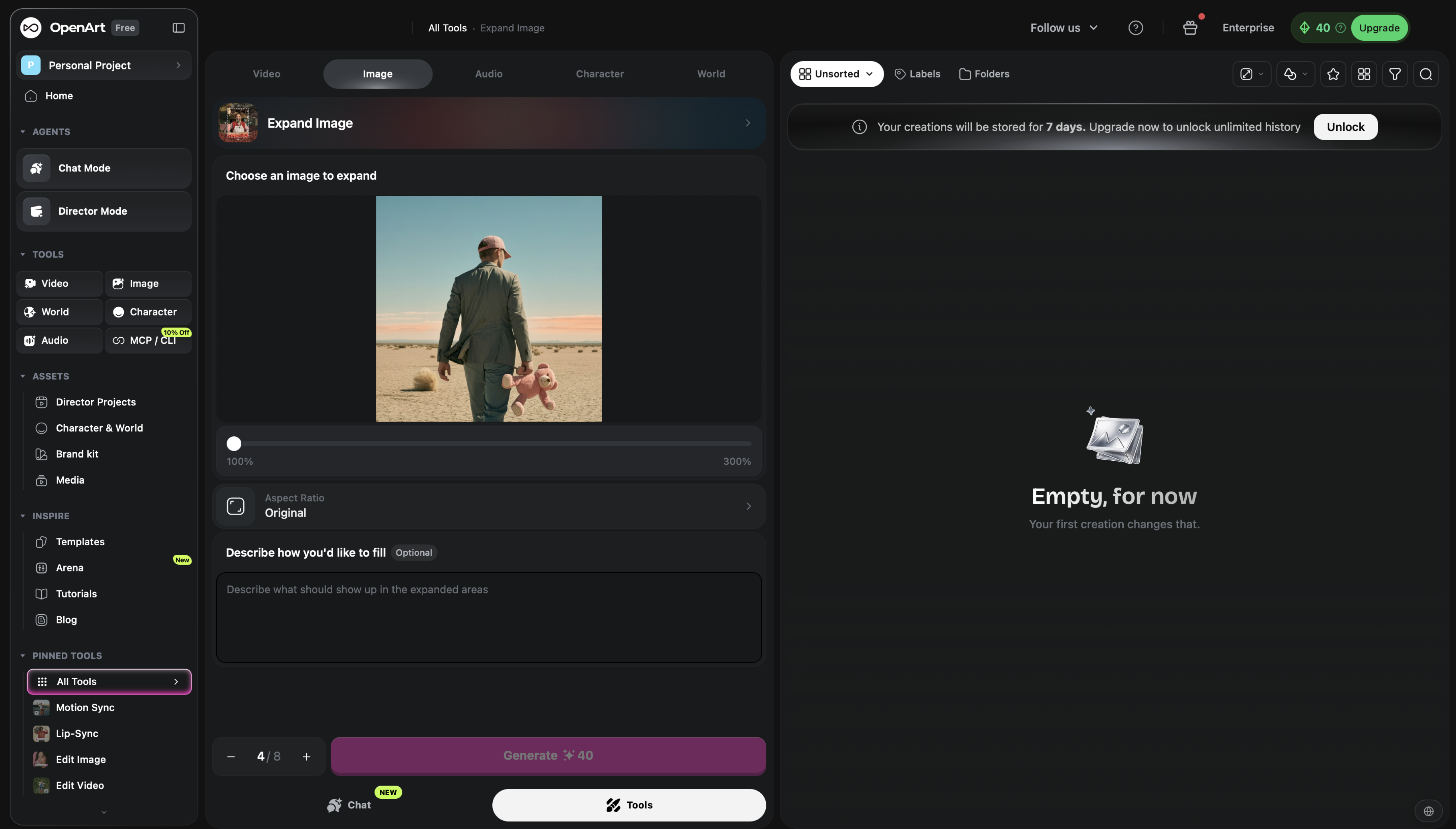
Ideal for: Digital artists extending concept art or illustrations in a particular style
Concept artists extending an illustration don’t always want a photorealistic fill. OpenArt.ai addresses that need, presenting itself more like a generative art platform than a single-purpose photo tool. AI image outpainting is one feature inside the broader suite. OpenArt positions the tool for digital art and concept creation.
Because OpenArt.ai gives you a choice of underlying generative models, the same outpainting request can come back photorealistic or stylized, depending on which model you pick. Its AI Image Extender takes an uploaded image and a target aspect ratio, and an optional text prompt lets you describe what should appear in the new space. If you leave the prompt blank, the tool continues the existing scene.
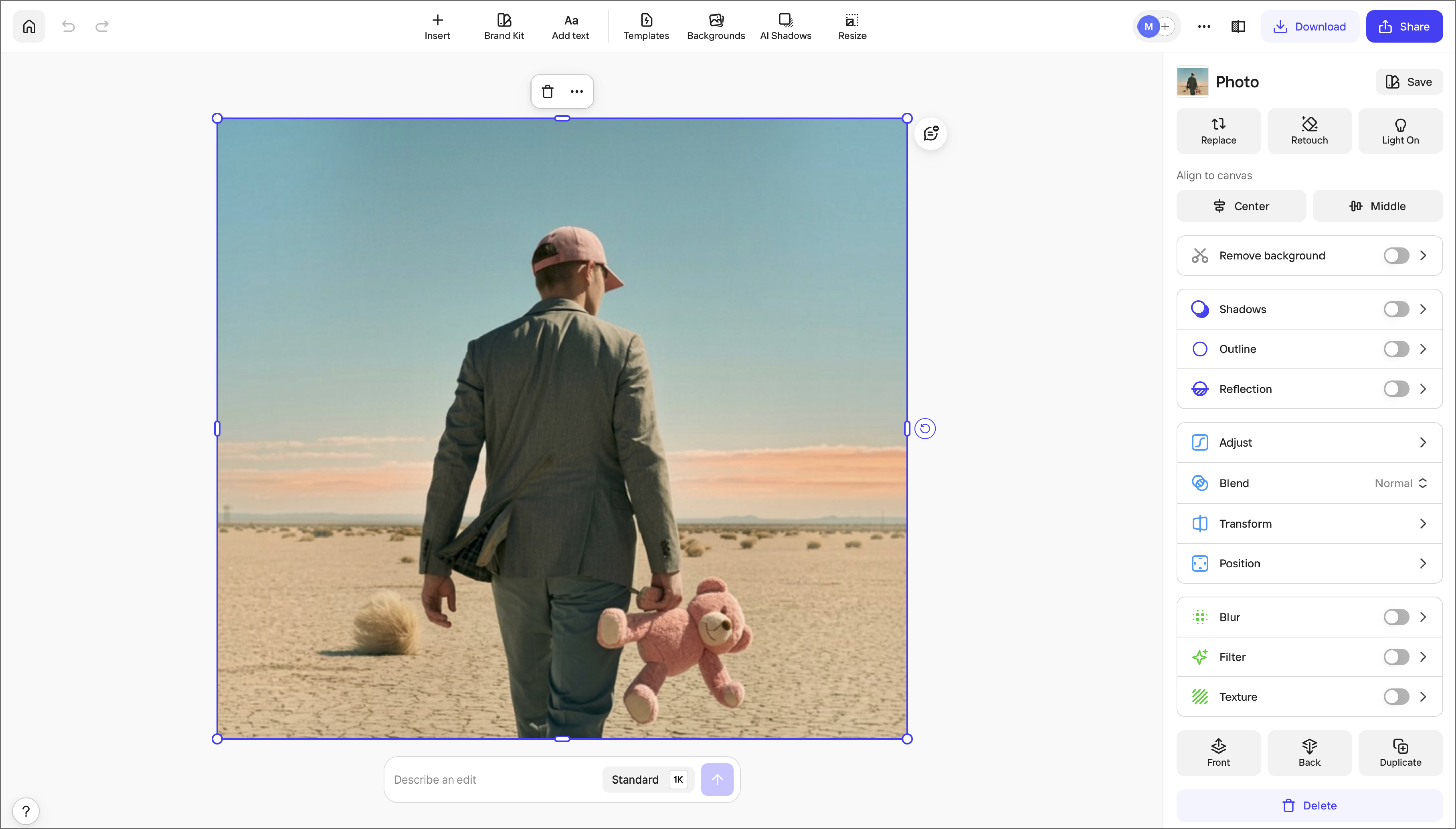
Ideal for: E-commerce sellers and catalog teams reformatting product photos without a reshoot
Photoroom developed its AI Expand tool around product photography, so it’s worth a look if outpainting is mostly a catalog problem for you. Upload a product shot, and the tool extends the space around it without touching the product itself. The result can fit a new orientation like square, vertical, or landscape.
Instead of restaging and reshooting a product for every marketplace’s layout, you reformat one photo to fit each one. If you manage a large catalog, you can also apply the same resize specs across a batch via the web app or API.
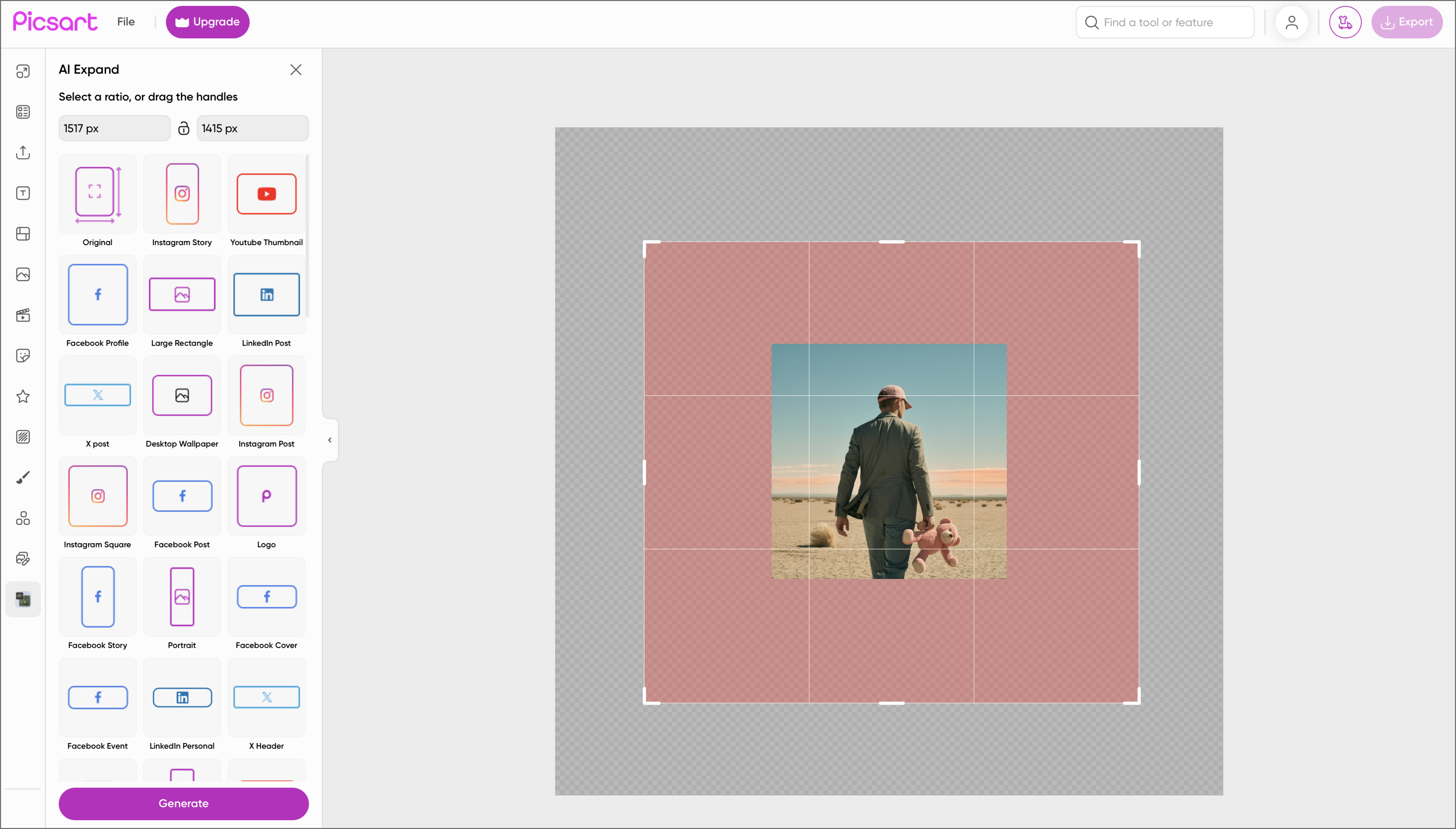
Ideal for: Social media managers and content creators reformatting images for multiple platforms
Publishing the same photo across five platforms usually means five different crops. Picsart’s AI Image Extender is made to handle that challenge. It reads the setting, lighting, and composition of an image and extends the canvas to match.
Picsart puts presets first, with ready-made aspect ratios for specific social platforms alongside custom sizing. It also runs as a mobile app, not just a Web tool, so it’s a good fit if your team does quick edits and reposts from a phone rather than in a desktop workflow.
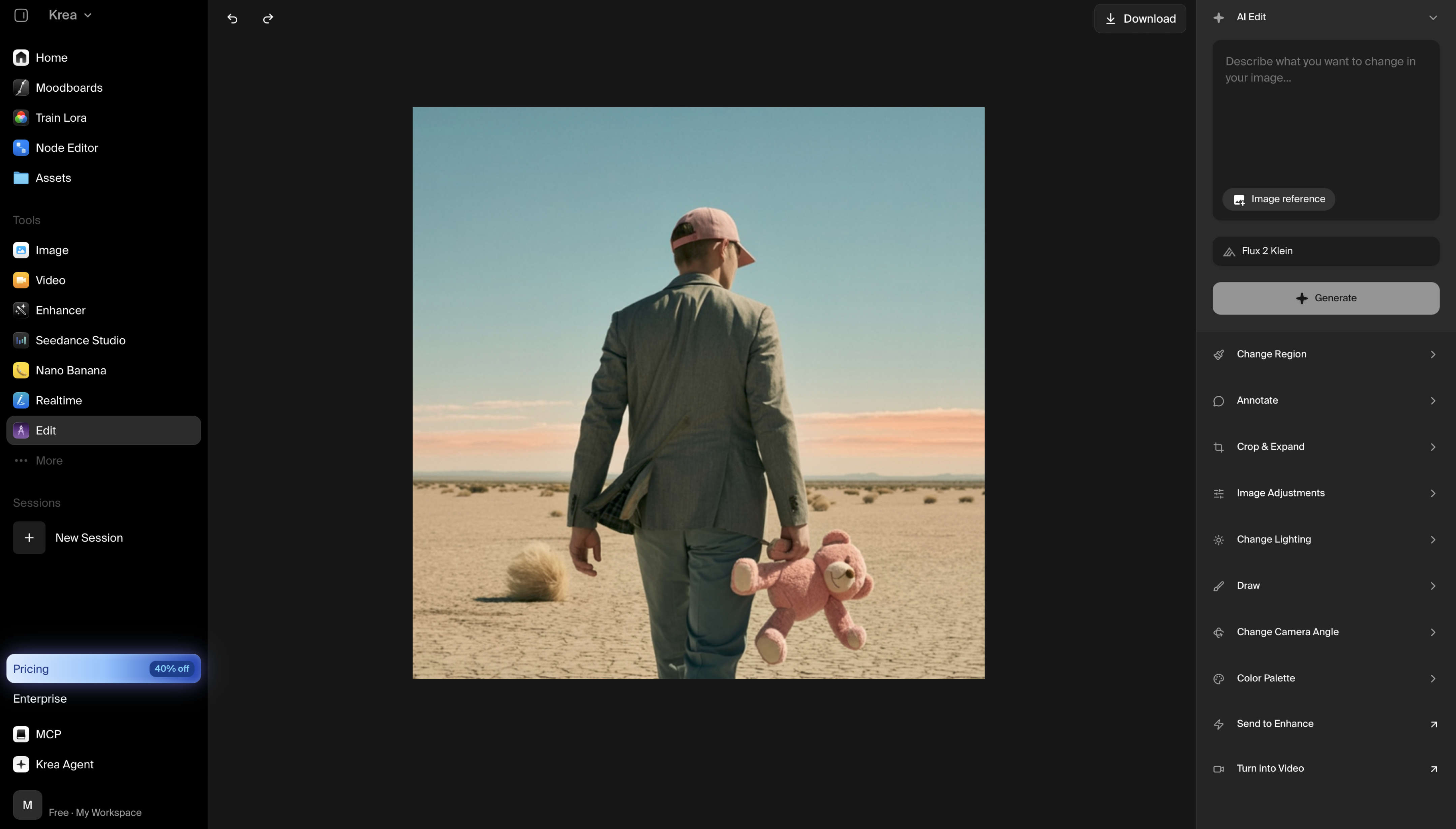
Ideal for: Digital artists and technical creatives who want to extend images and also work in a live, prompt-driven canvas
The Krea AI creative suite covers image and video generation, and its Crop & Expand tool handles outpainting. Crop & Expand resizes the canvas past an image’s original boundaries, and Krea says the AI fills the new space to blend with what’s already there.
Krea also offers Krea Realtime, a separate live canvas where results update as you work. It’s a different feature from Crop & Expand, and it’s suitable for creatives who like to adjust a single image and watch the changes as they go.
Outpainting adds new image content beyond a photo’s original borders, making the canvas bigger. Inpainting works within the existing borders, filling in or replacing a specific area, such as removing an object or fixing a damaged spot. Both rely on the same kind of underlying AI models, just pointed in different directions.
It depends on the tool. Tools like Clipdrop’s Uncrop and Canva’s Magic Expand start with an uploaded image and a chosen size, while workflow-based tools like Figma Weave start with building a setup you can reuse. Try a tool on a sample image to see how it fits your comfort level.
When you’re comparing the best outpainting AI options, check how well each one matches the original image’s lighting, texture, and perspective at the seam, since that’s where most quality problems show up. Also, weigh whether you need a one-off fix or a repeatable workflow, and whether the tool needs to plug into an existing pipeline through an API.
Start by regenerating the extended area with a more specific prompt that describes the lighting, texture, and perspective along the edge. If a visible seam remains, try a slightly smaller expansion, or extend in two smaller steps. You can also crop in a little to trim the edge, then retouch what’s left in an image editor.
Most of the tools in this roundup are built specifically for still images. Some AI platforms, including Figma Weave, support both image and video generation, but variables in video outpainting (like extending a frame’s edges across a moving scene) can be less consistent than image outpainting.
Most outpainting tools run on diffusion models, which predict new pixels based on the patterns, lighting, and composition already present in the image. It’s the same approach behind Stable Diffusion outpainting and other open-source generators. Some tools also let you add a text prompt to guide what fills the new space.
Quality varies by tool and by how complex the original scene is. Simple backgrounds, like a plain sky or a solid color, extend cleanly in almost any tool. Busy or highly detailed scenes are more likely to need a second pass or manual cleanup. Test a tool on a few of your own images before committing to it across an entire catalog.
Finding the best outpainting AI for your team comes down to how much control you want and how often you’ll reuse the setup. A preset-based tool like Canva’s Magic Expand or an upload-and-aspect-ratio tool like Clipdrop’s Uncrop covers a single extension, while a workflow-based tool like Figma Weave can fit when you’re running the same kind of extension on image after image.
Build and refine the outpainting workflow in Figma Weave, then bring the finished asset into Figma Design. The Outpaint node lives inside the same platform as Figma Design and Figma Make, on the same canvas where the rest of your design work already happens without a separate handoff.
By sharing the same design context as the rest of your project, an extended image can move straight into a layout, a prototype, or your brand’s design system. It’s one small example of how AI in design is becoming part of a designer’s daily process.
Here’s how to put it all together:
Figma Weave lets you build a reusable outpainting workflow, chain it with masking and upscaling, and compare it across multiple AI models before you pick a result.
Find some of the best AI design tools for 2026. Compare tool capabilities and benefits to streamline your design process and boost your creativity.

Build a powerful AI product design stack with these 5 specialized tools. Unify your workflow, from concept art to code, for maximum speed and efficiency.

Curious how AI in design is changing the way teams work? See how tools like Figma make it easier to bring ideas to life with real-world examples.

Get better output from your AI design prompts. Learn practical tips, examples, and mistakes to avoid, plus how Figma helps keep results consistent.

Design context is what AI needs to produce intentional, on-brand output. Learn what it includes and how to carry it through your design workflow.

The AI creative process has shifted from idea generation to curation. Learn how product teams use Figma to ideate, refine, and align on the best direction.
Build faster with Figma Weave