
9 of the top AI tools for UX designers
Discover AI tools for UX designers in 2026 to streamline your design process, improve productivity, and enhance user experiences with cutting-edge technology.
Skip to main content
Building with AI
According to our State of the Designer 2026 report, 91% of designers say new AI tools improve their designs.
Results like that make the case for bringing one into your workflow. But choosing which tool is the harder part, since AI design assistant tools can mean a dozen different things. Some generate a mockup you’ll rebuild by hand later. Others write code that your engineers can ship.
The eight tools below each handle a different slice of the work. We’ve compared what they do and where they fit, along with the questions worth asking before you pick one.
Read on to learn:
This article is published by Figma and may include promotional content about Figma products.
| Tool | Ideal for | Key features | AI capabilities |
|---|---|---|---|
| Figma’s design agent | Making on-canvas edits that follow your design system | Design system context, bulk edits and content fills, library maintenance, skills and connectors | Multi-step edits made directly on your live canvas |
| Uizard Design Assistant | Digitizing sketches and screenshots into editable mockups | Wireframe Scanner and Screenshot Scanner, Autodesigner, Focus Predictor | Prompt-based UI generation from sketches or plain text |
| Canva AI | Producing on-brand marketing assets | Conversational design generation, Brand Kit and Memory Library, connectors | Chat-based assistant that returns editable designs from a prompt |
| Visily | Building wireframes and mockups without design experience | Magic Theme, Magic Content, Structured Data Fill | AI features that generate themes, copy, and table content from prompts |
| Flowstep | Generating screens that come with code your engineers can use | Multi-screen generation, code export, Figma handoff | Prompt-to-code design engine with MCP integration |
| Anima (Buddy) | Adding an AI chat agent to your existing Figma files | Design system awareness, parallel chats, website cloning | Plugin-based AI agent for in-file design generation and edits |
| Designs.ai | Producing campaign assets across several formats | Specialist agents, model routing, brand enforcement | Multi-agent system that routes tasks to different underlying models |
| UX Pilot | Turning wireframes into finished visual designs fast | Multi-format inputs, Autoflow, design system import | Prompt-based wireframe and UI generation |
Ideal for: On-canvas edits that follow your design system
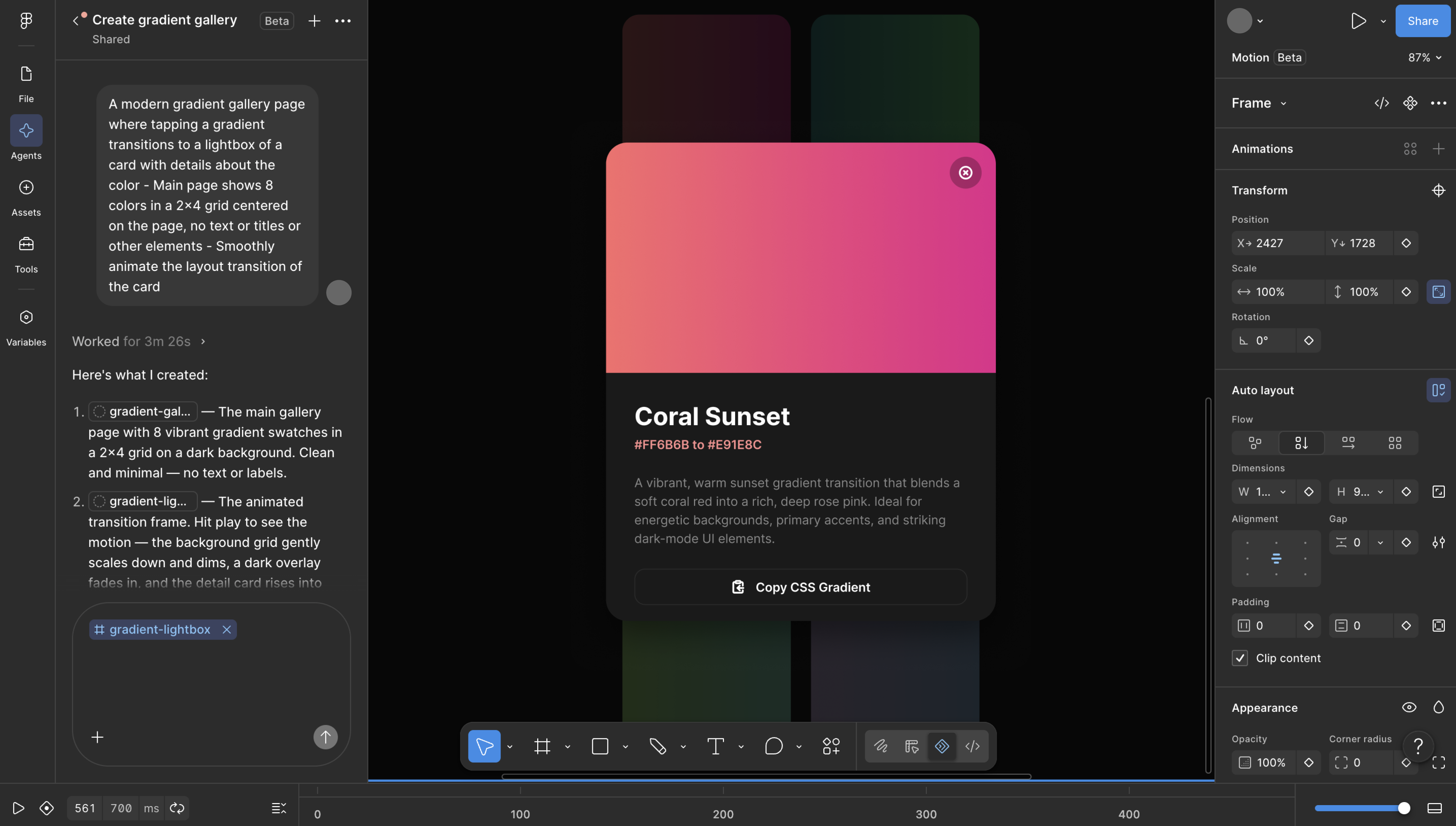
Our design agent works inside Figma Design, so there’s no separate app to open and nothing to export when you’re done. Select a layer on the canvas to bring up the prompt box, or open a persistent chat from the left sidebar. Prompting and editing happen in the same place, so you can adjust the output by hand the moment it lands.
Connect a library to the chat, and the agent builds from your existing design system. An @ mention narrows the focus to one component or variable. The same works in reverse—send the agent back through older screens to apply your current system, so shipped work catches up to where the library is now.
On the shared canvas, teammates can watch the work happen in real time. Chats are visible to your teammates by default, and you can make one private when you need to.
Figma Design lets you generate and edit with the components your team already built.
Ideal for: Digitizing sketches and screenshots into editable mockups
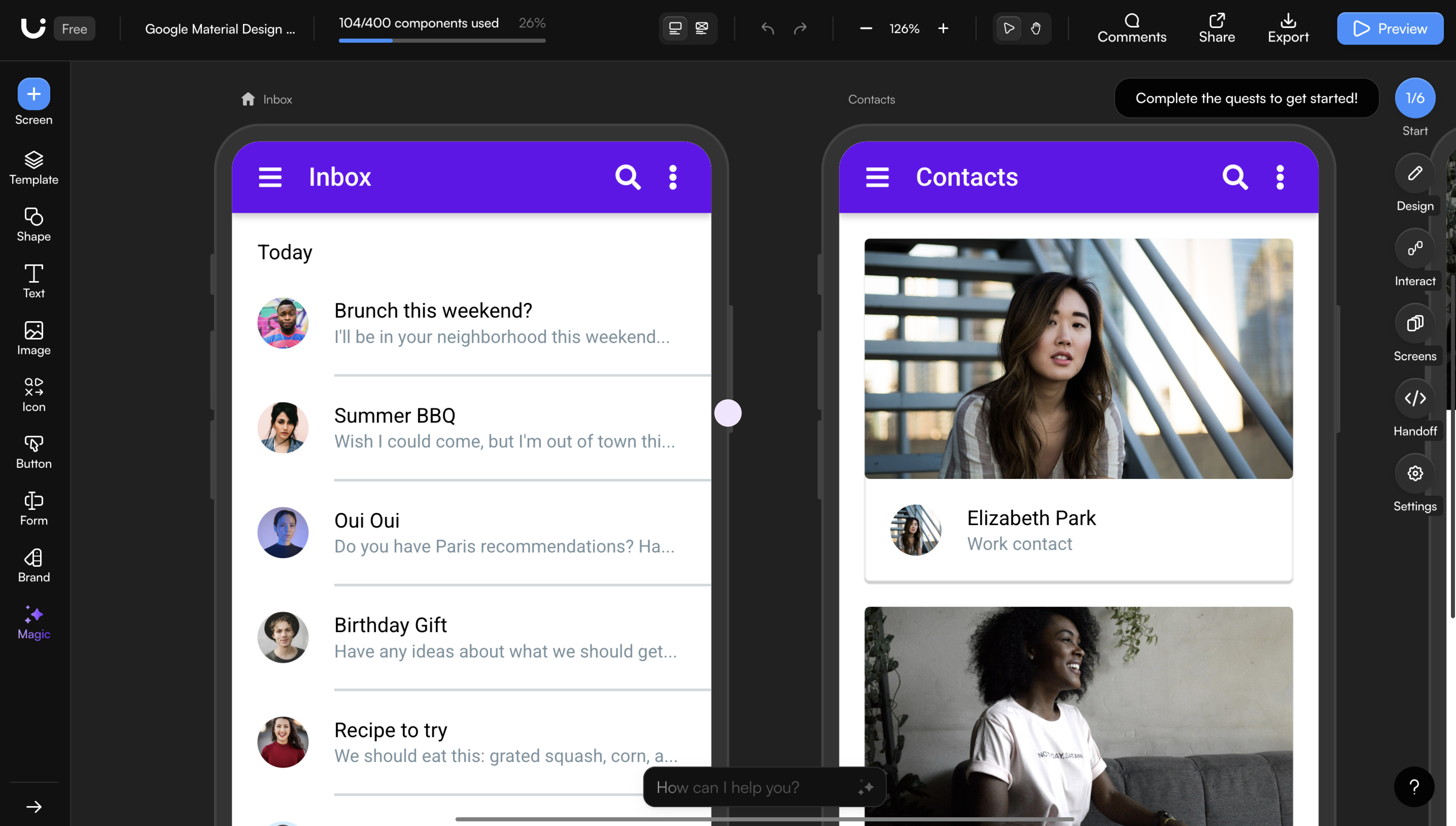
Uizard’s Design Assistant is a set of AI features aimed at the front end of the design process, when you’re still working out what a screen should look like. Sketch a layout on a whiteboard or in a notebook, snap a photo, and Wireframe Scanner reads it and produces an editable design. The Screenshot Scanner does the same for existing apps and sites, turning a screen grab into a mockup you can pull apart and adjust.
Text prompts drive the rest. Autodesigner generates a multi-screen project from a written description, while Text Assistant fills in page titles, subheadings, and button copy. Output lands in Uizard’s editor, where you can adjust layouts and swap components with drag and drop.
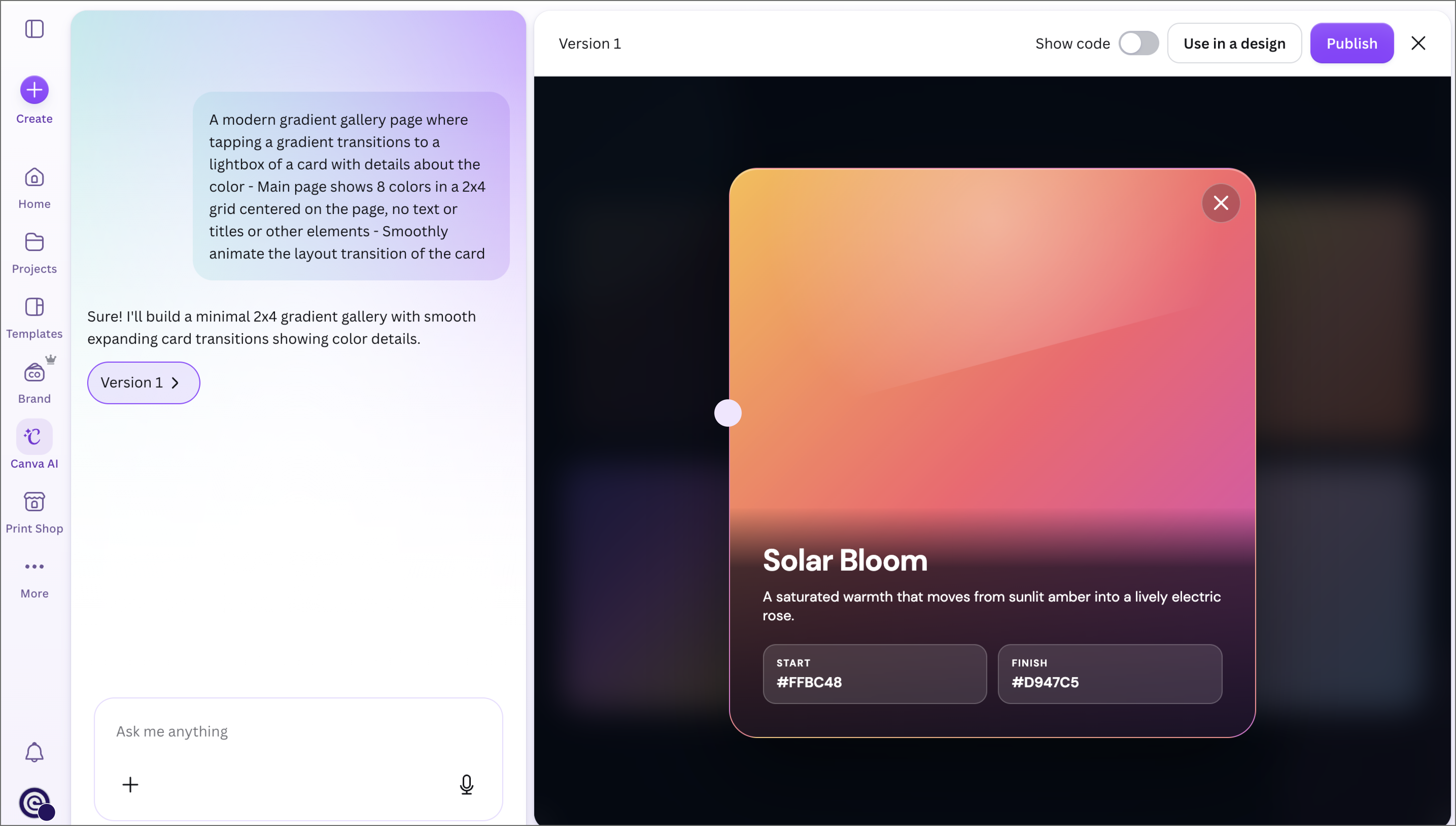
Ideal for: Producing on-brand marketing assets
Canva AI runs as a chat interface on the Canva homepage and inside the editor. Describe what you need, and the assistant returns a finished design with every element still editable. Swap an icon or adjust a theme by sending another message, and the assistant handles it.
Attach a Brand Kit and your fonts, colors, and tone carry across every output, while a Memory Library builds on past projects to match your aesthetic over time. If a brief lives in Slack or Google Drive, connectors pull it in without a copy-paste detour.
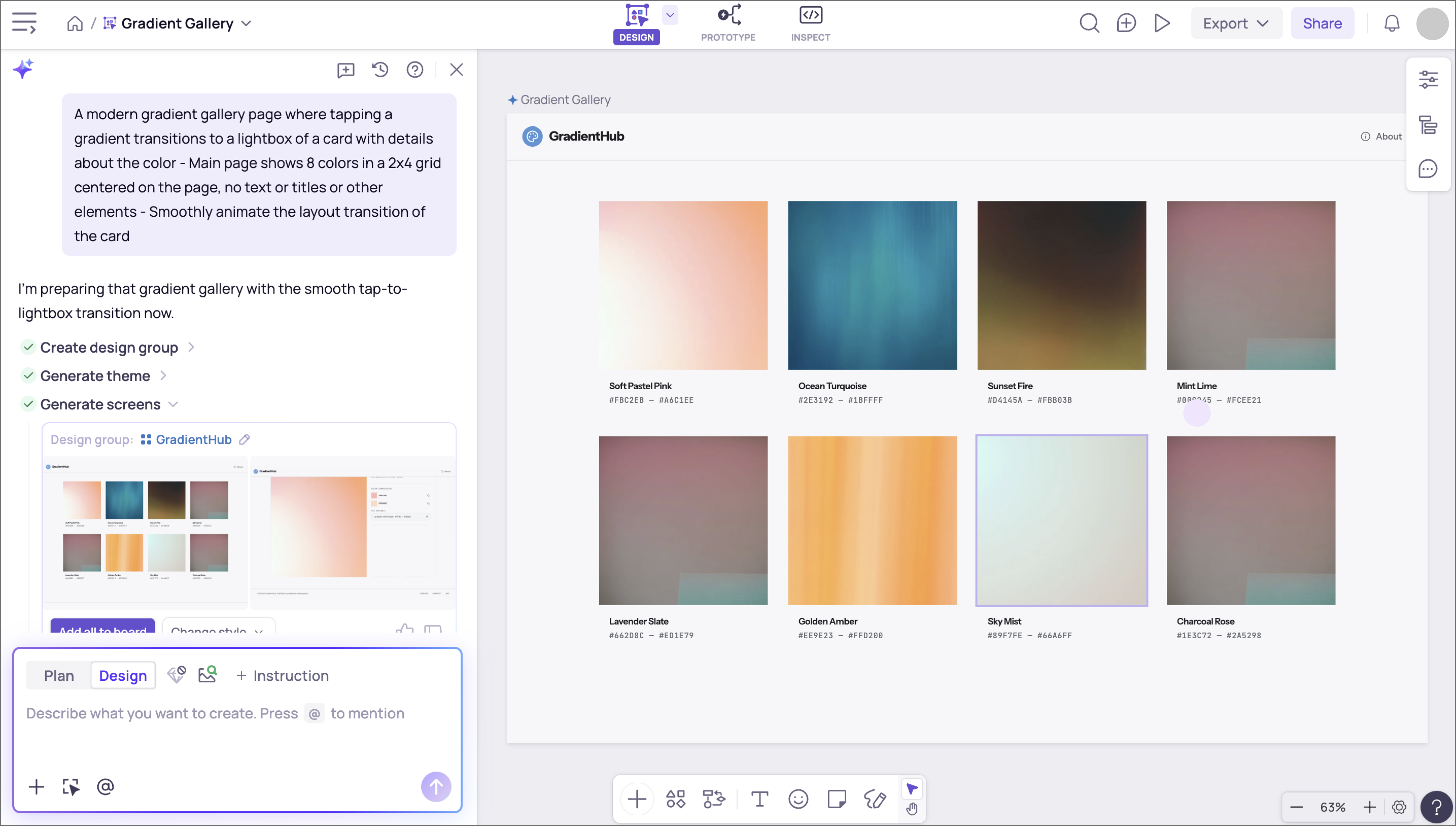
Ideal for: Building wireframes and mockups without design experience
Visily is a wireframing and mockup tool, and most of what it does runs on AI. Paste in the URL of a site you like, and Magic Theme pulls that site’s colors and fonts into your file. You can also upload an image and build the palette from there.
Copy and content work the same way. Magic Content rewrites text or shifts its tone on a prompt, and Structured Data Fill handles tables without manual entry. For visuals, feed Magic Image a reference, and it returns similar options. Once a screen comes together, a suggestion layer reviews it and flags aesthetic adjustments.
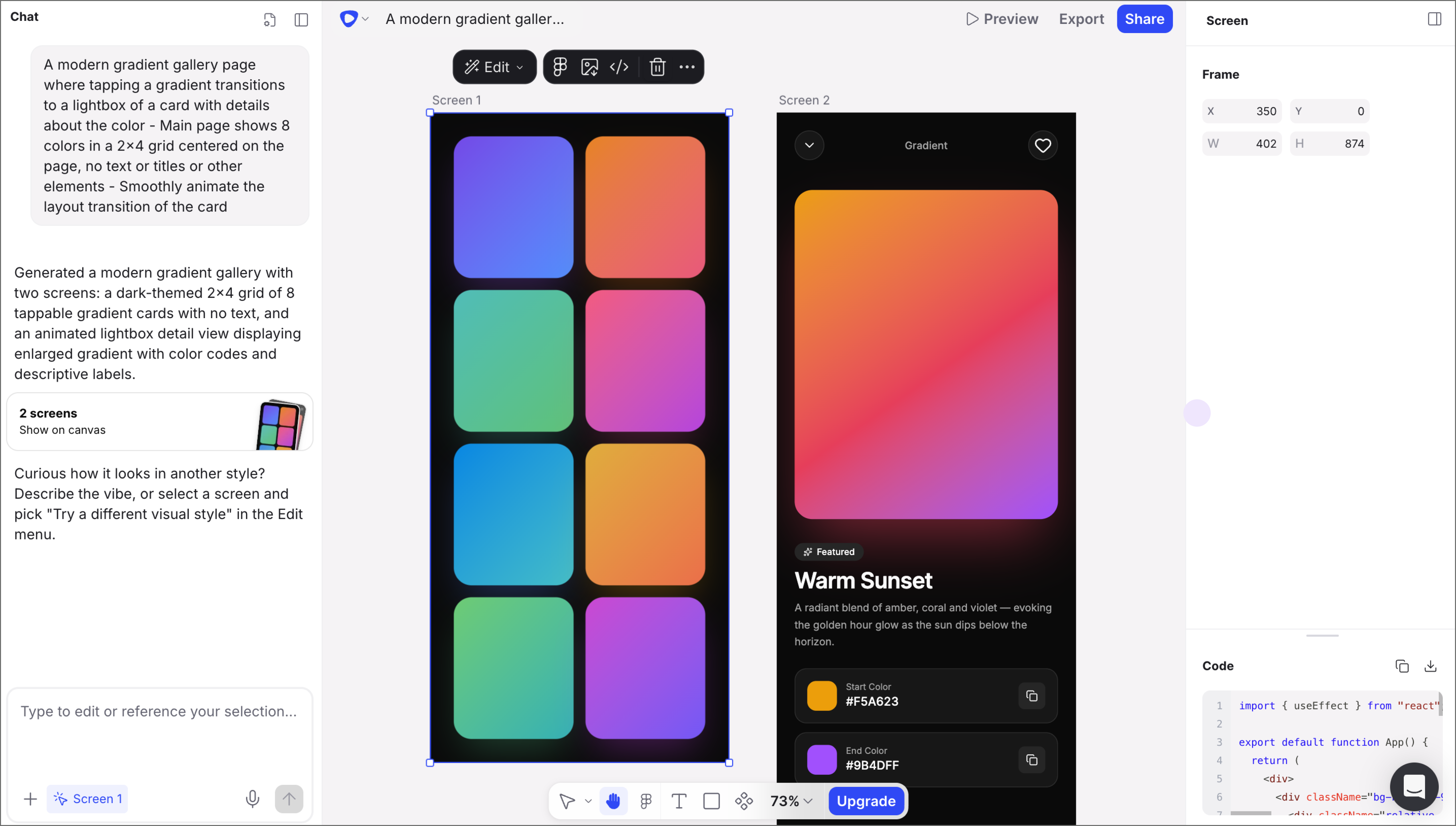
Ideal for: Generating screens that come with code your engineers can use
Flowstep generates UI from a chat prompt onto an infinite canvas, and the designs it produces map one-to-one to code. Ask for a full experience, and it builds every screen in the flow at once. To sharpen the output, attach a PRD or paste a reference link to give the model more to work from.
The code connection shapes what happens next. Every design exports as clean React and Tailwind CSS that engineers can pick up directly, and an MCP server connects the canvas to an IDE. Designs also paste straight into Figma, no plugin required. Plus, you and your teammates can work in the same file and watch each other’s cursors move.
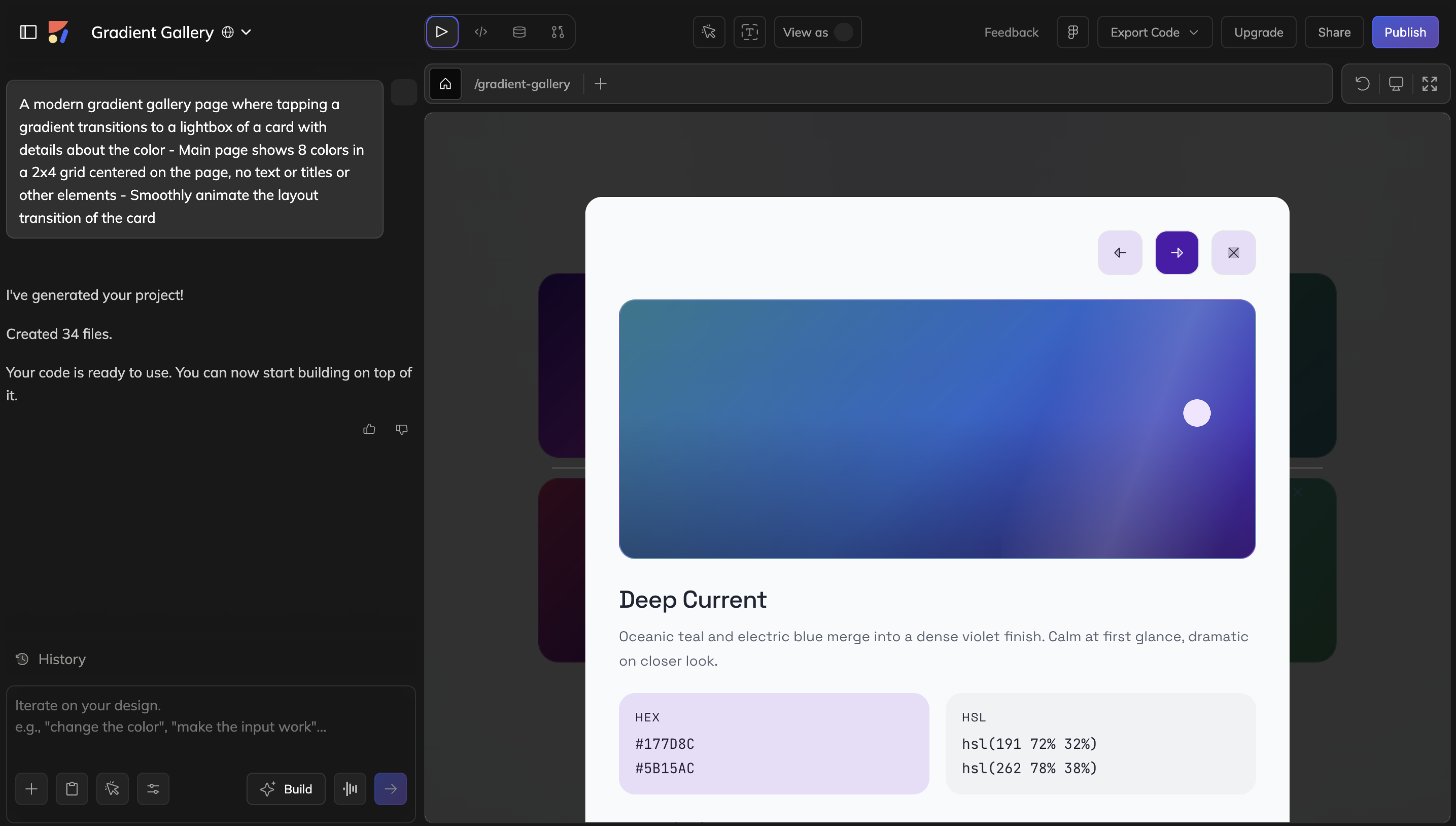
Ideal for: Adding an AI chat agent to your existing Figma files
Anima built Buddy as a Figma plugin that brings a chat agent onto the canvas. Install it, and you can generate UI or edit screens without leaving the file you’re in. Buddy reads the components and variables in that file, so its output stays close to your product’s visual language.
Buddy works across a full user flow, too. Describe the sequence you need, and the plugin generates each screen in it, then keeps them aligned as the flow changes. Auto Layout stays intact, so generated screens still resize the way your file expects.
Ideal for: Producing campaign assets across several formats
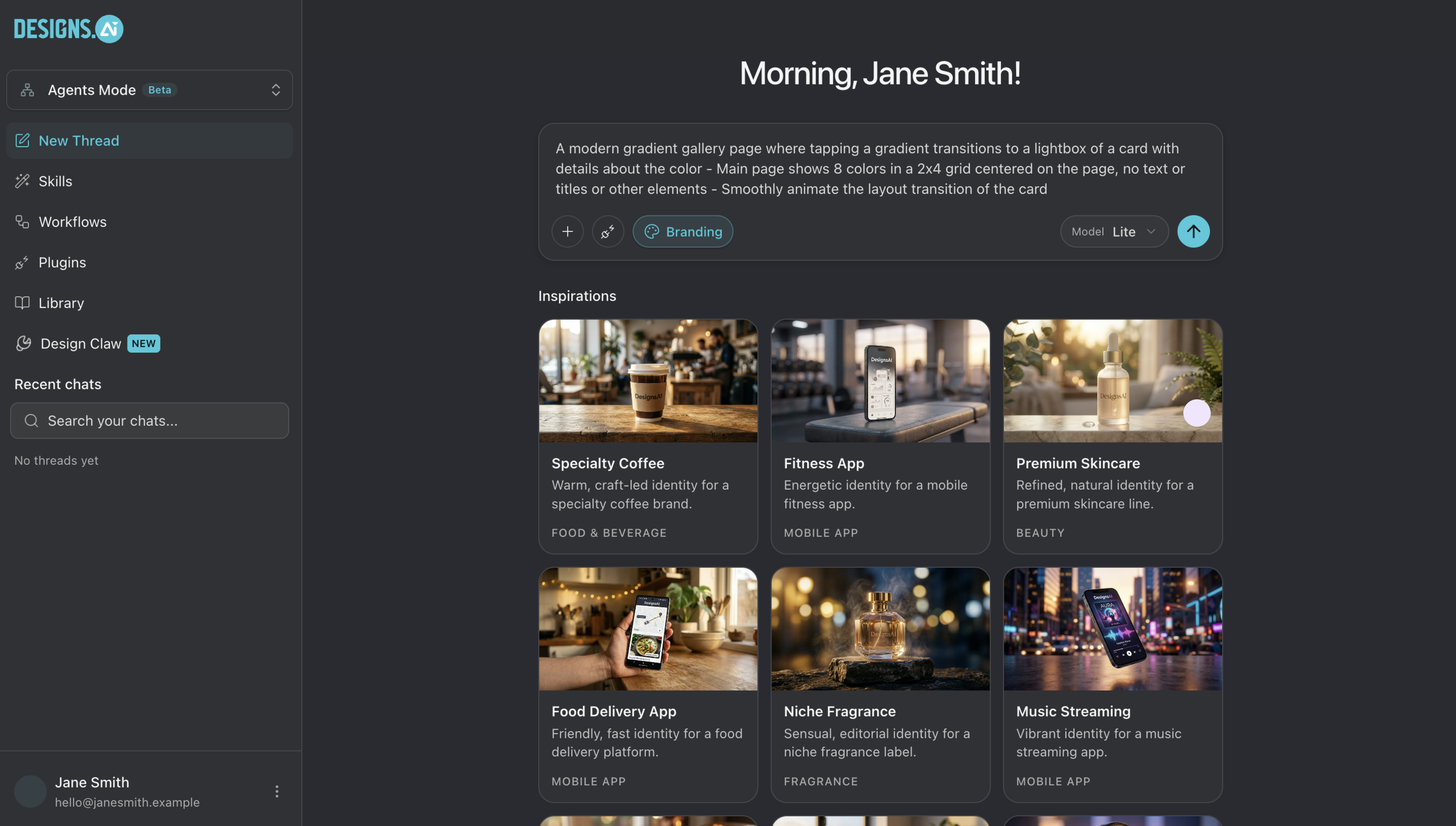
Designs.ai breaks a campaign into pieces and hands each one to a different agent. Describe what you need, and the platform asks follow-up questions until the brief is sharp enough to act on. From there, a Brand Agent builds the visual identity while an Image Agent or Video Agent produces the assets.
Designs.ai routes each task to whichever underlying model suits it, drawing on Claude, ChatGPT, and Gemini, among others—though you can override that choice per format. Whichever model runs, your saved brand settings apply, so colors and style carry through from one asset to the next. For work you repeat often, a skills library handles the setup for things like logo design and short video ads.
Ideal for: Quick wireframe-to-visual-design generation
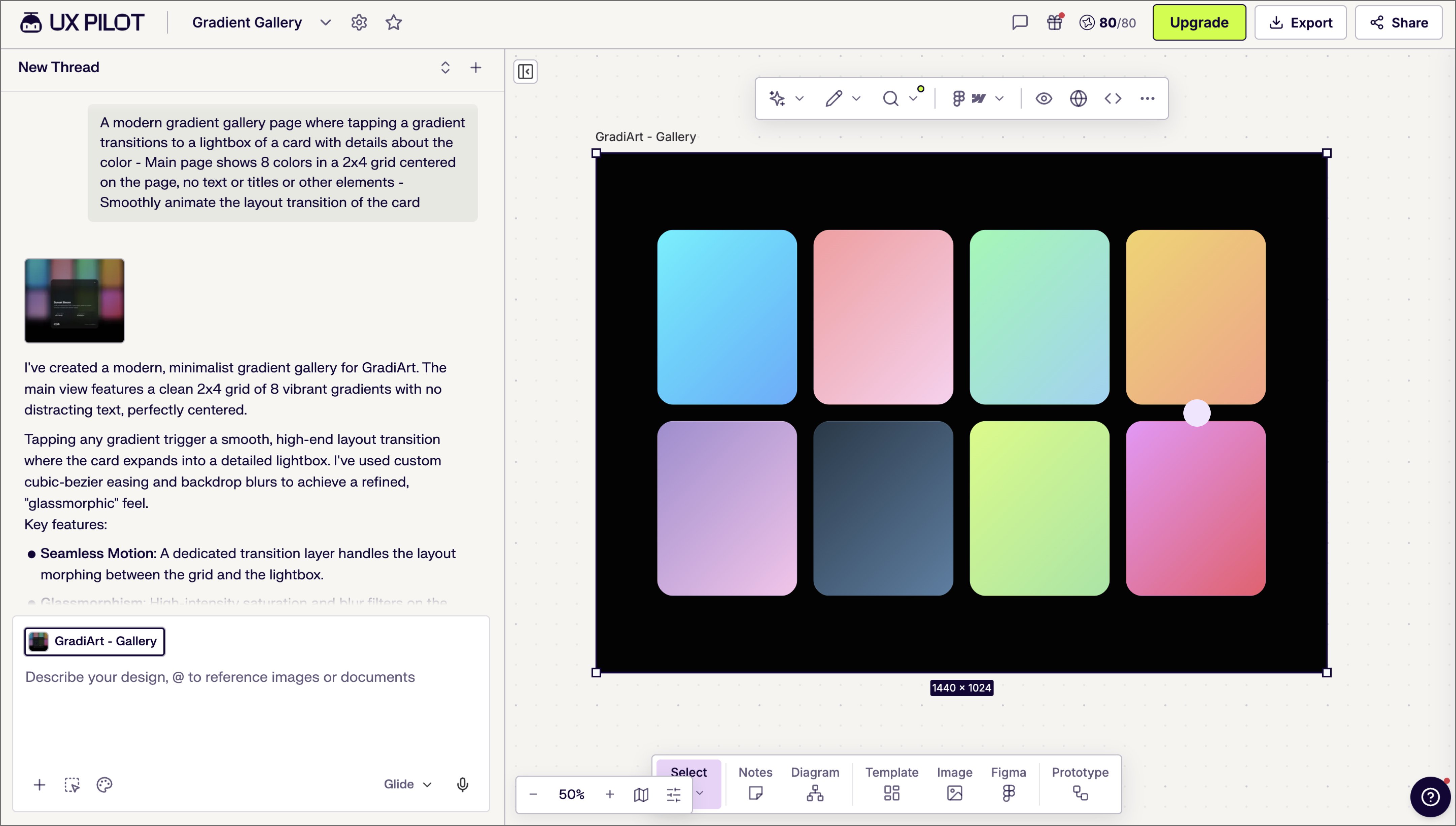
UX Pilot is an AI assistant for UI design. Feed it sketches, PDFs, or PRDs, and it returns editable layouts. Generate a wireframe at low or high fidelity, then push it to a finished screen in one step.
UX Pilot can also generate against your own Figma components once you import them, keeping output aligned with your existing system. Autoflow builds every screen in a user journey at once, so you can see the full flow before editing. When a design’s ready, hand it off to your design tool or push the code to your repo.
These eight tools solve different problems. Some generate one screen and stop there, while others stay useful through months of maintenance work. Before you commit your team to any one, look for these five things:
One or two of these checks will probably matter far more to you than the rest. If you’re scaling a design system, what the assistant builds from will outweigh everything else. If you’re still shaping the product, speed to something you can react to probably wins.
AI design assistant tools have moved past generating a screen and calling it done. The strongest ones live where your team already works, building from the components and history you’ve put in place. Our design agent sits inside Figma Design for exactly that reason. Plus, it pairs with the rest of what we make:
Figma Design brings your components, your team, and the agent onto one canvas.
Discover AI tools for UX designers in 2026 to streamline your design process, improve productivity, and enhance user experiences with cutting-edge technology.

Learn how to use AI for product design 7 different ways. Turn your ideas into working prototypes faster with prompt-based design and collaborative creativity.

Find some of the best AI design tools for 2026. Compare tool capabilities and benefits to streamline your design process and boost your creativity.

Build a powerful AI product design stack with these 5 specialized tools. Unify your workflow, from concept art to code, for maximum speed and efficiency.

What is an agentic framework? Learn how AI agent frameworks work, why they matter for product development, and where Figma’s MCP server fits.

Explore 10 Claude Skills for design, including Figma-built options and community favorites. Learn what each skill does and how to build your own.
Build faster with Figma's agent