
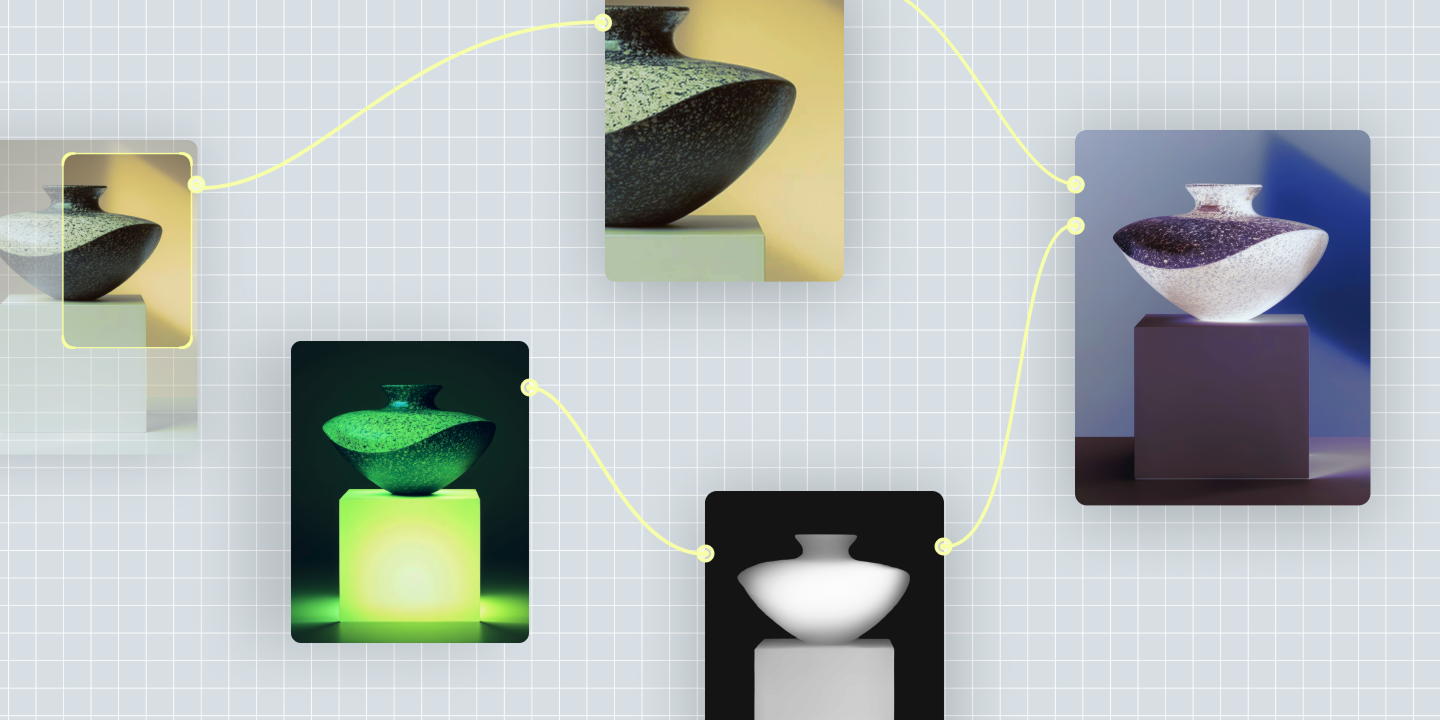
7 of the best AI tools for graphic design
From image generators to node-based workflow platforms, here are 7 of the best AI tools for graphic design, and how each fits a real production process.
Skip to main content
Building with AI
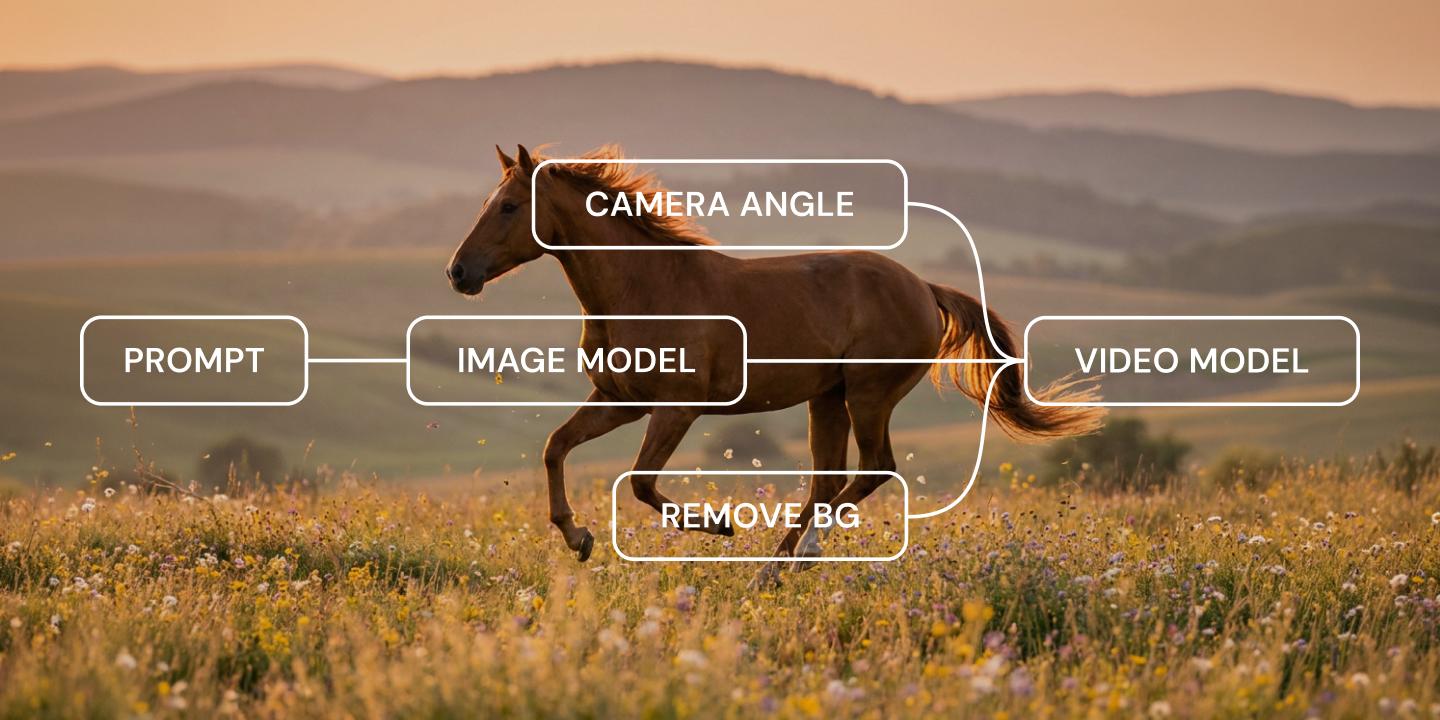
AI-generated video has come a long way from the flickering, six-fingered clips that made the rounds a couple of years ago. The Figma 2026 AI report found that 83% of product builders are now building AI-powered projects, up from 65% just a year ago. Video is catching up too, with camera moves that hold steady and product shots with readable typography.
The same model improvements that make an AI video convincing also make it fast to test different directions before you commit real budget to one.
But the best AI video examples don’t come from a single lucky prompt. They’re likely the product of a workflow you can tweak and reuse. We’ll start with the range of what’s possible, then show you how to build that workflow in Figma Weave.
Read on to learn:
AI video quality now depends more on the workflow behind it than on the model alone. Two people using the same AI video generator can get very different results depending on how carefully they set up their reference material.
We’ve grouped the examples below by look, not by which model produced them, since style is usually the first decision point.
Cinematic and realistic AI video aims for naturalistic lighting, physically plausible motion, and film-style framing. Think of the kind of shot that could pass for handheld B-roll. You might use this style to generate a product demo that looks like it was shot on location, without booking a crew. Today’s AI short films and spec commercials show how far this style has come.
Surreal and fantasy AI video leans into what a camera could never capture on its own—objects that morph mid-shot, dreamlike transitions between scenes, and environments that bend physics on purpose. This bold, creative AI art style tends to show up in campaign teasers and early concept exploration rather than final production assets.
Fast motion, camera movement, and physics-driven scenes (like a product spinning through the air or a crowd in motion) are among the more technically demanding styles to pull off, since keeping motion consistent across frames is harder for AI video models to execute convincingly than a static or slow-moving shot. If a clip looks steady in a still frame but shows warping or flickering once it’s playing, that’s usually where the model is struggling most.
Making animated videos with AI is becoming more commonplace. AI can create stylized 2D motion graphics as well as fully 3D-rendered scenes. Figma Weave can also generate 3D models directly from a reference image, making it possible to go from a flat product sketch to a rotating 3D asset without ever leaving the canvas.
Figma Weave brings numerous AI video models into one node-based canvas. Build, tweak, and reuse video workflows instead of starting from scratch every time.
The same visual style can serve more than one purpose, depending on what your team needs. Cinematic works just as well for a moody teaser as it does for a straightforward product shot. It all comes down to what you need the video to do. So instead of grouping these by look, let’s group them by job.
Product and ad AI video shows a product in a new setting. You may want to produce a quick concept ad or generate campaign variations without booking a full shoot.
The AI video compositing tools in Figma Weave bring models from Runway, Luma, and Kling onto one canvas. Layers, masks, mattes, and color grading are built in, as well as background removal that skips the green screen.
For design and product leaders, it’s a fast way to test a campaign concept before putting real budget behind it. The same canvas also powers the image-to-video tools in Figma Weave, which turn a still product shot into a video with control over camera movement built in.
AI avatar and talking-head videos are script-driven. You provide the script, and the video model generates a presenter-style clip to match. This approach shows up in explainer content and onboarding walkthroughs.
Another common use is localizing the same script for different markets, since regenerating a clip in a new language is often faster than reshooting with a new presenter.
Lip-sync accuracy and voice consistency are the current quality bars to evaluate against. Those are the details that give away AI-generated footage fastest.
When designing for social media, you’re likely adapting one concept across platforms. Shorts and reels are short-form and vertical-first, built for fast iteration. Instead of testing one hook at a time, you can generate several versions of an opening line or visual gag and see which one lands before spending on paid promotion.
Figma Weave workflows can also automatically produce a finished clip in multiple aspect ratios from a single favorite take, so the same asset is ready for a square feed post and a vertical story without a separate export pass for each.
Instead of a one-off AI design prompt, Figma Weave lets you build a workflow with a chain of connected nodes you can adjust, save, and run again on a new subject.
The platform also brings numerous AI video models into the same canvas as your workflow, so there’s no need to jump between apps to compare a few AI video generator examples from different providers. You can test them side by side in one place.
Certain tools built directly into Figma Design, like Generate mockup and Transfer style, are image-only right now and free to use in open beta. Video generation workflows live on the standalone canvas at weave.figma.com, where you chain AI video models together node by node and turn prompts into scalable Figma Weave workflows.
Here’s a basic Figma Weave video workflow:
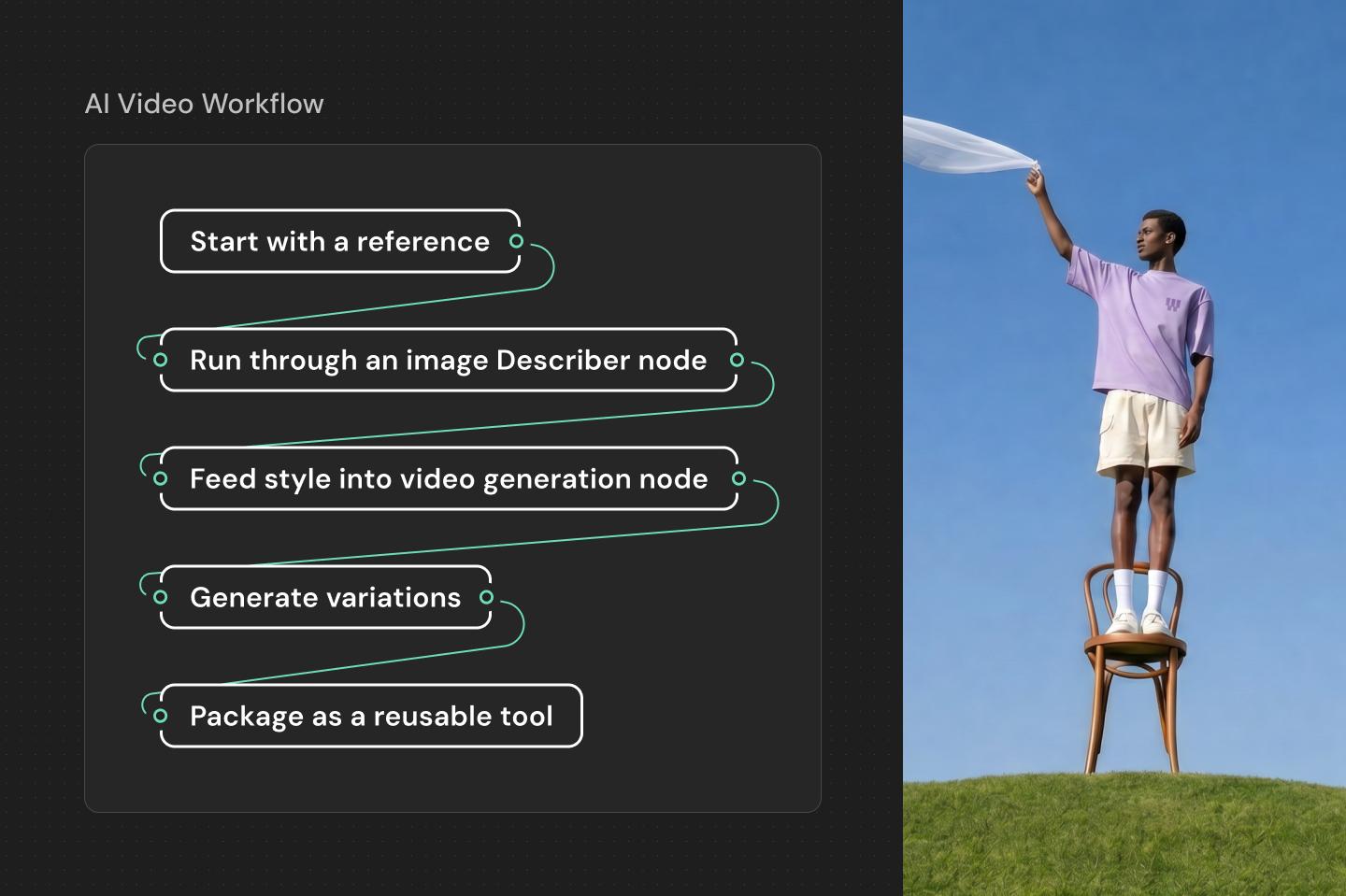
Text to video AI examples tend to interpret a scene more loosely, since the model is working from a prompt alone with no visual reference. Video-to-video generation sticks closer to the source footage’s timing, restyling or extending a clip that already exists.
You can chain both approaches together in a single Figma Weave workflow.
You can evaluate tools built for short-form output on generation speed, aspect-ratio flexibility, and design consistency across multiple takes of the same prompt. Providers in this space update frequently, and Figma Weave runs several of them in one canvas.
The more useful question is whether a given model holds detail and motion steady for a 15- to 30-second clip. Test the same reference across two or three models before committing to one.
A handful of AI-assisted video projects have gotten public attention for using the technology well. “Airhead,” a short film by Shy Kids, used OpenAI’s Sora and stood out for stylistic choices that avoided common AI artifacts. A fan-made Volvo “For Life” concept spot used Runway’s Gen-3 Alpha to produce a commercial-style clip without a traditional production budget.
Most AI video providers now attach some form of provenance watermark or embedded content credential to flag that a clip was AI-generated, though the standards and visibility of these marks vary by platform. General best practice is to disclose AI use wherever an audience would reasonably expect to know, particularly in advertising and journalism.
AI video examples are useful only once you can make one yourself, and that’s where a node-based workflow comes in. Figma Weave applies that same logic directly to video, so you can build a style once and reuse it across variations, aspect ratios, and future projects instead of starting over each time.
Here’s how to put it all together:
Figma Weave brings multiple AI video models into one node-based canvas, so you can generate, refine, and reuse video workflows at scale.
From image generators to node-based workflow platforms, here are 7 of the best AI tools for graphic design, and how each fits a real production process.

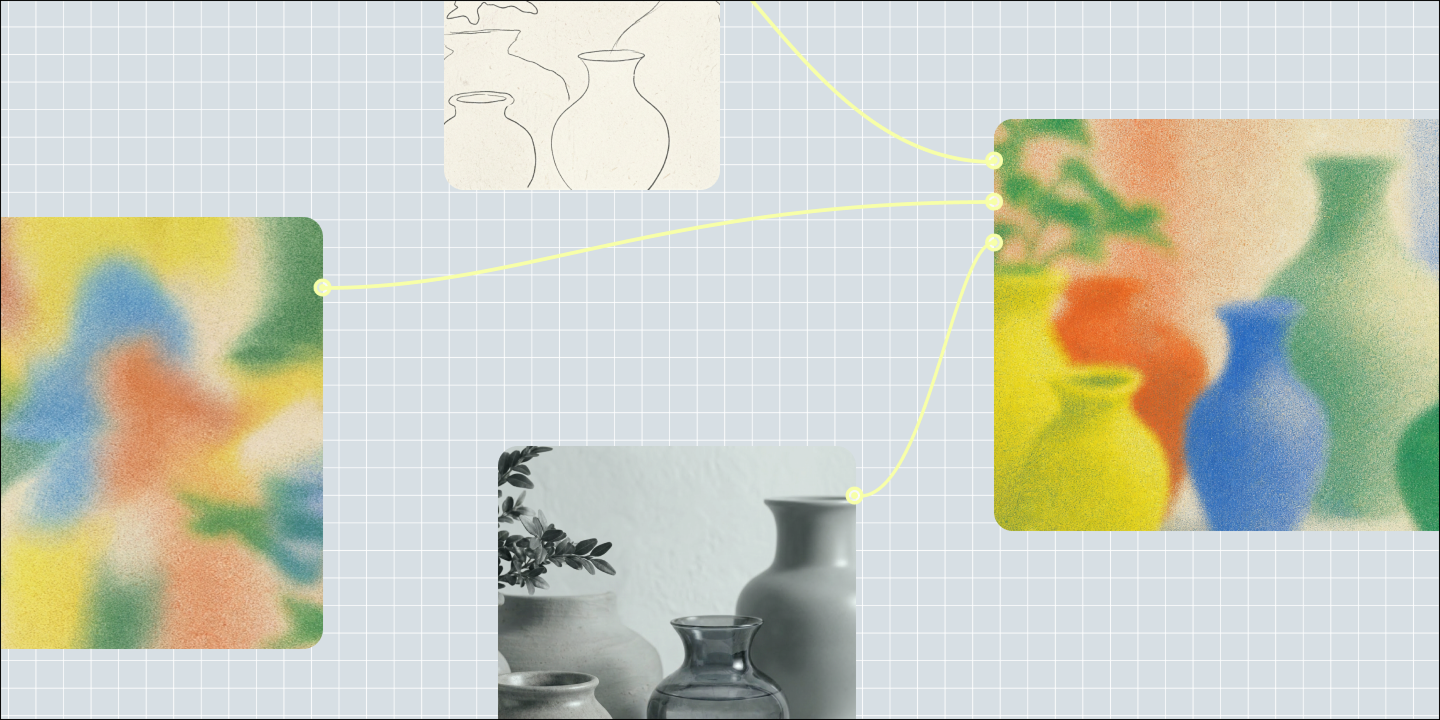
Learn how generative AI is changing creative design workflows, and how teams are putting it to work with Figma Weave to generate on-brand assets at scale.


Learn how AI prototyping for product managers helps you turn prompts into clickable flows, find logic gaps early, and align your team before you ever hit dev.


Curious how AI in design is changing the way teams work? See how tools like Figma make it easier to bring ideas to life with real-world examples.


Learn how AI usability testing can speed up your research and uncover deeper user insights. Explore a modern workflow and 7 tools for UX teams to try.


Learn how to use AI for product design 7 different ways. Turn your ideas into working prototypes faster with prompt-based design and collaborative creativity.
Build faster with Figma Weave