Figma AI design tool

Work across every major AI model on one connected canvas and stay in control of what comes out.

Connect AI and craft in one workflow

Every image, video, and design model lives inside Figma Weave, so you can compare Figma AI features side by side, keep the version you like, then refine it with professional editing tools before it ever leaves the canvas.

  • Every AI model, one canvas

    Figma Weave is the Figma AI tool built for choice. Because it integrates with models from Google, OpenAI, Kling, and Black Forest Labs, you're never limited to one style. Switch models mid-workflow, run the same prompt through several, and pick the best output for your project.

  • Professional editing built into the generation pipeline

    Generation is only the first step. Crop, mask, upscale, relight, or remove a background inside the same canvas, so a rough AI output turns into something you’d actually hand off.

  • Node-based workflows that keep you in control

    Instead of a single black-box prompt, Figma Weave lets you wire together each step, model choice, reference image, and editing pass as its own visible node. See exactly how an output was built, and adjust any piece without starting over.

  • Build once. Scale across any volume.

    Set up a workflow once, then run it on a new subject, product shot, or campaign variation. Add a step to output multiple aspect ratios, and every new run comes out ready to use.

How to use AI to design in Figma Weave

Open the Tools panel in Figma Design or head to Figma Weave, then pick a starting model. Choose from Google, Kling, Flux, or another integrated option, depending on the medium and style you want.

Add a prompt, upload a reference image, or connect an Image Describer node to translate an existing visual into an editable style description before generating anything.

Run the same input through multiple models or variations in parallel, then compare every output side by side on the canvas.

Built by our community

See how the Figma Community is using Figma Weave to create AI-generated images, video, and 3D.

FAQ

Yes. A curated set of Figma Weave tools, including background replacement, style transfer, and text-to-vector illustration, lives directly in Figma Design’s Tools panel under the Figma Weave filter. For deeper node-based control, a workflow can be opened directly in Weave using the same Figma account.

Figma Weave supports Figma AI image generation for design assets and product shots, plus video, audio, and 3D model generation from the same canvas. Teams also use it to build reusable brand systems and mockups across different placements.

Yes. Once a teammate builds a workflow, they can turn it into a simplified tool with a generated mini-interface through the From Workflow to Tool feature. Other teammates can then run the tool without ever touching the underlying node graph.

Figma Weave connects to models from providers including Google, OpenAI, Kling, Bytedance, Black Forest Labs, Runway, and Luma, all inside one canvas. All models are updated automatically, so teams don’t need to track individual model releases.

Most AI tools hand you a result and make you start over if it’s off. Figma Weave treats generation as a workflow made of connected nodes, so each step, model choice, and edit stays visible and adjustable. You can change one piece without rebuilding the rest.

A node-based canvas represents each step of a process (an AI model, an editing tool, or a reference input) as its own connected block. Wiring nodes together creates a repeatable workflow instead of a one-off prompt, and any single node can be swapped or adjusted without rebuilding the rest.

Become an agent expert

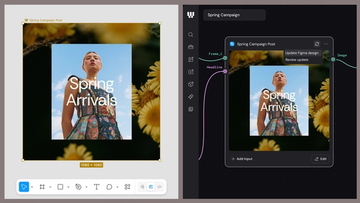
A “Spring Arrivals” campaign design shown in Figma Design beside its connected Figma node in Weave, with options to update the Figma design or review an update.A “Spring Arrivals” campaign design shown in Figma Design beside its connected Figma node in Weave, with options to update the Figma design or review an update.

The TL;DR on Figma Weave: Make your creative process repeatable

Figma Weave brings AI generation and editing tools together into connected, reusable workflows, giving you a process your team can shape, refine, and repeat. Here’s what it unlocks for creative teams and how to get the most out of it.

Learn more

Workflow lab: From design system to campaign in Figma Weave

Design systems can power more than just designs. This workflow shows you how to turn raw materials into brand campaign collateral using the Gen Effect and Figma nodes.

Learn more
Colorful abstract illustration of interlocking geometric shapes, including loops, arrows, a starburst, and grid patterns, suggesting connected tools and workflows.Colorful abstract illustration of interlocking geometric shapes, including loops, arrows, a starburst, and grid patterns, suggesting connected tools and workflows.

Try these 5 Weave tools—and share your own

Community publishing is now live for Weave tools. Here are a few tools that stand out, from turning a moodboard into a realistic room mockup to previewing your next nail set.

Learn more
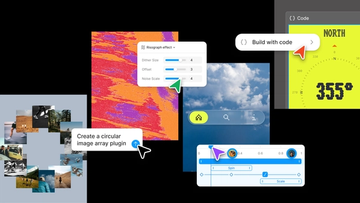
Collage-style product graphic showcasing AI-assisted design and development workflows, with plugin creation prompts, visual effect controls, code generation tools, and interactive UI components arranged across a creative workspace.Collage-style product graphic showcasing AI-assisted design and development workflows, with plugin creation prompts, visual effect controls, code generation tools, and interactive UI components arranged across a creative workspace.

Config 2026: New materials, new tools and a more expressive canvas

Push past what you thought was possible with code layers, Figma Motion, shaders, generative plugins and Weave tools, all on the canvas.

Learn more
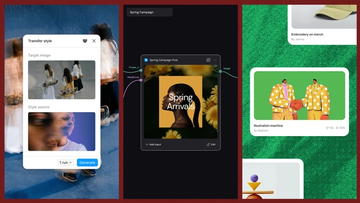
Three-panel product graphic demonstrating AI-powered style transfer. On the left, a "Transfer style" interface displays a target image of people carrying skateboards and a blurred portrait used as the style source. In the center, a workflow canvas labeled "Spring Campaign" shows a connected post-generation node producing a floral-themed social media graphic titled "Spring Arrivals." On the right, a gallery-style layout displays generated creative assets, including an illustrated handshake artwork and merchandise design cards, showing how transferred styles can be applied across a campaign.Three-panel product graphic demonstrating AI-powered style transfer. On the left, a "Transfer style" interface displays a target image of people carrying skateboards and a blurred portrait used as the style source. In the center, a workflow canvas labeled "Spring Campaign" shows a connected post-generation node producing a floral-themed social media graphic titled "Spring Arrivals." On the right, a gallery-style layout displays generated creative assets, including an illustrated handshake artwork and merchandise design cards, showing how transferred styles can be applied across a campaign.

Connecting Figma and Weave

Today, we’re announcing new ways your Weave creative workflows can live alongside your Figma frames.

Learn more

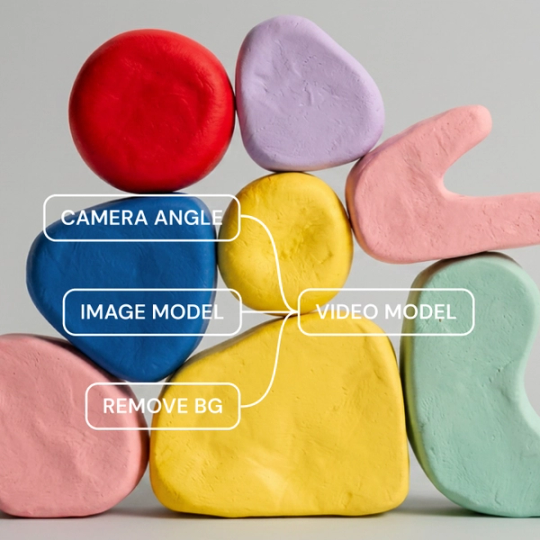
Direct every frame with Runway Aleph 2.0, now in Figma Weave

Aleph 2.0 brings frame-level creative direction to the Figma Weave canvas.

Learn more
Powered by Fruition