Every AI model, one canvas
Run any major AI model for image, video, audio, or 3D right inside Figma Weave. No more juggling separate subscriptions or hopping between tools. Pick whichever model fits each step of the effect you’re building.
Skip to main content
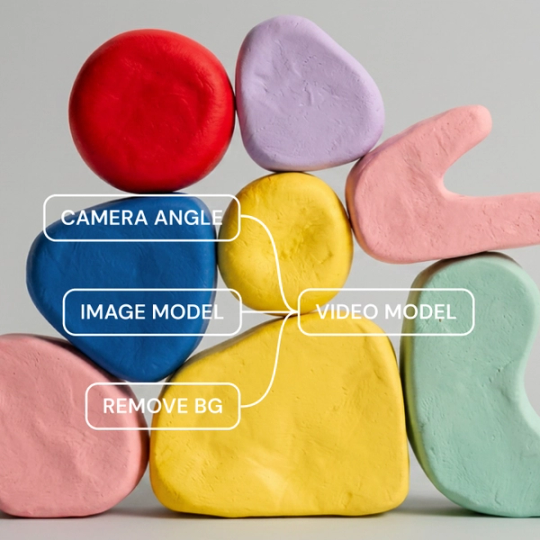
Figma Weave puts AI visual effects (VFX) into one canvas, combining multiple models and professional editing tools so you can build once and scale to any volume.
Run any major AI model for image, video, audio, or 3D right inside Figma Weave. No more juggling separate subscriptions or hopping between tools. Pick whichever model fits each step of the effect you’re building.


Most AI tools collapse every creative decision into a single prompt. Figma Weave keeps your model selection and edits visible in an explicit pipeline, so your creative direction shapes the result, not the model’s default.


Masking and compositing live in the same canvas as generation—the same tools VFX teams already rely on. Refining an effect doesn’t mean exporting to another app.


Set up a workflow once and rerun it across new inputs to produce on-brand assets at scale, no matter the format or region. AI visual effects production means building the pipeline once and trusting it on every asset that follows.
From the toolbox menu, add a prompt node and describe the effect you want, like a style transfer, a lighting change, or whatever you’re after.
Drag in an image model, then click the prompt’s output and click the model’s input to connect them automatically.
Click the model node to open its settings, adjust the aspect ratio or prompt strength, then review your result in your gallery.
More resources
See how the Figma Community is using Figma Weave to create AI-generated images, video, and 3D.
AI visual effects use AI models to generate or modify a look, like a new lighting setup or background, so you don’t have to recreate it by hand. Figma Weave builds these effects as node-based workflows, so you can keep adjusting the results after they generate. A fixed filter locks in once applied. A Figma Weave workflow stays open to change.
Brand and production standards require more control than a single AI output typically provides. Figma Weave keeps every effect editable after it generates, so you can refine details until it matches your final deliverable needs.
No coding is required. Figma Weave uses a node-based canvas, so building a workflow means dragging nodes into place and connecting them visually. If you’re new to Figma Weave, start from an existing template in the gallery and adjust it. You don’t have to build from a blank canvas.
Most AI visual effects tools lock you into one model or style of output. Figma Weave runs multiple AI models in the same canvas for side-by-side comparison. Every step stays editable, too, which means an effect can be reused and refined long after the first result comes back.
One of Figma Weave’s published workflows blends two reference images into a shared style—you control how much each reference contributes. A prompt alone only returns one fixed take, but this setup keeps tuning until the blend matches the brand.
Yes. Figma Weave builds visual effects as a workflow, so you can rerun it on a new image without rebuilding it from scratch. The same setup adjusts to a new subject or aspect ratio automatically once it’s in place.

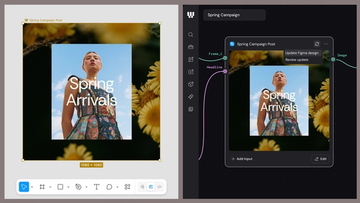
Figma Weave brings AI generation and editing tools together into connected, reusable workflows, giving you a process your team can shape, refine, and repeat. Here’s what it unlocks for creative teams and how to get the most out of it.
Design systems can power more than just designs. This workflow shows you how to turn raw materials into brand campaign collateral using the Gen Effect and Figma nodes.

Community publishing is now live for Weave tools. Here are a few tools that stand out, from turning a moodboard into a realistic room mockup to previewing your next nail set.

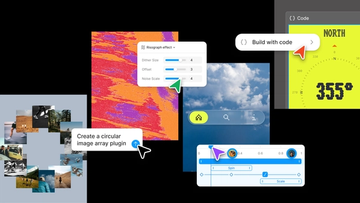
Push past what you thought was possible with code layers, Figma Motion, shaders, generative plugins and Weave tools, all on the canvas.

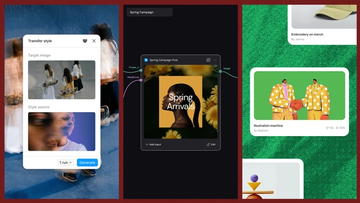
Today, we’re announcing new ways your Weave creative workflows can live alongside your Figma frames.
Aleph 2.0 brings frame-level creative direction to the Figma Weave canvas.