Build once. Scale across any volume.
A Kling workflow in Figma Weave is a reusable system. Run it against new inputs to produce on-brand videos across any campaign, format, or volume.
Skip to main content
Use Kling AI in Figma Weave, then refine videos with other models and tools.
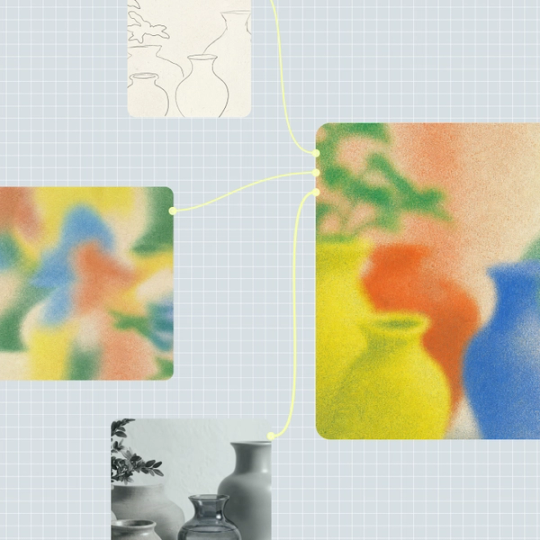
Kling is a strong video model on its own. Within Figma Weave, it becomes one step in a bigger pipeline, where you can combine it with other models, refine every frame, and repeat the process at scale.
A Kling workflow in Figma Weave is a reusable system. Run it against new inputs to produce on-brand videos across any campaign, format, or volume.


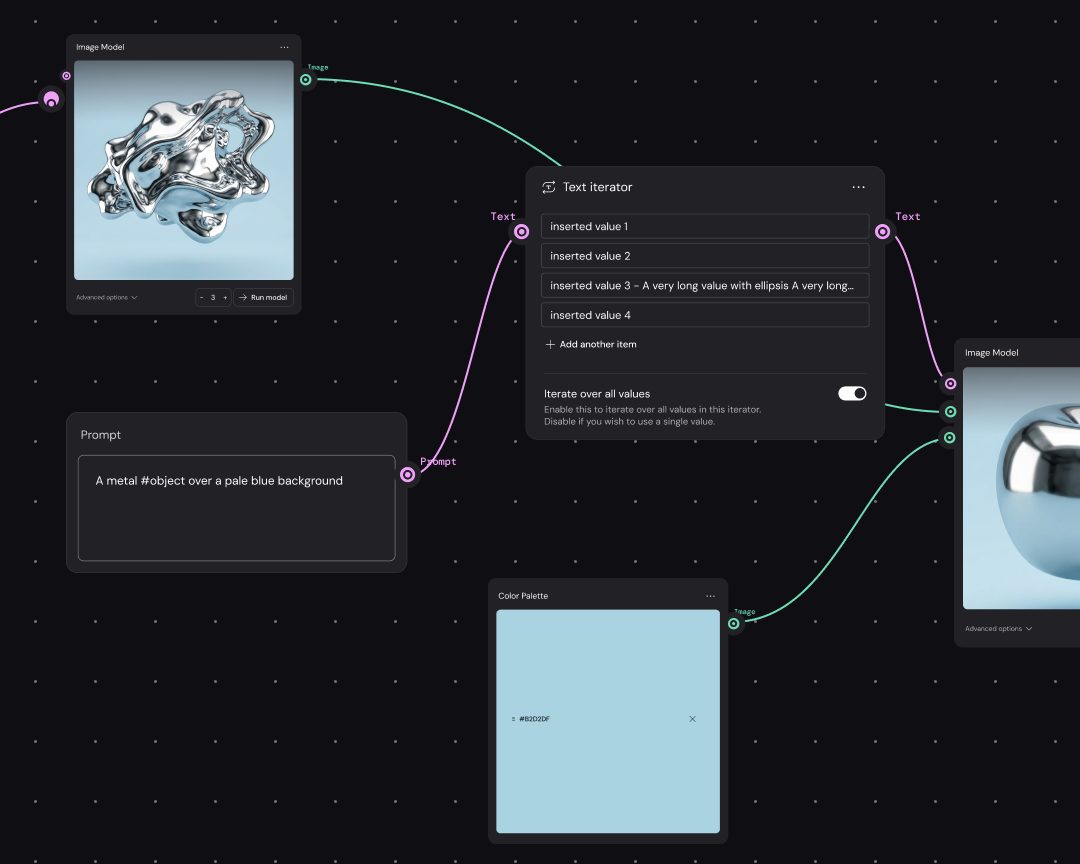
Every step of a Kling workflow shows up as a visual sequence in Figma Weave. Adjust a reference image or reorder a step, then watch it carry through the rest of the workflow.


Generating a video with Kling is just the start. Figma Weave layers in professional editing tools, so you can grade the color and build out a full timeline before final handoff.


Kling sits right alongside every major AI model in Figma Weave. Use it for one step, then switch to something else for the next, no new tab needed.
Add a Kling node to your Figma Weave canvas. It sits in the model list next to every other video and image model, ready to drop into any workflow.
Connect a reference image or write a text prompt describing the video you want, then adjust settings for length and style. These inputs shape Kling’s first pass.
Duplicate the workflow and swap in a different video model, running both in parallel. Compare the outputs side by side before deciding which one best fits your project.
Once you pick a generation, connect editing nodes like color grading or upscaling directly to the output. Refine the video further without leaving Figma Weave or exporting to another tool.
More resources
See how the Figma Community is using Figma Weave to create AI-generated images, video, and 3D.
Kling AI is a video generation model that turns text prompts or reference images into short video clips. It’s one of several AI models available to build into a workflow in Figma Weave, so it’s never the only option for video generation.
Strong Kling prompts describe the subject and the action, then add detail about camera movement or framing. Specific language about lighting and style usually produces the best results. Figma Weave workflows also let you test the same prompt across several models, so you can see which wording works best for Kling specifically.
When a Kling video finishes generating in Figma Weave, it appears as an output node on the canvas like any other asset. From there, someone can export it directly using Figma’s standard export options, whether it came straight from Kling or after further edits inside Figma Weave.
Yes. Figma Weave is built to combine multiple AI models within the same workflow, so a project isn’t limited to a single generator. Someone could pair Kling for video with a different model handling image or audio generation, all within the same project.
Kling AI works well for turning a static image or design into a moving asset, like a short marketing video or a product demo clip. In Figma Weave, resize or adapt that output for different social platforms without starting a new project.

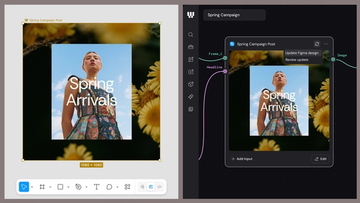
Figma Weave brings AI generation and editing tools together into connected, reusable workflows, giving you a process your team can shape, refine, and repeat. Here’s what it unlocks for creative teams and how to get the most out of it.
Design systems can power more than just designs. This workflow shows you how to turn raw materials into brand campaign collateral using the Gen Effect and Figma nodes.

Community publishing is now live for Weave tools. Here are a few tools that stand out, from turning a moodboard into a realistic room mockup to previewing your next nail set.

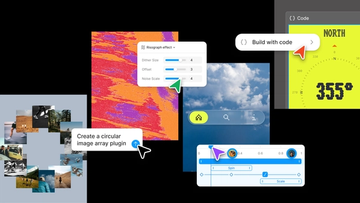
Push past what you thought was possible with code layers, Figma Motion, shaders, generative plugins and Weave tools, all on the canvas.

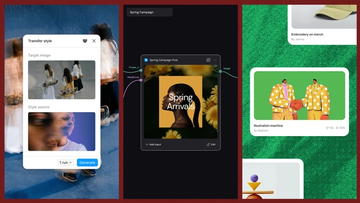
Today, we’re announcing new ways your Weave creative workflows can live alongside your Figma frames.
Aleph 2.0 brings frame-level creative direction to the Figma Weave canvas.