Professional editing built into the generation pipeline
After generating an animation, refine it on the same canvas. Adjust lighting or grade the color without exporting to another app.
Skip to main content
Figma Weave lets you animate a scene with the AI model that fits it best.
A generated clip rarely looks finished on the first try. Figma Weave lets you keep shaping the motion and pacing, layering in edits until it’s ready to publish.
After generating an animation, refine it on the same canvas. Adjust lighting or grade the color without exporting to another app.

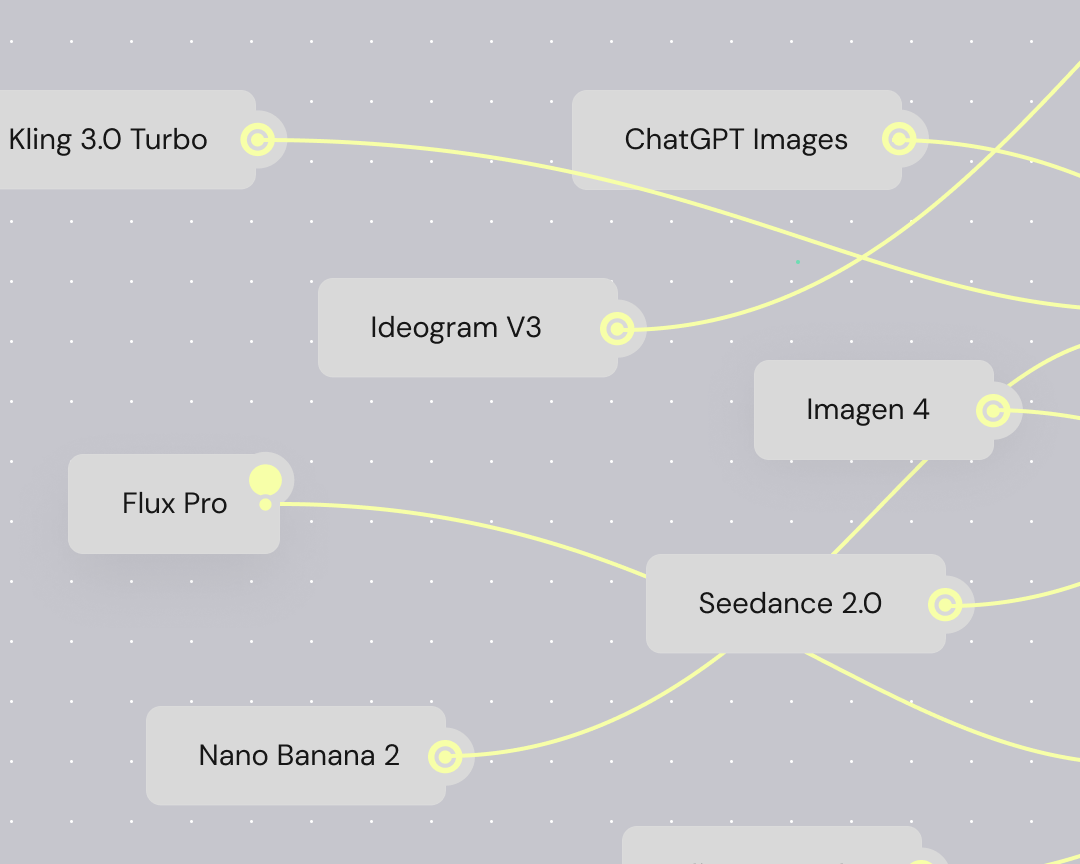
Each model handles motion differently, and testing them one at a time slows you down. Generate the same shot across a few models, then pick whichever one handles the motion best.


Save your workflow and run new inputs through the same steps to produce variations—without rebuilding from scratch each time.


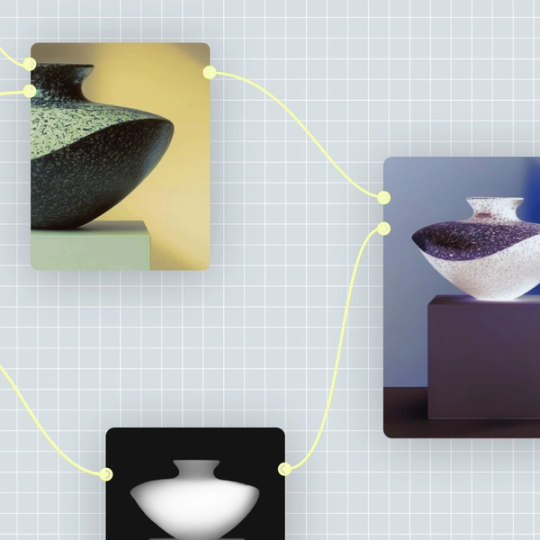
Every step in your workflow shows up as a node you can see and adjust. Change an earlier step, then watch how it reshapes everything that comes after.
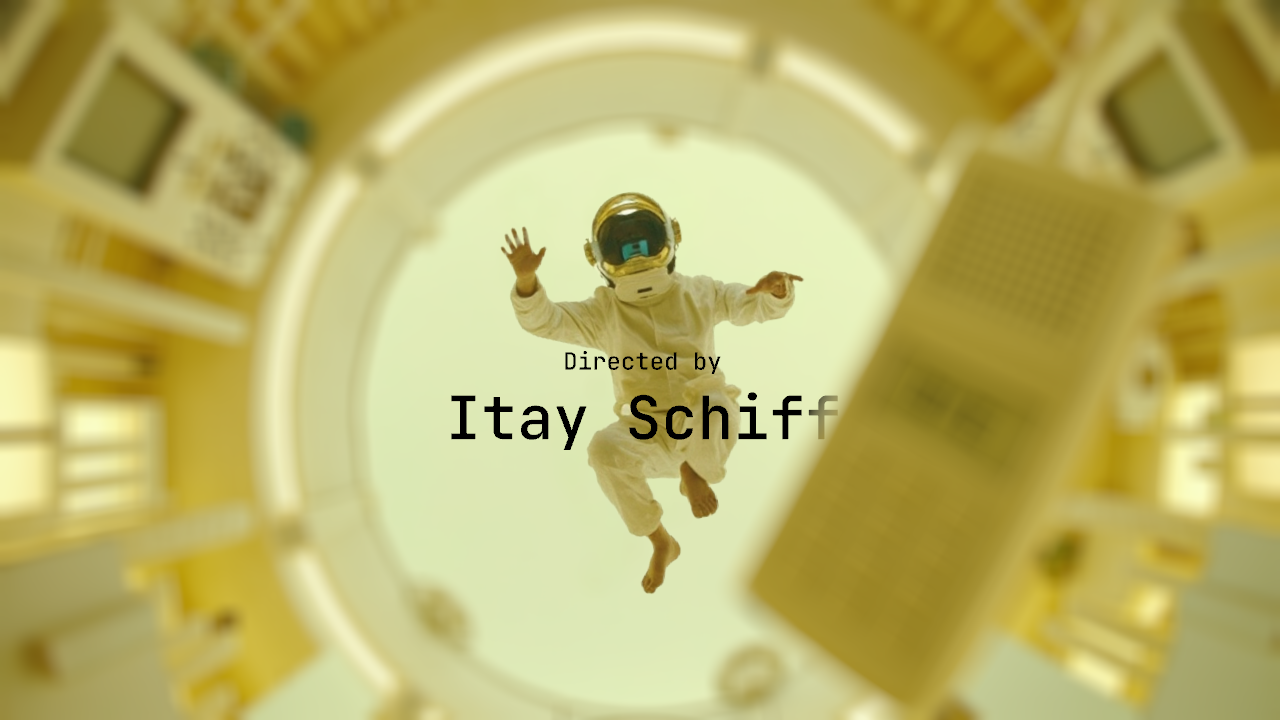
Drop a video model node onto the canvas and pick your starting model, whether you want cinematic motion or something built for quick iterations.
For an image-to-video animation, feed in a starting frame. If you’re starting from scratch, write a prompt describing the scene you want to build. Mention your preferred camera angle or pacing to give the model more to work with.
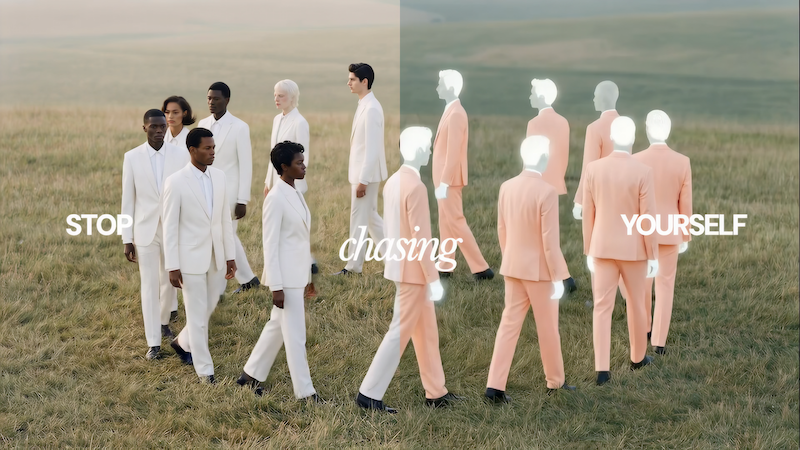
Run the same input through multiple models at once, then line up the results side by side to judge which one handles the motion best.
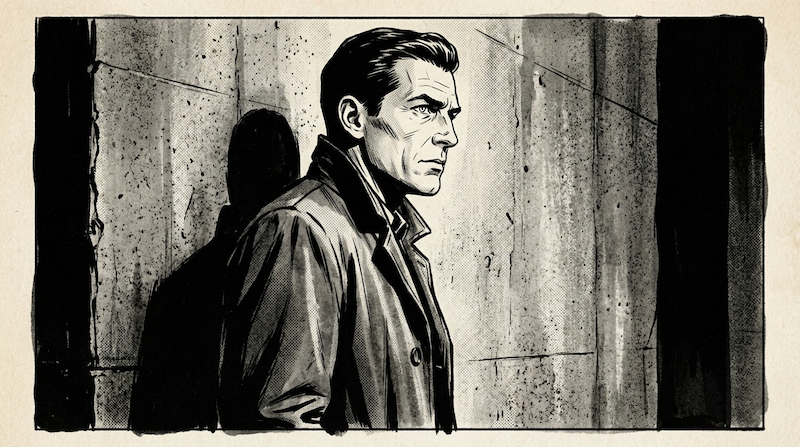
Chain in editing nodes—crop the frame, adjust the lighting, composite—then keep going until the shot looks the way you pictured it.
Save the finished workflow so it runs on new inputs without rebuilding from scratch. Your teammates can generate fresh animations from the workflow on their own.
More resources
See how the Figma Community is using Figma Weave to create AI-generated images, video, and 3D.
Yes, converting video to animation is a common use case for AI. Feed your video into a style-transfer workflow, and Figma Weave will apply a new visual treatment while keeping the original motion intact. You can build the style from a reference image or describe it in a prompt.
Yes. Figma Weave can use a still image to generate 3D models, then let you position and animate them within a scene. This is a separate workflow from standard video generation, but it lives on the same canvas.
Keep editing it on the canvas, or save the workflow to reuse on new clips. You can also bring the final output into Figma Design to drop it into a larger project.
You can, as long as you build the look as a reusable workflow instead of a single generation. Once a subject’s style is locked in, run new scenes or prompts through that same workflow to keep it consistent.
Figma Weave supports resizing to whatever aspect ratio you need, like square for social or widescreen for a presentation, by adjusting the settings in each node.
With an AI animation video generator, timing depends on the model and length of the clip. Since Figma Weave runs models in parallel, you don’t have to wait for one result at a time.

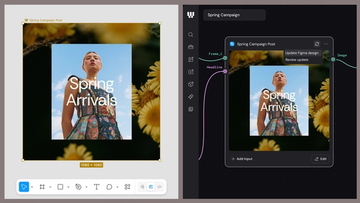
Figma Weave brings AI generation and editing tools together into connected, reusable workflows, giving you a process your team can shape, refine, and repeat. Here’s what it unlocks for creative teams and how to get the most out of it.
Design systems can power more than just designs. This workflow shows you how to turn raw materials into brand campaign collateral using the Gen Effect and Figma nodes.

Community publishing is now live for Weave tools. Here are a few tools that stand out, from turning a moodboard into a realistic room mockup to previewing your next nail set.

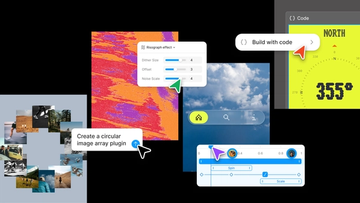
Push past what you thought was possible with code layers, Figma Motion, shaders, generative plugins and Weave tools, all on the canvas.

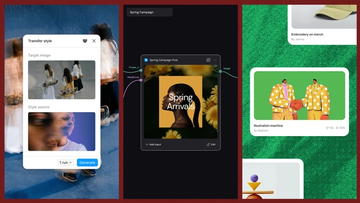
Today, we’re announcing new ways your Weave creative workflows can live alongside your Figma frames.
Aleph 2.0 brings frame-level creative direction to the Figma Weave canvas.