

Analyze with design context
The agent understands your actual layout, components, and hierarchy—not just static pixels—so feedback reflects how your design really works.
Skip to main content
Figma's agent reviews your layouts for accessibility gaps, confusing flows, and interaction problems—directly on your canvas. Get actionable feedback without switching tools or waiting for a formal audit.


Get instant usability feedback on the designs you're already building, so you can fix problems early and ship with more confidence.

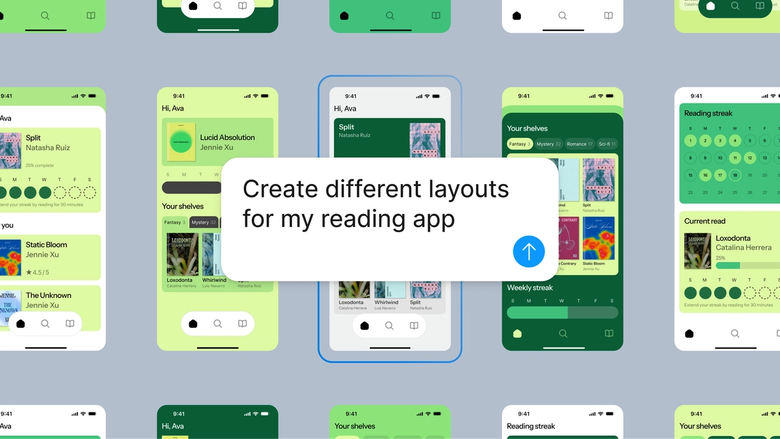
Figma's agent analyzes your layouts right on the canvas, flagging accessibility concerns, unclear hierarchies, and potential friction points without requiring a separate audit tool or exported screenshots.

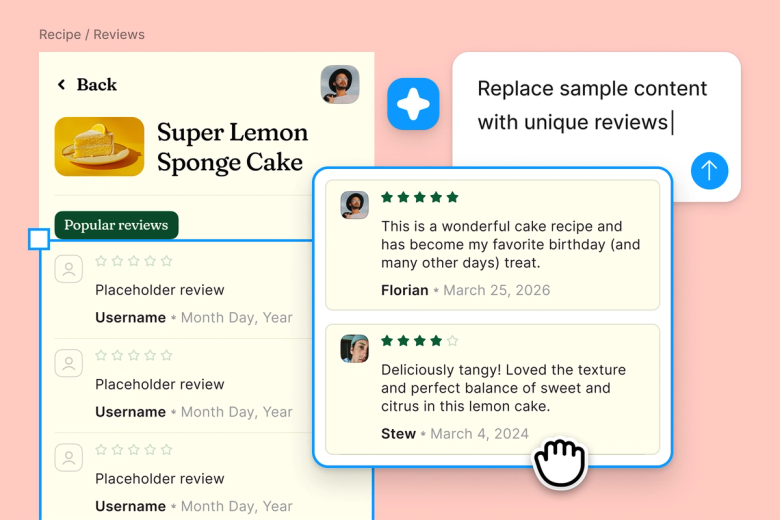
Skip the back-and-forth of scheduling formal usability reviews. Get immediate feedback on contrast ratios, touch targets, and navigation clarity so you can iterate faster and stay in your design flow.

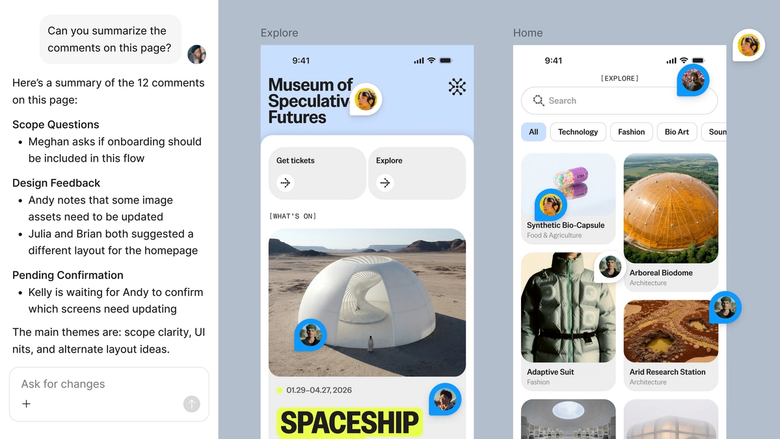
Every usability insight lives in a shareable thread within your file. Stakeholders see the context, the issue, and your iteration history—nothing gets lost in a separate report or handoff document.
A closer look at what sets Figma's agent apart, built for the way design teams actually work.
The agent understands your actual layout, components, and hierarchy—not just static pixels—so feedback reflects how your design really works.


Check multiple screens or flows at once. Run usability prompts in parallel to surface issues across your entire project faster.


Share a thread and your team sees every flagged issue, the reasoning behind it, and how you addressed it. No separate documentation needed.


Disagree with a finding? Ask why. Need more detail? Prompt again in the same thread to dig deeper or explore alternative solutions.
Figma feels like a natural extension of my hand. I do my design ideation on the canvas, and now the agent takes it the last mile. With my design libraries connected, I can move from design to code faster than ever before.
Andy Madrick
Product Designer, Notion

Open your file in Figma Design and select the frame, screen, or flow you want reviewed for usability issues.
Tell the agent what to check—accessibility, navigation clarity, visual hierarchy—or ask for a general usability audit of the selected design.
Check the flagged issues on your canvas. Each finding includes context on why it matters and what to consider changing.
Fix issues directly on your canvas, then prompt again to verify. Everything stays editable, so you can refine until the design is ready.
Watch Figma's AI Agent in action and see how to put it to work in your own workflows.


Hands-on playground to explore Figma agent's capabilities — from bulk edits to feedback implementation — with step-by-step guidance built right in.
Learn how to use Figma agent in your design workflows with a step-by-step tutorial from the Figma team.
Figma's agent can flag common usability concerns like insufficient color contrast, small touch targets, unclear visual hierarchy, confusing navigation patterns, and missing labels or alt text. It reviews your actual design context—components, layout, and structure—to surface issues that might cause friction for real users. While it catches many common problems, it works best alongside human review for nuanced accessibility needs.
Figma's agent helps you get early usability feedback directly on your canvas, before formal testing begins. You can prompt it to review specific screens for accessibility compliance, check navigation flows for clarity, or audit visual hierarchy across a set of frames. It's most effective as a first-pass review that catches obvious issues, freeing up your formal usability testing sessions for deeper, task-based evaluation.
Figma's agent can surface potential problem areas in your UI—places where users might get confused, miss important actions, or encounter accessibility barriers. By analyzing your layout, component usage, and content structure, it flags areas that could cause friction. Think of it as a design-focused review that catches issues before they become user complaints or failed accessibility audits.
AI usability detection is best for catching common, pattern-based issues—contrast problems, missing labels, unclear layouts. It may not catch context-dependent problems that require understanding user intent, business logic, or edge cases. Figma's agent provides a helpful first pass, but it works best when combined with real user testing and expert accessibility review for critical flows.
Figma's agent is available on all paid Figma plans. You'll find it in the left side rail in Figma Design, or use CMD + Enter on Mac or CTRL + Enter on Windows to open it. During the current open beta, it doesn't consume AI credits—so it's a good time to explore, experiment, and share your feedback with us.
Build faster with Figma's agent


