

Connect your design library
Point the agent to your library so it generates icons using your existing stroke weights, corner radii, and style tokens—not generic defaults.
Skip to main content
Create custom icons, build consistent sets, and explore visual directions with AI—directly in Figma Design. Describe what you need, and the agent generates it using your styles and tokens.


Figma's agent generates icons using your real styles, stroke weights, and tokens—so every icon feels native to your product, not borrowed from somewhere else.

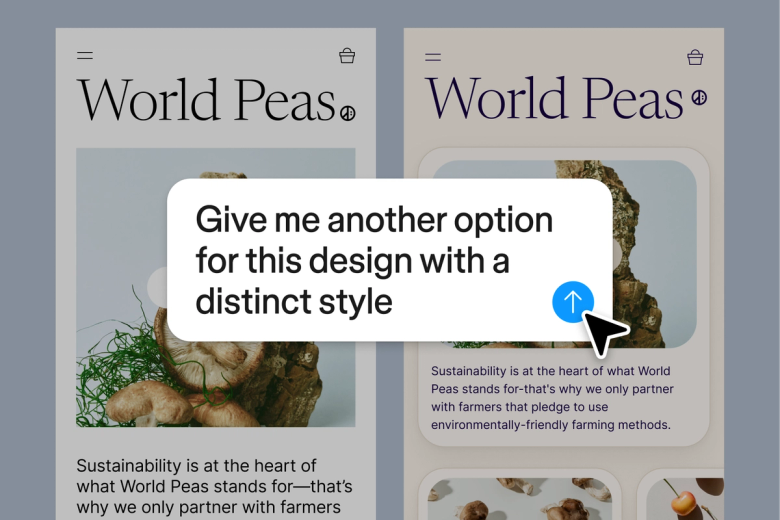
Figma's agent generates multiple icon directions at once, each one styled to your design system. Instead of hunting through stock libraries, you explore real options that already match your product's visual language.

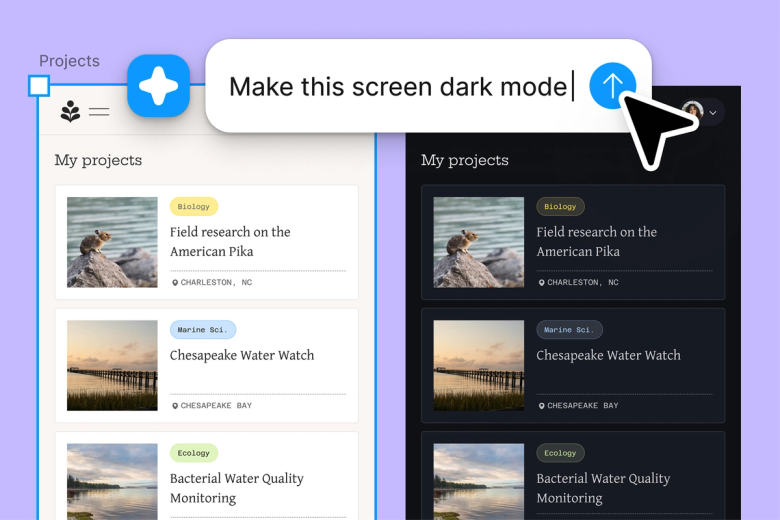
Describe the icon you need—a settings gear, a notification bell, a custom metaphor—and let the agent handle the drawing. Skip the manual construction and keep your focus on the bigger design decisions.

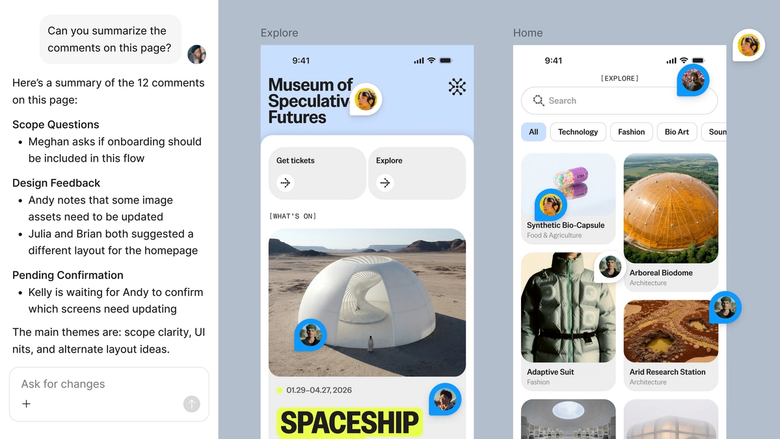
Icons generate in the same file your team works in, so everyone sees the latest set and can build on it immediately. No separate exports, no version confusion, no hunting through asset folders.
A closer look at what sets Figma's agent apart, built for the way design teams actually work.
Point the agent to your library so it generates icons using your existing stroke weights, corner radii, and style tokens—not generic defaults.


Generate multiple icon concepts at once. Explore a filled style and an outlined style simultaneously without waiting between prompts.


Share a thread and your team sees the full prompt, context, and iteration history behind every icon. No separate handoff needed.


Turn your best icon prompts into reusable skills your team can trigger with a quick command—consistent output, every time.
Figma feels like a natural extension of my hand. I do my design ideation on the canvas, and now the agent takes it the last mile. With my design libraries connected, I can move from design to code faster than ever before.
Andy Madrick
Product Designer, Notion

Select Agents in the left side rail or hit CMD + Enter. Add a frame to the canvas where your icons will land.
Tell the agent what to generate—a download arrow, a user avatar, a custom metaphor. Reference your design library so it uses your real styles.
Check the generated icons on your canvas. Refine in the same thread or start a parallel one to explore a different visual direction.
Prompt again to adjust stroke weight, scale, or style. Everything stays editable as vector layers, so you can fine-tune by hand too.
Watch Figma's AI Agent in action and see how to put it to work in your own workflows.


Hands-on playground to explore Figma agent's capabilities — from bulk edits to feedback implementation — with step-by-step guidance built right in.
Learn how to use Figma agent in your design workflows with a step-by-step tutorial from the Figma team.
An AI icon generator creates custom icons from text descriptions. With Figma's agent, you describe the icon you need and it generates editable vectors directly on your canvas, styled to match your design system. No hunting through stock libraries or rebuilding assets by hand.
Open the agent from the left side rail or press CMD + Enter. Describe the icon you need and point the agent to your design library so it uses your styles. The icon generates as an editable vector on your canvas, ready to refine or use immediately.
Icons generated by Figma's agent are created in your files using your styles and can be used in your products. As with any AI-generated content, you should review outputs to ensure they meet your needs and comply with your organization's policies.
Figma's agent generates icons as native vector layers on your canvas. From there, you can export in any format Figma supports—SVG, PNG, PDF, and more. The icons stay fully editable, so you can adjust them before exporting.
Figma's agent is available on all paid Figma plans. You'll find it in the left side rail in Figma Design. During the current open beta, it doesn't consume AI credits—so it's a good time to explore, experiment, and share your feedback with us.
Build faster with Figma's agent


