

Reference your design system
Point the agent to your design library so critiques check against your real components, tokens, and patterns—not generic guidelines.
Skip to main content
Ask Figma's agent to review your designs, surface accessibility issues, spot inconsistencies, and suggest improvements—directly in your file. No waiting for feedback, no separate review tools.


Get actionable critiques on your actual design layers, grounded in the context of your file and your team's standards.


Don't stall while waiting for feedback. Ask the agent to review your work anytime—surface potential issues, check alignment with best practices, and keep your design moving forward without breaking flow.

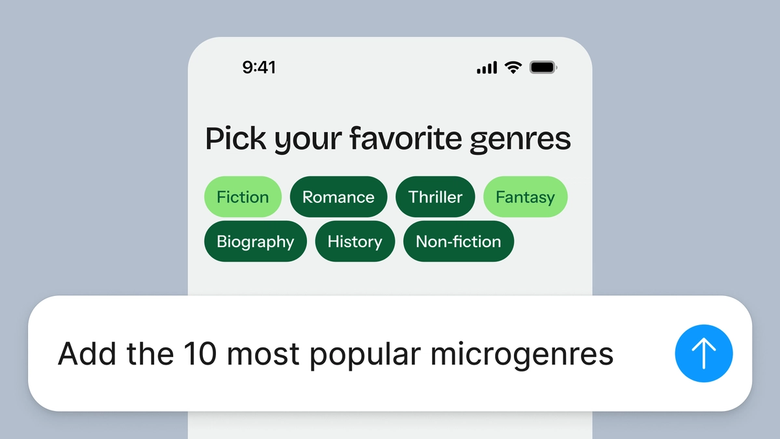
The agent reviews your actual layers, components, and layout—not a static screenshot. Feedback references what's really in your file, so you know exactly what to adjust and where.

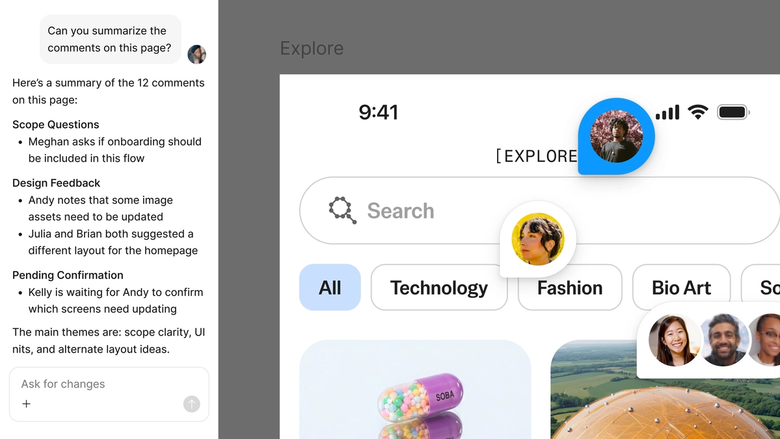
Critiques happen in shareable threads within your file, so teammates see the full context. Everyone stays in sync without chasing down notes from separate tools or meetings.
A closer look at what sets Figma's agent apart, built for the way design teams actually work.
Point the agent to your design library so critiques check against your real components, tokens, and patterns—not generic guidelines.


Need the agent to dig deeper on accessibility or layout? Ask follow-up questions in the same thread or start a parallel one to explore different angles.


Share a critique thread and your team sees the full prompt, context, and feedback history. No separate handoff or lost notes.


Every suggestion lands on your canvas as context—your layers stay editable so you can act on feedback by hand or prompt.
Figma feels like a natural extension of my hand. I do my design ideation on the canvas, and now the agent takes it the last mile. With my design libraries connected, I can move from design to code faster than ever before.
Andy Madrick
Product Designer, Notion

Open your file in Figma Design and select the frame, screen, or component you want feedback on.
Tell the agent what to focus on—accessibility, visual hierarchy, consistency with your design system—or ask for a general review.
The agent surfaces issues and suggestions directly on your canvas. Ask follow-ups to go deeper or explore a different angle.
Apply changes by hand or ask the agent to help. Your layers stay fully editable, so you control every update.
Watch Figma's AI Agent in action and see how to put it to work in your own workflows.


Hands-on playground to explore Figma agent's capabilities — from bulk edits to feedback implementation — with step-by-step guidance built right in.
Learn how to use Figma agent in your design workflows with a step-by-step tutorial from the Figma team.
An AI crit assistant is a tool that reviews your designs and provides feedback—surfacing issues like accessibility problems, inconsistencies, or layout concerns. Figma's agent does this directly on your canvas, so you get critiques in context without exporting screenshots or switching tools. It's like having a second set of eyes available anytime you need a gut check.
Figma's agent analyzes your actual design layers, components, and layout to generate feedback. You describe what kind of critique you want—accessibility, visual hierarchy, spacing—and the agent surfaces relevant observations and suggestions. Because it works on your real file, feedback references specific elements you can immediately adjust.
Figma's agent provides useful feedback grounded in your actual design context, including your components and styles. It's effective for catching inconsistencies, flagging potential accessibility issues, and prompting you to reconsider decisions. That said, AI critique works best as a complement to human feedback—it's a fast gut check, not a replacement for your team's expertise.
Select the frame or component you want reviewed, then open Figma's agent from the left side rail or press CMD + Enter. Describe what kind of feedback you're looking for—general critique, accessibility check, alignment with your design system—and the agent responds with observations in a shareable thread. You can ask follow-up questions to dig deeper.
Figma's agent is available on all paid Figma plans. You'll find it in the left side rail in Figma Design, or open it with CMD + Enter. During the current open beta, it doesn't consume AI credits—so it's a good time to explore, experiment, and share your feedback with us.
Build faster with Figma's agent


