

Audit against your library
Check components from your design system for accessibility issues, so fixes propagate everywhere the component is used.
Skip to main content
Figma's agent checks your work for inconsistencies, accessibility issues, and pattern mismatches—right on your canvas in Figma Design. Get feedback without switching tools or waiting for a review cycle.


Design QA that works where your designs live, using your real components and standards to surface what needs attention.


Figma's agent checks your designs against your actual design system—your components, tokens, and spacing rules—not generic guidelines. Issues surface in context, so you can fix them where they live.

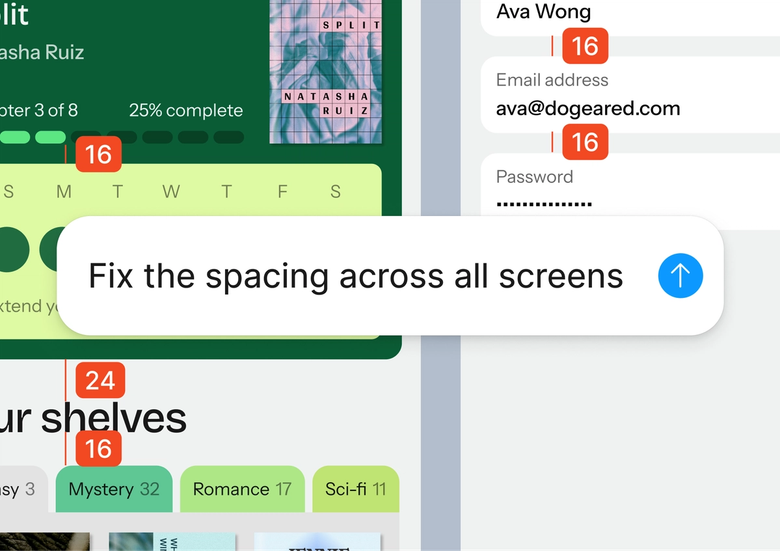
Hand off the tedious work of checking every layer for consistency, contrast ratios, and missing states. Keep your attention on the design decisions while the agent handles the audit.

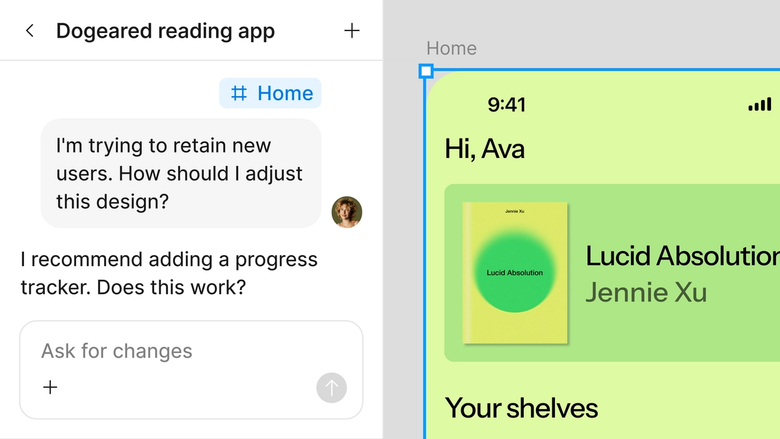
QA feedback appears in the same file everyone works in. Your team sees what was checked, what was flagged, and what's been resolved—no separate report to assemble or share.
A closer look at what sets Figma's agent apart, built for the way design teams actually work.
Check components from your design system for accessibility issues, so fixes propagate everywhere the component is used.


Audit multiple frames or flows simultaneously—get a full accessibility picture across your file without waiting.


Share an audit thread and your team sees the full context, flagged issues, and fixes applied. No separate report needed.


Ask for deeper analysis on specific issues, request alternative solutions, or narrow the audit scope with another prompt.
Figma feels like a natural extension of my hand. I do my design ideation on the canvas, and now the agent takes it the last mile. With my design libraries connected, I can move from design to code faster than ever before.
Andy Madrick
Product Designer, Notion

Open your file in Figma Design and select the frame, screen, or flow you want the agent to check.
Tell the agent what to look for—consistency with your design system, accessibility issues, missing states, or spacing problems.
Check the flagged issues on your canvas. Ask follow-up questions in the same thread or open a parallel one for a different type of review.
Make your updates directly on the canvas, then prompt the agent again to verify the fixes. Everything stays in one place.
Watch Figma's AI Agent in action and see how to put it to work in your own workflows.


Hands-on playground to explore Figma agent's capabilities — from bulk edits to feedback implementation — with step-by-step guidance built right in.
Learn how to use Figma agent in your design workflows with a step-by-step tutorial from the Figma team.
An AI design QA assistant reviews your designs for issues like inconsistencies, accessibility problems, and pattern mismatches. Figma's agent does this directly on your canvas, checking against your actual design system rather than generic rules. It surfaces findings where you work, so you can address them without switching tools or assembling separate reports.
AI can scan designs faster than manual review, catching issues humans might miss across large files or complex flows. Figma's agent checks spacing, color contrast, component usage, and pattern consistency against your design library. It flags potential problems in context, helping teams ship more polished work without slowing down.
Design QA tools typically check for visual consistency, accessibility compliance, component misuse, and spacing irregularities. Figma's agent reviews your work against your own design system—your components, tokens, and styles—so findings are specific to your standards rather than generic guidelines.
In Figma Design, select the frames you want reviewed and open the agent from the left side rail or with CMD + Enter. Describe what to check—accessibility, consistency, missing states—and the agent surfaces findings on your canvas. You can run multiple reviews in parallel and share threads with your team for full visibility.
Figma's agent is available on all paid Figma plans. You'll find it in the left side rail in Figma Design, or open it with CMD + Enter on Mac or CTRL + Enter on Windows. During the current open beta, it doesn't consume AI credits—so it's a good time to explore, experiment, and share your feedback with us.
Build faster with Figma's agent


