

Connect your design library
Point the agent to your design library so every loading state uses your real components, tokens, and spacing—not generic placeholders you'll need to restyle.
Skip to main content
Create skeleton screens, shimmer effects, and placeholder UI with AI—directly in Figma Design. Describe the loading state you need and see it built using your real components, no separate mockups required.


Figma's agent generates production-ready loading states using your actual components and styles, so you can explore options that ship, not placeholders that need rebuilding.


Figma's agent generates multiple loading state variations—skeleton screens, shimmer patterns, progressive reveals—so you can explore directions quickly and pick the one that feels right for your product.

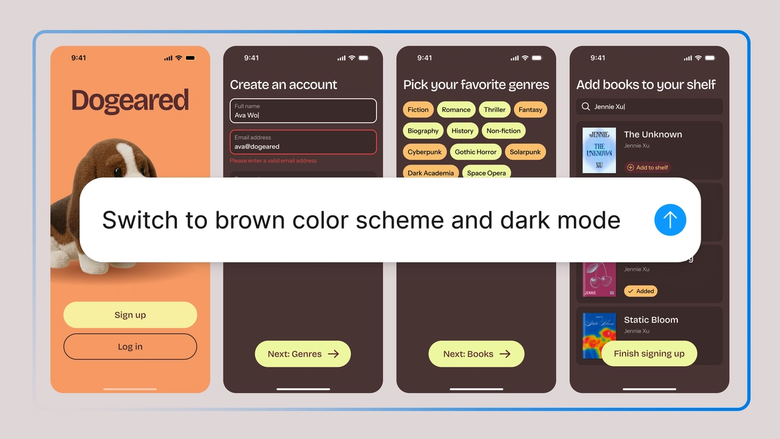
Skip the tedious process of manually masking components and building placeholder layers. Describe what you need, and the agent handles the repetitive work while you focus on the experience.

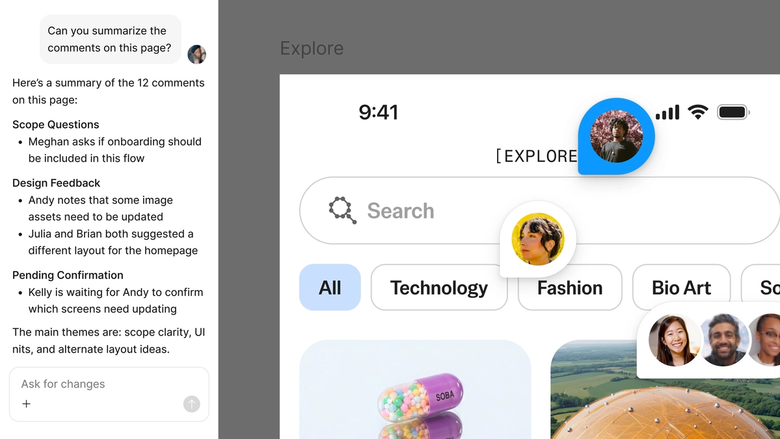
Loading states live in the same file your team works in. Everyone sees the same patterns, and developers can inspect exactly what ships—no separate handoff or guesswork.
A closer look at what sets Figma's agent apart, built for the way design teams actually work.
Point the agent to your design library so every loading state uses your real components, tokens, and spacing—not generic placeholders you'll need to restyle.


Explore skeleton screens, shimmer effects, and content placeholders simultaneously. Compare directions side by side without waiting for one to finish.


Share a thread and your team sees the full prompt, context, and iteration history. Stakeholders understand the thinking behind each loading pattern.


Turn your loading state generation process into a reusable skill. Run it across screens with a single command to keep patterns consistent.
Figma feels like a natural extension of my hand. I do my design ideation on the canvas, and now the agent takes it the last mile. With my design libraries connected, I can move from design to code faster than ever before.
Andy Madrick
Product Designer, Notion

Select Agents in the left side rail or hit CMD + Enter. Add a frame to the canvas or select an existing screen that needs a loading state.
Tell the agent what kind of loading experience you need—skeleton screen, shimmer effect, progressive content reveal. Point to your design library so it uses your real styles.
Check the generated loading state on your canvas. Refine in the same thread or start a parallel one to explore a different pattern.
Prompt again to adjust timing cues, placeholder shapes, or content hierarchy. Turn the workflow into a skill to apply consistent loading states across your product.
Watch Figma's AI Agent in action and see how to put it to work in your own workflows.


Hands-on playground to explore Figma agent's capabilities — from bulk edits to feedback implementation — with step-by-step guidance built right in.
Learn how to use Figma agent in your design workflows with a step-by-step tutorial from the Figma team.
An AI loading state generator helps you create skeleton screens, shimmer effects, and placeholder UI without manually building each element. Figma's agent generates these loading patterns directly on your canvas using your design system components. You describe what you need, and the agent builds production-ready loading states you can refine and ship.
Figma's agent analyzes your existing designs and generates loading state variations that match your component structure and visual style. It can create skeleton screens that mirror your content layout, shimmer animations, and progressive reveal patterns. The agent references your design library to ensure consistency with your established patterns.
Select a frame or component in Figma Design and open the agent. Describe the skeleton screen you need—whether it's a content placeholder, image loading state, or full-page skeleton. The agent generates the skeleton using shapes and styles that match your design system, so you're not rebuilding from scratch.
Skeleton screens are placeholder layouts that appear while content loads, showing users where elements will appear. They typically use gray shapes that mirror the final content structure. In Figma, you can describe the skeleton pattern you need to the agent, and it generates layouts that match your component hierarchy and spacing.
Figma's agent is available on all paid Figma plans. You'll find it in the left side rail in Figma Design, or hit CMD + Enter to open it. During the current open beta, it doesn't consume AI credits—so it's a good time to explore, experiment, and share your feedback with us.
Build faster with Figma's agent


