

Connect your design library
Point the agent to your design library so every empty state uses your real components, tokens, and illustration styles—not generic placeholders.
Skip to main content
Create empty state illustrations, microcopy, and layouts with AI—directly in Figma Design. No round trips to external generators, no rebuilding assets in your file afterward.


The agent generates empty state designs using your real components and styles, so every blank screen feels intentional and on-brand from the start.

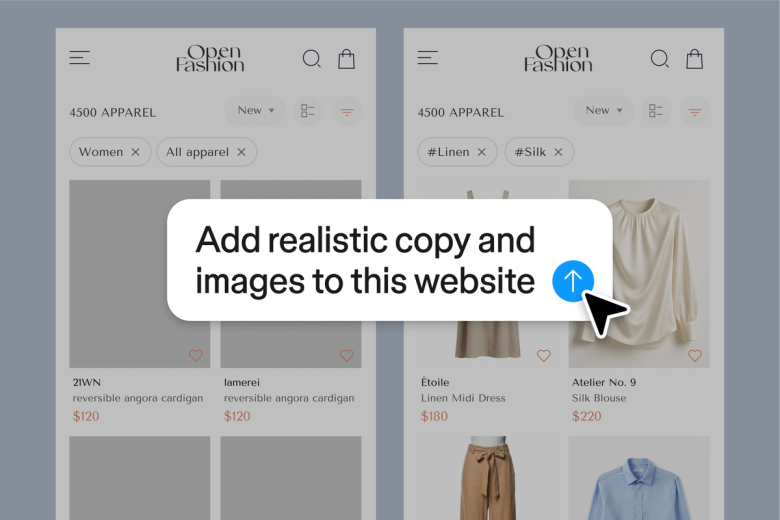
Figma's agent generates complete empty state designs—illustration, headline, body copy, and action—using your actual design system. You're reviewing real options, not placeholder sketches you'll have to rebuild later.

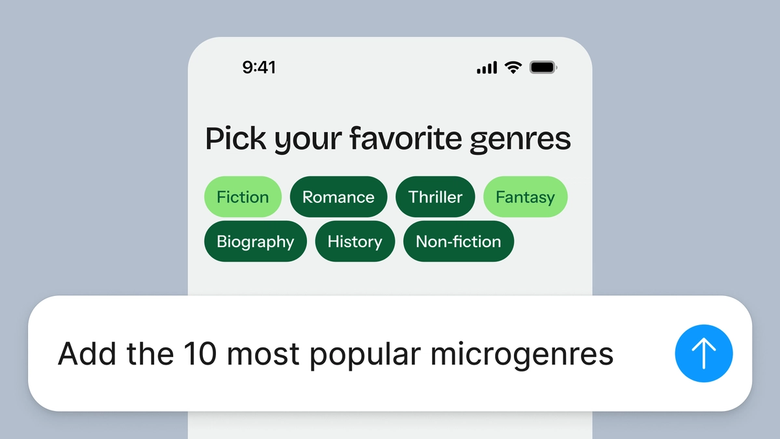
Hand off the repetitive work of scaffolding empty states across screens. The agent generates layouts and copy variations so you can focus on the decisions that shape user experience.

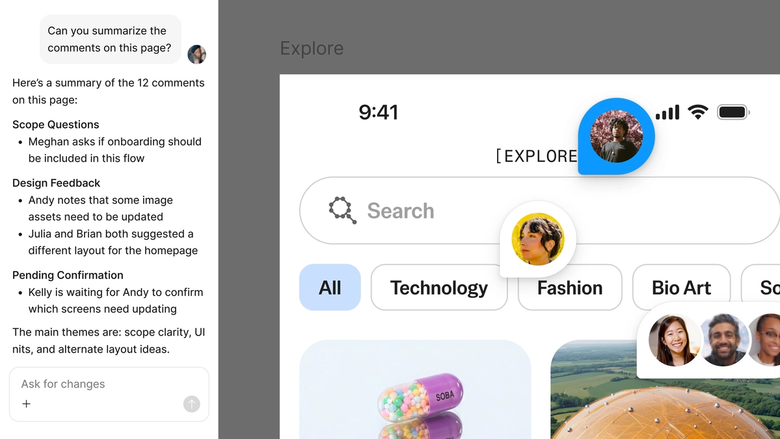
Every generated empty state lives in the same file your team works in. Developers, writers, and stakeholders see the latest version and can build on it immediately—nothing gets lost in handoff.
A closer look at what sets Figma's agent apart, built for the way design teams actually work.
Point the agent to your design library so every empty state uses your real components, tokens, and illustration styles—not generic placeholders.


Generate multiple empty state directions at once. Explore different illustration styles, copy tones, or layout approaches simultaneously instead of one at a time.


Share a thread and your team sees the full prompt, context, and iteration history. Everyone understands the thinking behind each empty state design.


Package your empty state workflow into a reusable skill. Run it again across screens with a single command to maintain consistency at scale.
Figma feels like a natural extension of my hand. I do my design ideation on the canvas, and now the agent takes it the last mile. With my design libraries connected, I can move from design to code faster than ever before.
Andy Madrick
Product Designer, Notion

Select Agents in the left side rail or hit CMD + Enter. Add a frame to your canvas where the empty state will live.
Tell the agent what screen needs an empty state and what action you want users to take. Point to your design library so it uses your real styles.
Check the generated empty state on your canvas. Refine in the same thread or start a parallel one to explore a different illustration style or tone.
Everything stays editable. Adjust the copy, swap the illustration, or prompt again until the empty state feels right for your product.
Watch Figma's AI Agent in action and see how to put it to work in your own workflows.


Hands-on playground to explore Figma agent's capabilities — from bulk edits to feedback implementation — with step-by-step guidance built right in.
Learn how to use Figma agent in your design workflows with a step-by-step tutorial from the Figma team.
An AI empty state generator creates the designs users see when a screen has no content yet—like a blank inbox or an empty search result. Figma's agent generates complete empty states including illustrations, headlines, body copy, and calls to action directly on your canvas. It uses your design library so every generated state matches your product's look and feel.
A well-designed empty state typically includes an illustration or icon, a clear headline explaining the situation, supportive body copy, and a call to action that guides users forward. Figma's agent can generate all these elements together, ensuring they work as a cohesive unit while matching your design system.
Figma's agent takes your prompt describing the screen context and desired user action, then generates a complete empty state design. When connected to your design library, it uses your actual components, colors, and typography. You can run parallel prompts to explore multiple directions and refine with follow-up prompts until the result fits your product.
Effective empty states are helpful rather than just decorative—they explain why the screen is empty and guide users toward a clear next step. The tone should match your brand, and the visual should feel intentional, not like an afterthought. Figma's agent helps you explore these directions quickly while keeping everything consistent with your design system.
Figma's agent is available on all paid Figma plans. You'll find it in the left navigation bar in Figma Design. During the current open beta, it doesn't consume AI credits—so it's a good time to explore, experiment, and share your feedback with us.
Build faster with Figma's agent


