

Reference your design system
Point the agent to your library so Auto Layout gets applied using your real spacing tokens, padding variables, and component structures.
Skip to main content
Tell Figma's agent which frames need Auto Layout and watch it apply responsive structures across your designs—directly on your canvas in Figma Design. Describe it once, see it done everywhere.


Apply Auto Layout to dozens of frames at once while keeping your design system intact and your focus on the decisions that matter.

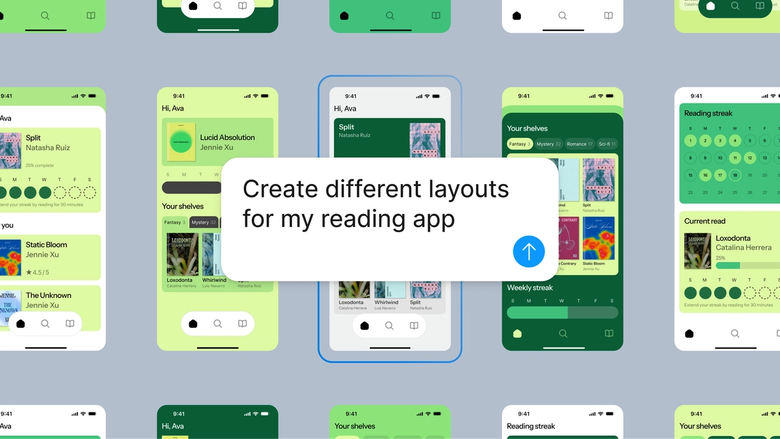
Figma's agent applies Auto Layout to the designs you already have, restructuring your real frames and layers instead of generating something new you'd need to rebuild and reconnect.

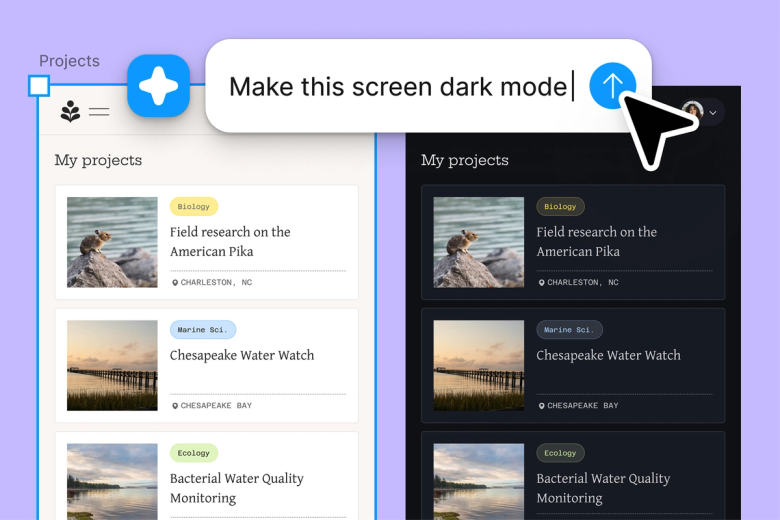
Hand off repetitive layout restructuring—applying Auto Layout to legacy screens, updating spacing across components, converting static frames to responsive ones—and keep your focus on the design work that really matters.

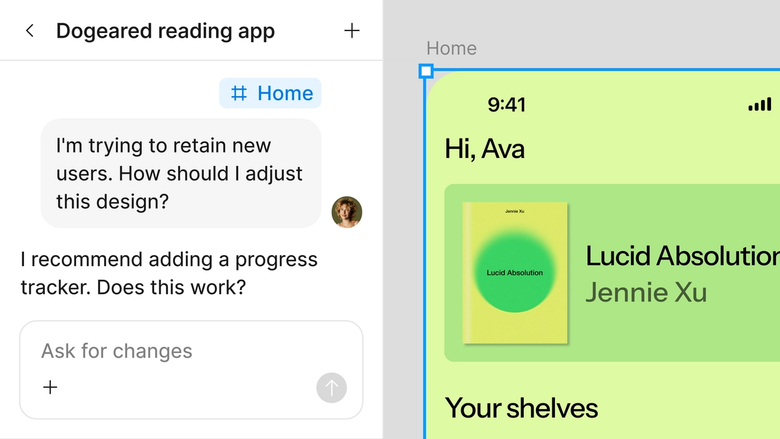
Layout updates happen in the same file your team works in, so everyone sees the responsive structure immediately and can build on it right away. Nothing gets lost in handoff.
A closer look at what sets Figma's agent apart, built for the way design teams actually work.
Point the agent to your library so Auto Layout gets applied using your real spacing tokens, padding variables, and component structures.


Tell the agent what to change and what to leave alone—apply Auto Layout to cards but keep headers untouched—so edits land exactly where you mean.


First pass not quite right? Adjust spacing or direction in the same thread, or open a parallel one to try a different approach without losing progress.


Every layout change lands on your canvas as editable Auto Layout frames, so you can fine-tune padding, direction, and gaps by hand.
Figma feels like a natural extension of my hand. I do my design ideation on the canvas, and now the agent takes it the last mile. With my design libraries connected, I can move from design to code faster than ever before.
Andy Madrick
Product Designer, Notion

Open your file in Figma Design and select the frames or components you want to restructure with Auto Layout.
Tell the agent what to apply—vertical Auto Layout with 16px gaps, responsive padding, or wrap behavior—and what to leave unchanged.
Check the updated frames. Not quite there? Refine spacing or direction in the same thread or try a parallel approach.
Everything stays editable as real Auto Layout frames, so you can adjust by hand or prompt again until the structure is exactly right.
Watch Figma's AI Agent in action and see how to put it to work in your own workflows.


Hands-on playground to explore Figma agent's capabilities — from bulk edits to feedback implementation — with step-by-step guidance built right in.
Learn how to use Figma agent in your design workflows with a step-by-step tutorial from the Figma team.
Auto Layout is a property you can add to frames in Figma that makes them respond to their contents. When you add or remove elements, the frame resizes and reflows automatically. It's essential for building responsive components, maintaining consistent spacing, and creating designs that adapt to different content lengths without manual adjustment.
Select a frame and press Shift + A to add Auto Layout, or find it in the design panel on the right. With Figma's agent, you can also describe the layout you want in a prompt and have it applied to multiple frames at once—helpful when you're restructuring designs at scale.
The keyboard shortcut for applying Auto Layout in Figma is Shift + A. Select your frame first, then press the shortcut to add Auto Layout instantly. For bulk application across many frames, you can use Figma's agent with CMD + Enter (Mac) or CTRL + Enter (Windows) and describe what you want.
Auto Layout requires a frame—it won't work on groups or individual shapes. Make sure you've selected a frame, not a group. If elements overlap in unexpected ways, check that children are properly contained within the parent frame. You can also use Figma's agent to help diagnose and fix layout issues by describing the problem.
Figma's agent is available on all paid Figma plans. You'll find it in the left side rail in Figma Design, or press CMD + Enter (Mac) or CTRL + Enter (Windows) to open it. During the current open beta, it doesn't consume AI credits—so it's a good time to explore, experiment, and share your feedback with us.
Build faster with Figma's agent


