

Reference your design system
Point the agent to your design library so refinements use your real components, tokens, and styles—keeping everything consistent with your system.
Skip to main content
Polish layouts, fix spacing inconsistencies, and improve visual details with Figma's agent—directly on your canvas. Describe what to refine, and see the changes applied to your actual design layers instantly.


Figma's agent helps you refine UI designs without the tedious manual adjustments, keeping your focus on craft and decision-making.


Describe the refinement instead of clicking through every layer. Adjust spacing, align elements, fix padding inconsistencies—hand off the repetitive polish work and keep your focus on the design decisions that matter.

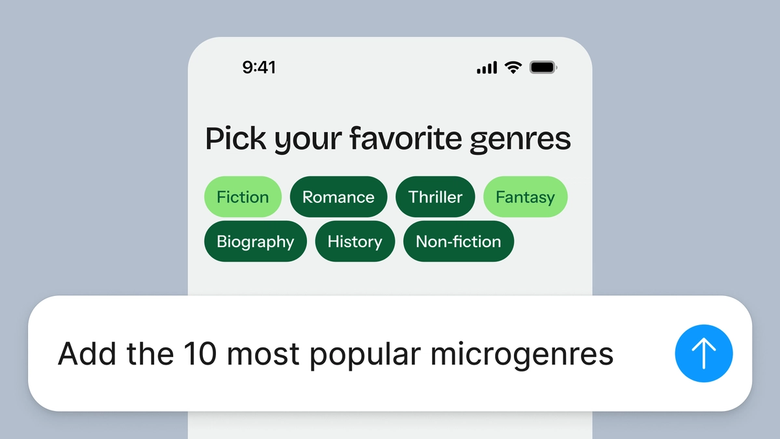
The agent works on your actual design layers, components, and frames. Refinements respect your existing structure and styles, so you're polishing real UI—not generating something new you'd have to rebuild.

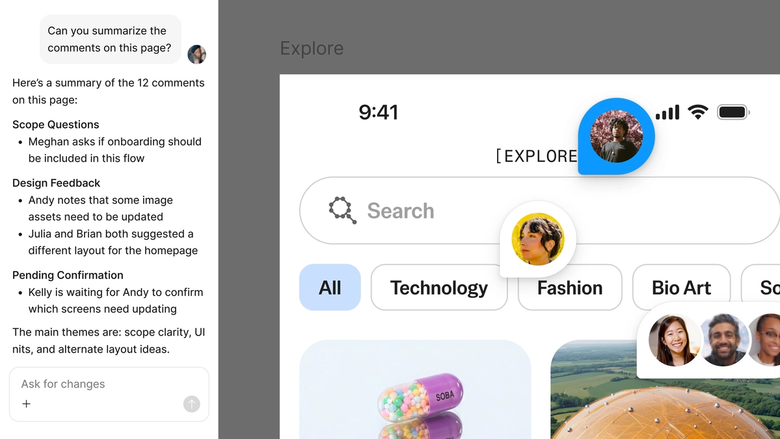
Refinements happen in the same file your team works in. Everyone sees the polished version and the prompt history behind it, so nothing gets lost and feedback stays in context.
A closer look at what sets Figma's agent apart, built for the way design teams actually work.
Point the agent to your design library so refinements use your real components, tokens, and styles—keeping everything consistent with your system.


Tell the agent what to refine and what to leave alone. Select specific layers first to scope exactly what gets polished.


First pass not quite right? Adjust with another prompt in the same thread, or open a parallel one to try a different approach.


Every refinement lands on your canvas as editable layers. Fine-tune by hand or prompt again—nothing gets flattened or locked.
Figma feels like a natural extension of my hand. I do my design ideation on the canvas, and now the agent takes it the last mile. With my design libraries connected, I can move from design to code faster than ever before.
Andy Madrick
Product Designer, Notion

Open your file in Figma Design and select the frame, component, or layers you want to polish.
Tell the agent what to improve—fix the spacing, align these elements, adjust the padding—and what to keep unchanged.
A checkmark appears when the refinement is done. Check it on your canvas and refine in the same thread if needed.
Everything stays editable. Prompt again for further adjustments or fine-tune by hand until every detail is right.
Watch Figma's AI Agent in action and see how to put it to work in your own workflows.


Hands-on playground to explore Figma agent's capabilities — from bulk edits to feedback implementation — with step-by-step guidance built right in.
Learn how to use Figma agent in your design workflows with a step-by-step tutorial from the Figma team.
Yes. Figma's agent works as an AI UI refiner directly on your canvas in Figma Design. You describe what to polish—spacing, alignment, visual consistency—and the agent applies changes to your actual design layers. It works with your existing components and styles, so refinements stay true to your design system.
Figma's agent handles many common refinement tasks well—adjusting spacing, fixing alignment, and improving visual consistency across frames. It works best when you're specific about what to change and what to preserve. Like any AI tool, it's a collaborator, not a replacement for your design judgment.
Figma's agent is available on all paid Figma plans, and during the current open beta it doesn't consume AI credits. You can explore, experiment, and refine your designs without worrying about usage limits—a good time to test what works for your workflow.
Figma's agent can help identify and fix visual inconsistencies like uneven spacing, misaligned elements, or padding that doesn't match your system. Describe what needs polish in your prompt, and the agent applies refinements to your selected layers while preserving what you want to keep.
Figma's agent is available on all paid Figma plans. You'll find it in the left side rail in Figma Design, or hit CMD + Enter to open it. During the current open beta, it doesn't consume AI credits—so it's a good time to explore, experiment, and share your feedback with us.
Build faster with Figma's agent


