

Connect your design library
Point the agent to your design system so audits check against your real components, tokens, and variables—not a static ruleset.
Skip to main content
Find detached components, style inconsistencies, and token drift across your files with Figma's agent—then fix issues directly where your team works. No spreadsheets, no manual hunting.


Design system audits work best when they happen in context. The agent checks your files against your actual library and flags what's drifted.


Figma's agent runs design system audits directly on your canvas, checking layers against your connected library. No exporting to a spreadsheet or switching to a separate audit tool—everything happens in the file your team works in.

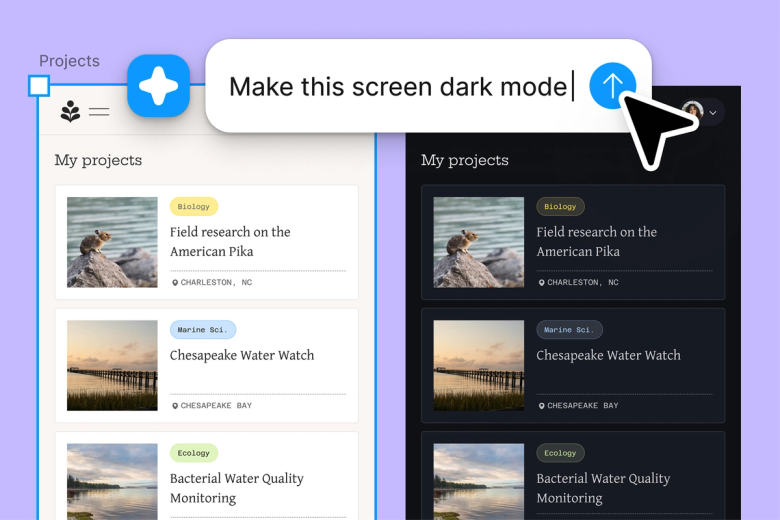
Hand off the tedious work of tracking down detached components, hardcoded values, and style overrides. The agent flags inconsistencies so you can focus on the fixes that actually matter to your system.

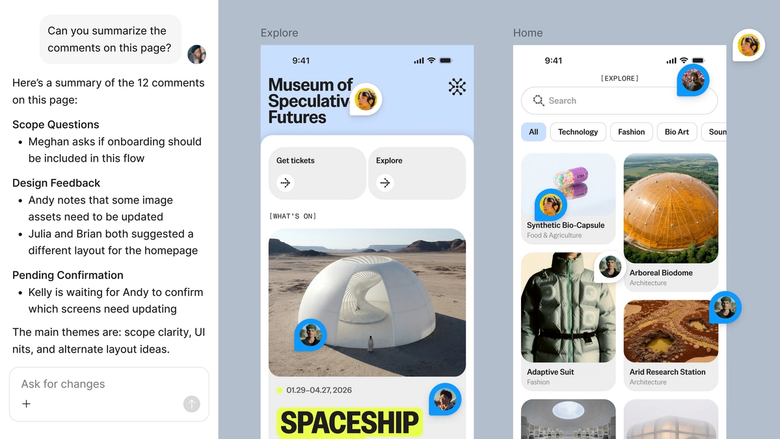
Audit results live in the same file everyone works in, so stakeholders see exactly what's out of sync and what's been resolved. No separate report to share or reconcile later.
A closer look at what sets Figma's agent apart, built for the way design teams actually work.
Point the agent to your design system so audits check against your real components, tokens, and variables—not a static ruleset.


Audit multiple files or frames simultaneously. Explore different scopes without waiting for one check to finish before starting another.


Share an audit thread and your team sees the full prompt, context, and findings. No separate report needed to explain what was checked.


Found an issue? Prompt the agent to fix it in the same thread, or open a parallel one to try a different approach.
Figma feels like a natural extension of my hand. I do my design ideation on the canvas, and now the agent takes it the last mile. With my design libraries connected, I can move from design to code faster than ever before.
Andy Madrick
Product Designer, Notion

Select Agents in the left side rail or hit CMD + Enter. Connect your design library so the agent knows what to check against.
Tell the agent what to look for—detached components, hardcoded colors, spacing inconsistencies—and which frames or files to check.
The agent flags issues directly on your canvas. Check the results in your thread and dig into specifics with follow-up prompts.
Prompt the agent to fix issues or handle them by hand. Run the audit again to confirm everything aligns with your system.
Watch Figma's AI Agent in action and see how to put it to work in your own workflows.


Hands-on playground to explore Figma agent's capabilities — from bulk edits to feedback implementation — with step-by-step guidance built right in.
Learn how to use Figma agent in your design workflows with a step-by-step tutorial from the Figma team.
A design system audit looks for inconsistencies between your designs and your source of truth—things like detached components, hardcoded color values, spacing overrides, and outdated tokens. Figma's agent checks your canvas against your connected library, flagging where designs have drifted from your system so you can bring them back into alignment.
Design audits typically fall into a few categories: visual consistency audits that check colors, typography, and spacing; component audits that find detached or outdated instances; accessibility audits that flag contrast and sizing issues; and content audits that review copy and labeling. Figma's agent can help with several of these directly on your canvas.
An effective audit starts with a clear scope—which files, frames, or patterns you're checking—and a defined source of truth to check against. With Figma's agent, you connect your design library, describe what to look for, and review findings on the canvas. Follow-up prompts let you dig deeper or fix issues in the same thread.
A component audit surfaces detached instances, overridden properties, outdated component versions, and inconsistent usage patterns. Figma's agent can flag these issues across your files by checking layers against your connected library, helping you catch drift before it compounds across your product.
Figma's agent is available on all paid Figma plans. You'll find it in the left side rail in Figma Design. During the current open beta, it doesn't consume AI credits—so it's a good time to explore, experiment, and share your feedback with us.
Build faster with Figma's agent


