

Reference your design system
The agent pulls from your connected libraries—your brand fonts, type scales, and styles—so every pairing suggestion fits what you're already building.
Skip to main content
Find typography combinations that complement your design—directly in Figma Design. Figma's agent suggests pairings based on your existing styles and visual context, so you spend less time testing and more time building.


Figma's agent pairs fonts using your real design context, so every suggestion feels intentional—not random.

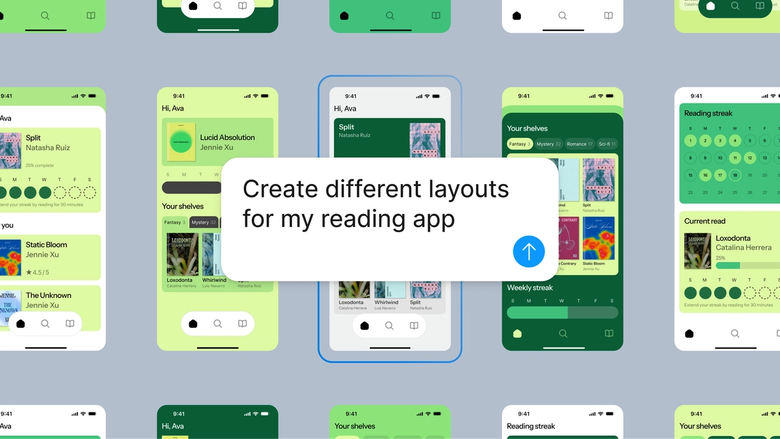
Figma's agent generates typography combinations using your actual design system—your fonts, your styles, your variables. See how pairings look in context, not as abstract swatches in a separate tool.

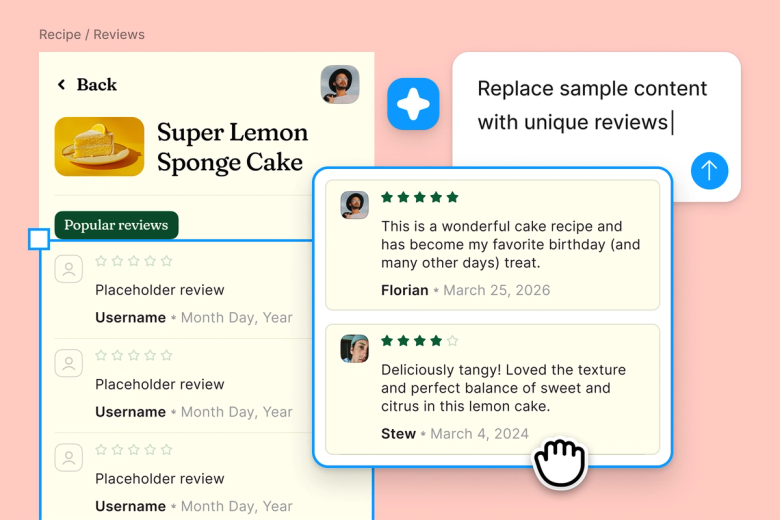
Stop cycling through font after font hoping something clicks. Describe the mood or hierarchy you need, and let the agent surface combinations worth exploring—so you can focus on the design decisions that matter.

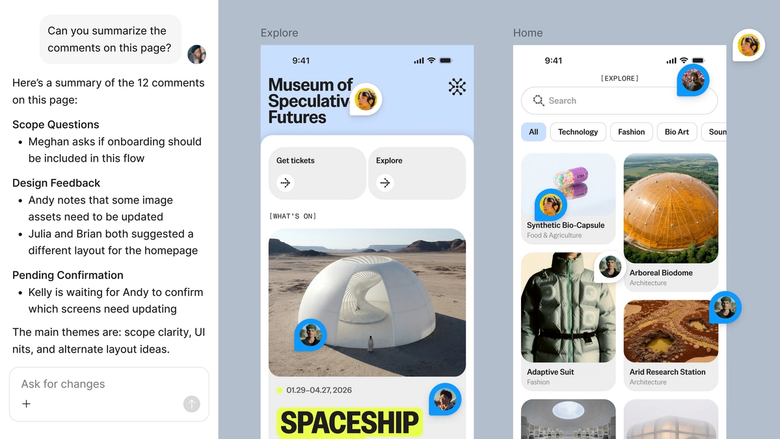
Typography choices happen in the same file your team works in. Everyone sees the options, the reasoning, and the final decision—no screenshots or side conversations needed.
A closer look at what sets Figma's agent apart, built for the way design teams actually work.
The agent pulls from your connected libraries—your brand fonts, type scales, and styles—so every pairing suggestion fits what you're already building.


Explore multiple typography directions at once. Run several pairing prompts simultaneously and compare results side by side on your canvas.


Share a thread and your team sees the full prompt, context, and iteration history behind every pairing decision. No separate handoff needed.


First suggestion not quite right? Adjust in the same thread—ask for more contrast, a different mood, or tighter hierarchy—without starting over.
Figma feels like a natural extension of my hand. I do my design ideation on the canvas, and now the agent takes it the last mile. With my design libraries connected, I can move from design to code faster than ever before.
Andy Madrick
Product Designer, Notion

Select Agents in the left side rail or hit CMD + Enter. Add a frame with your existing typography to give the agent context.
Tell the agent what kind of pairing you're looking for—modern and minimal, editorial and bold, or match an existing heading style. Point to your design library for brand-aligned suggestions.
Check the typography combinations directly in your design. Refine in the same thread or start a parallel one to explore a different direction.
Prompt again until the pairing feels right, or fine-tune manually. Everything stays editable on your canvas.
Watch Figma's AI Agent in action and see how to put it to work in your own workflows.


Hands-on playground to explore Figma agent's capabilities — from bulk edits to feedback implementation — with step-by-step guidance built right in.
Learn how to use Figma agent in your design workflows with a step-by-step tutorial from the Figma team.
An AI typography pairer helps you find font combinations that work well together—balancing contrast, hierarchy, and visual harmony. Figma's agent does this directly on your canvas, using your existing design system and styles to suggest pairings that fit your project. No need to export to a separate tool or test combinations one by one.
Figma's agent analyzes your design context—your existing fonts, styles, and visual hierarchy—to suggest complementary pairings. You describe what you're looking for, and the agent generates combinations you can review and refine right on your canvas. It's designed to speed up exploration while keeping you in control of the final decision.
Start by selecting a frame or text layer in Figma Design and opening the agent. Describe the pairing you need—like a heading and body combination with good contrast—and the agent will suggest options based on your design system. Review them in context, then refine with follow-up prompts until you find the right fit.
Yes. Figma's agent can suggest typography pairings based on your design context, mood, and hierarchy needs. It's particularly useful when you're exploring directions or need to move quickly. The agent handles the initial exploration so you can focus on evaluating options and making the final call.
Figma's agent is available on all paid Figma plans. You'll find it in the left side rail in Figma Design, or open it with CMD + Enter. During the current open beta, it doesn't consume AI credits—so it's a good time to explore, experiment, and share your feedback with us.
Build faster with Figma's agent


