

Describe the structure you want
Tell the agent your naming convention or page order. It applies the pattern across your file so everything follows the same logic.
Skip to main content
Tell Figma's agent how to structure your file—rename pages, reorder sections, clean up layer names—and it applies the changes directly in Figma Design. Describe it once, see it done.


Figma's agent tackles the organizational busywork so you can focus on the design decisions that actually matter.


Hand off the tedious cleanup tasks—renaming dozens of layers, reordering pages, standardizing naming conventions—and keep your focus on the design work that moves projects forward.

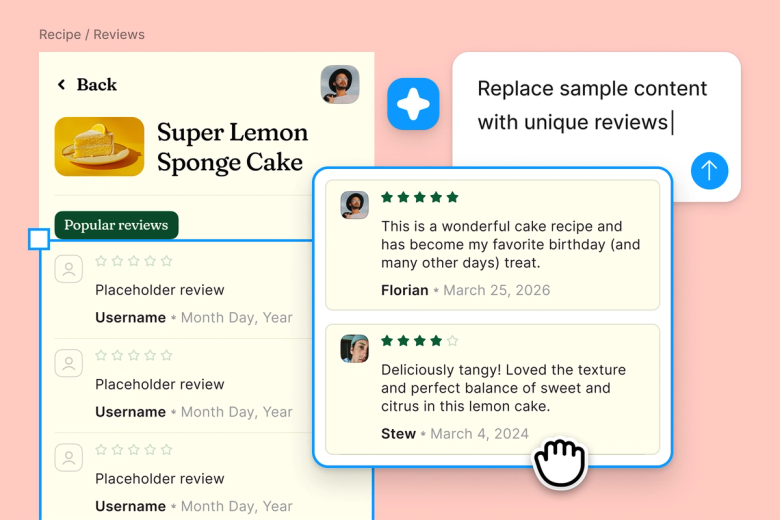
The agent works on the file you already have, restructuring and renaming your real pages and layers instead of generating something new you'd need to rebuild or migrate.


When organization happens in the same file your team works in, everyone sees the updated structure immediately. No separate cleanup docs, no confusion about which version is current.
A closer look at what sets Figma's agent apart, built for the way design teams actually work.
Tell the agent your naming convention or page order. It applies the pattern across your file so everything follows the same logic.


Specify what to change and what to leave alone—'rename layers but keep page order'—so the agent edits exactly what you intend.


First pass not quite right? Adjust with another prompt in the same thread, or try a different approach in a parallel one.


Share a thread and your team sees the full prompt, context, and changes made. Everyone understands how the file got organized.
Figma feels like a natural extension of my hand. I do my design ideation on the canvas, and now the agent takes it the last mile. With my design libraries connected, I can move from design to code faster than ever before.
Andy Madrick
Product Designer, Notion

Open the Figma Design file you want to organize. You can start with nothing selected or choose specific pages and layers.
Tell the agent how to structure things—rename pages by section, alphabetize layers, apply a naming convention. Be specific about what to change.
Check the updated structure on your canvas. Not quite there? Refine in the same thread or try a different approach in parallel.
Everything stays editable, so you can prompt again or fine-tune by hand until the file structure is exactly right.
Watch Figma's AI Agent in action and see how to put it to work in your own workflows.


Hands-on playground to explore Figma agent's capabilities — from bulk edits to feedback implementation — with step-by-step guidance built right in.
Learn how to use Figma agent in your design workflows with a step-by-step tutorial from the Figma team.
An AI page organizer helps you structure and clean up design files by renaming pages, reordering sections, and standardizing layer names based on your instructions. With Figma's agent, you describe the organization you want and the changes apply directly to your file—no manual dragging or renaming required.
Figma's agent reads your prompt describing the structure you want—whether that's a specific naming convention, a particular page order, or a cleanup of messy layer names. It then applies those changes directly to your existing file, keeping everything editable so you can adjust further.
Open your file in Figma Design and access the agent from the left side rail or by pressing CMD + Enter. Describe the cleanup you need—rename layers, reorder pages, standardize naming—and the agent applies the changes. You can refine with follow-up prompts until the file is organized the way you want.
Yes. Figma's agent can reorder pages, rename them according to a pattern you describe, and reorganize sections within your file. Tell it the structure you want, and it handles the rearranging directly on your canvas without you dragging things manually.
Figma's agent is available on all paid Figma plans. You'll find it in the left navigation bar in Figma Design. During the current open beta, it doesn't consume AI credits—so it's a good time to explore, experiment, and share your feedback with us.
Build faster with Figma's agent


