

Connect a design library
Point the agent to your design system so generated backgrounds respect your color tokens, styles, and visual language—not generic defaults.
Skip to main content
Create gradients, patterns, textures, and scenic backgrounds with AI—directly in Figma Design. Describe what you need, and the agent builds it using your design context. No separate tool, no importing assets back.


Generate backgrounds tailored to your project, using your design system and canvas context to keep everything cohesive.

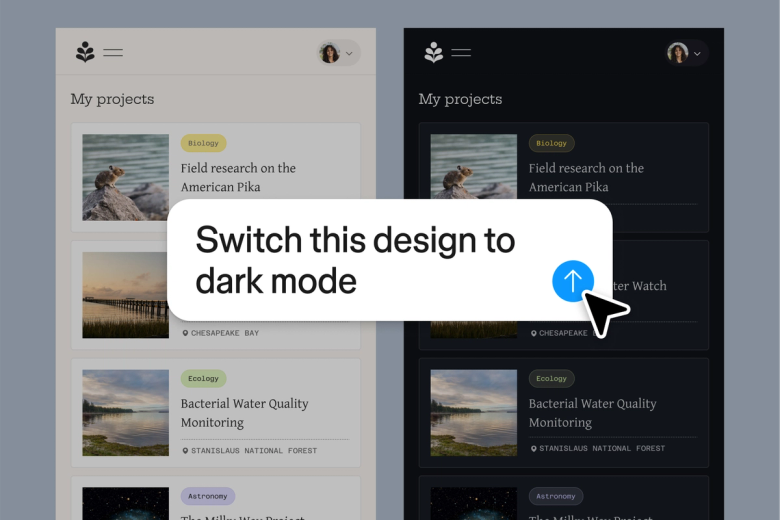
Figma's agent generates real background options directly on your canvas—gradients, abstract patterns, textured surfaces, illustrated scenes. See multiple directions at once instead of hunting through stock libraries or building from scratch.

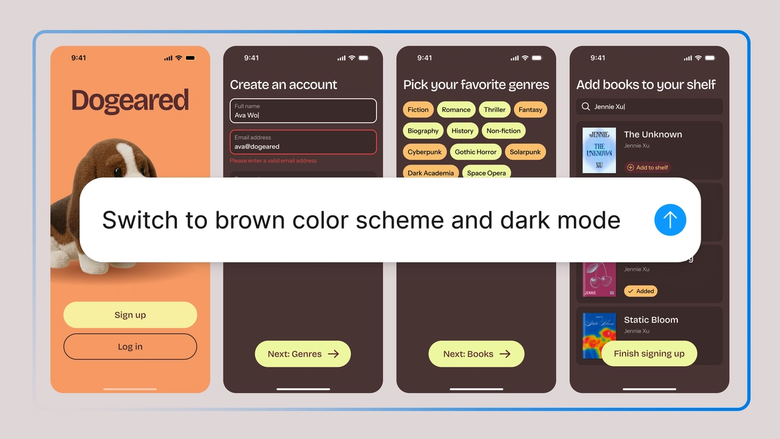
Skip the stock photo search and external generation tools. Describe the background you need, and the agent creates it where your design already lives. Less context switching, more building.

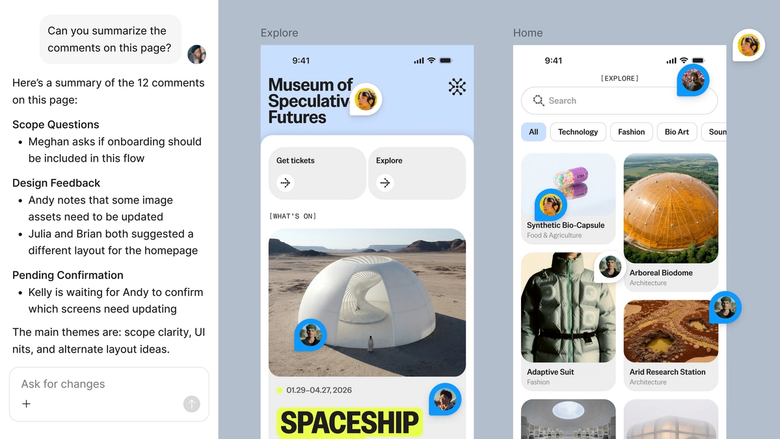
Generated backgrounds land in the same file your team works in. Everyone sees the options, the prompts behind them, and can build on them immediately—no downloading, uploading, or version confusion.
A closer look at what sets Figma's agent apart, built for the way design teams actually work.
Point the agent to your design system so generated backgrounds respect your color tokens, styles, and visual language—not generic defaults.


Explore multiple background directions at once. Run several prompts simultaneously and compare results side by side on your canvas.


Share a thread and your team sees the full prompt, context, and iteration history behind any generated background. No separate handoff.


First result not quite right? Adjust with another prompt in the same thread, or open a parallel one to try a completely different direction.
Figma feels like a natural extension of my hand. I do my design ideation on the canvas, and now the agent takes it the last mile. With my design libraries connected, I can move from design to code faster than ever before.
Andy Madrick
Product Designer, Notion

Select Agents in the left side rail or hit CMD + Enter. Create a frame on the canvas where you want the background to appear.
Tell the agent what you need—a soft gradient, an abstract texture, a scenic illustration. Reference your design library so it matches your project's visual style.
Check the generated background on your canvas. Refine in the same thread to adjust colors or mood, or start a parallel prompt to explore a different direction.
Prompt again until the background fits your design perfectly, or fine-tune by hand. Everything stays editable on the canvas.
Watch Figma's AI Agent in action and see how to put it to work in your own workflows.


Hands-on playground to explore Figma agent's capabilities — from bulk edits to feedback implementation — with step-by-step guidance built right in.
Learn how to use Figma agent in your design workflows with a step-by-step tutorial from the Figma team.
An AI background generator creates custom backgrounds from text descriptions—gradients, patterns, textures, or illustrated scenes. Figma's agent does this directly on your canvas, so you can generate backgrounds that fit your design context without leaving your file or searching stock libraries.
You describe the background you want in plain language, and the AI interprets your prompt to generate a visual. In Figma, the agent uses your canvas context and design library to create backgrounds that match your project's style, colors, and scale.
Figma's agent can generate backgrounds as separate layers on your canvas, giving you full control over transparency and blending. You can adjust opacity, layer order, or mask the background however you need—everything stays editable.
Open the agent from the left side rail or press CMD + Enter. Create a frame, describe the background you want, and the agent generates it directly on your canvas. Refine with follow-up prompts or try parallel directions to explore options faster.
Figma's agent is available on all paid Figma plans. You'll find it in the left side rail in Figma Design. During the current open beta, it doesn't consume AI credits—so it's a good time to explore, experiment, and share your feedback with us.
Build faster with Figma's agent


