

Reference images on canvas
Add reference images so the agent can match lighting direction, shadow softness, and intensity to the style you're working toward.
Skip to main content
Add drop shadows, cast shadows, and natural depth to any element with AI—directly in Figma Design. Describe the lighting you want and see it applied instantly, no manual tweaking required.


Figma's agent generates contextual shadows using your actual layers and lighting direction, so every shadow feels intentional and grounded in your composition.


Describe the shadow you need—soft ambient, hard directional, subtle drop—and the agent applies it to your selected elements. No fiddling with blur radii and offsets until something looks right.

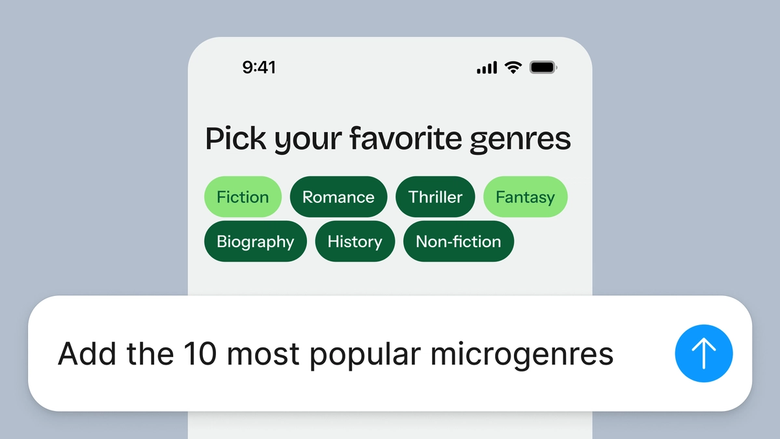
Hand off repetitive shadow work—batch-applying consistent shadows across icons, cards, or product images—and keep your focus on the design decisions that shape the overall experience.

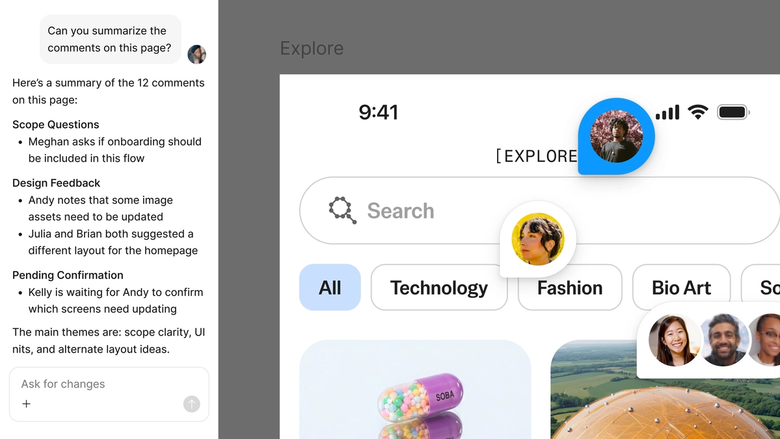
Shadows generate in the same file your team works in, so everyone sees the latest version and can build on it immediately. Nothing gets lost in a handoff or buried in a separate editor.
A closer look at what sets Figma's agent apart, built for the way design teams actually work.
Add reference images so the agent can match lighting direction, shadow softness, and intensity to the style you're working toward.


Shadow not quite right? Adjust with another prompt in the same thread—softer edge, different angle—or try a parallel direction without losing progress.


Share a thread and your team sees the full prompt, context, and iteration history behind any shadow. No separate documentation needed.


Every generated shadow lands as editable effects on your layers, so you can fine-tune values by hand or prompt again until it's perfect.
Figma feels like a natural extension of my hand. I do my design ideation on the canvas, and now the agent takes it the last mile. With my design libraries connected, I can move from design to code faster than ever before.
Andy Madrick
Product Designer, Notion

Open your file in Figma Design and select the layer, frame, or image you want to add a shadow to.
Tell the agent what kind of shadow you need—drop shadow, cast shadow, soft ambient glow—and mention lighting direction if it matters.
Check the shadow on your canvas. Not quite there? Refine in the same thread or open a parallel one to try a different lighting angle.
Everything stays editable as layer effects, so you can adjust values by hand or prompt again until the depth feels right.
Watch Figma's AI Agent in action and see how to put it to work in your own workflows.


Hands-on playground to explore Figma agent's capabilities — from bulk edits to feedback implementation — with step-by-step guidance built right in.
Learn how to use Figma agent in your design workflows with a step-by-step tutorial from the Figma team.
An AI shadow generator creates realistic shadows for design elements based on a text description. Instead of manually adjusting blur, spread, and offset values, you describe the shadow you want—soft drop shadow, hard directional cast—and the AI applies it. Figma's agent does this directly on your canvas, so shadows match your existing composition and lighting.
AI analyzes your element's shape, the surrounding composition, and your description to calculate appropriate shadow properties. It considers factors like implied light source direction, edge softness, and opacity falloff. Figma's agent applies these as editable layer effects, so you can refine them further if needed.
Yes. Figma's agent can generate drop shadows, cast shadows, and ambient shadows based on your prompt. Select an element, describe the shadow style you want, and it applies the effect directly to your layer. You can batch-apply shadows across multiple elements to maintain consistency throughout your design.
In Figma Design, add your product image to the canvas and select it. Open the agent and describe the shadow—something like 'add a soft drop shadow as if lit from above left.' The agent generates the shadow and applies it. Refine with follow-up prompts until the lighting feels natural for your composition.
Figma's agent is available on all paid Figma plans. You'll find it in the left navigation bar in Figma Design. During the current open beta, it doesn't consume AI credits—so it's a good time to explore, experiment, and share your feedback with us.
Build faster with Figma's agent


