

Connect a design library
Point the agent to your design library so gradients reference your real color tokens and styles—not random palettes that need rebuilding later.
Skip to main content
Create smooth color transitions, explore unexpected palettes, and apply beautiful gradients with AI—directly in Figma Design. Describe the mood, and the agent builds it on your canvas.


Figma's agent generates real gradient fills using your design system, so you can explore options without rebuilding anything.


Describe a mood, reference a color, or point to an existing style—Figma's agent generates gradient options directly on your canvas. Try bold ideas quickly and keep the ones that work.

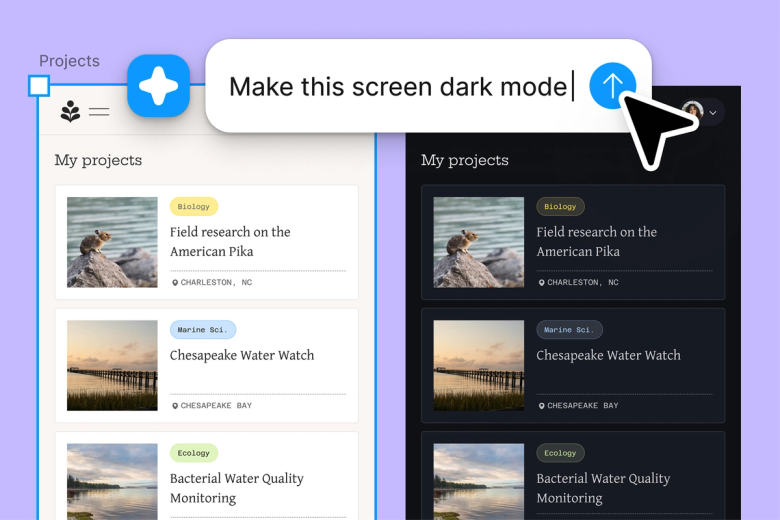
Skip the manual color stops and hex code hunting. Hand off the tedious gradient tweaking to the agent and keep your focus on the design decisions that actually matter.

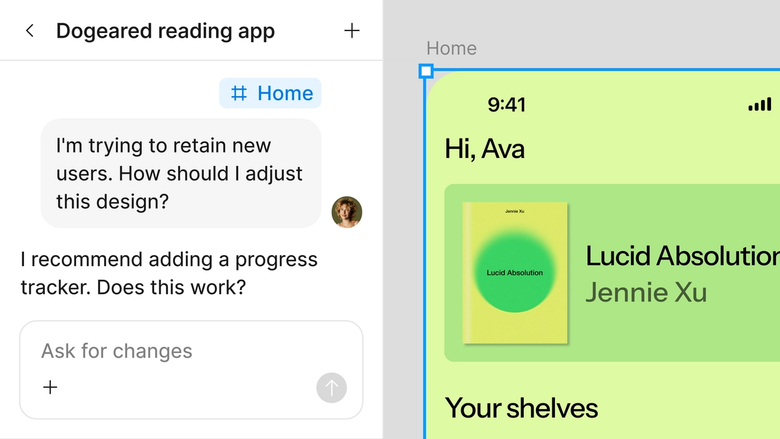
Gradients generate in the same file your team works in, using your shared styles and variables. Everyone sees the same output and can build on it right away.
A closer look at what sets Figma's agent apart, built for the way design teams actually work.
Point the agent to your design library so gradients reference your real color tokens and styles—not random palettes that need rebuilding later.


Explore multiple gradient directions at once. Run several prompts simultaneously and compare results side by side on the canvas.


Share a thread and your team sees the full prompt, context, and iteration history behind any gradient. No separate handoff needed.


First gradient not quite right? Adjust with another prompt in the same thread—warmer, more contrast, softer transition—without starting over.
Figma feels like a natural extension of my hand. I do my design ideation on the canvas, and now the agent takes it the last mile. With my design libraries connected, I can move from design to code faster than ever before.
Andy Madrick
Product Designer, Notion

Select Agents in the left side rail or hit CMD + Enter. Add a frame to your canvas where you want the gradient to appear.
Tell the agent what you want—a sunset gradient, a cool-to-warm transition, or something that matches your brand palette. Reference your design library for consistent colors.
Check the gradient on your canvas. Not quite there? Refine in the same thread or open a parallel one to explore a different color direction.
Everything stays editable. Adjust color stops by hand, prompt again for variations, or apply the gradient across multiple frames.
Watch Figma's AI Agent in action and see how to put it to work in your own workflows.


Hands-on playground to explore Figma agent's capabilities — from bulk edits to feedback implementation — with step-by-step guidance built right in.
Learn how to use Figma agent in your design workflows with a step-by-step tutorial from the Figma team.
An AI gradient generator creates smooth color transitions based on natural language prompts. Instead of manually placing color stops, you describe what you want—warm sunset tones, cool ocean blues—and the AI builds it. Figma's agent generates gradients directly on your canvas using your existing design tokens.
Open Figma's agent from the left side rail or hit CMD + Enter. Describe the gradient you want in plain language—reference colors, moods, or existing styles in your file. The agent generates the gradient directly on your canvas as an editable fill you can refine further.
Yes. Figma's agent can reference your connected design library when generating gradients. This means the colors it uses come from your actual tokens and styles, keeping everything consistent with your brand. No manual color matching needed afterward.
After the agent generates a gradient, you can prompt again in the same thread to adjust it—ask for warmer tones, more contrast, or a different angle. You can also edit the gradient manually since everything stays fully editable on your canvas.
Figma's agent is available on all paid Figma plans. You'll find it in the left side rail in Figma Design. During the current open beta, it doesn't consume AI credits—so it's a good time to explore, experiment, and share your feedback with us.
Build faster with Figma's agent


