

Reference images on canvas
Add style references directly to your canvas so the agent can match the aesthetic, texture, and visual language you're aiming for.
Skip to main content
Transform your illustrations into new visual styles with AI—directly in Figma Design. Match a reference, shift the aesthetic, or explore fresh directions without exporting to a separate tool.


Figma's agent transforms your visuals on the same canvas where your team collaborates, so style exploration stays connected to the work.

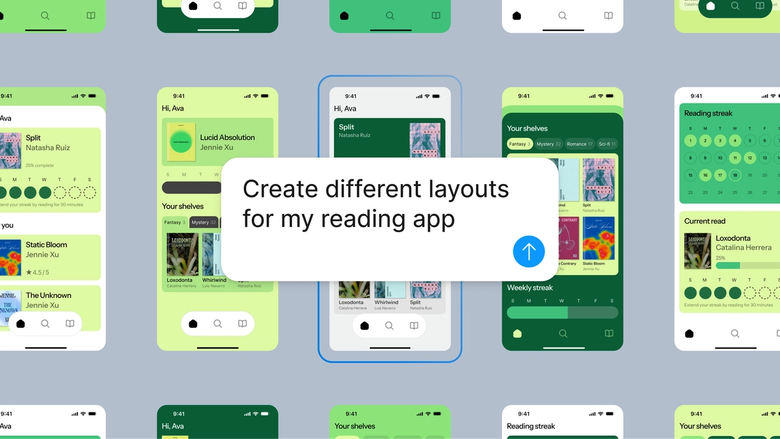
Figma's agent transforms illustrations using your actual design context—not isolated previews. See how a new style works with your layout, color system, and typography before committing to a direction.

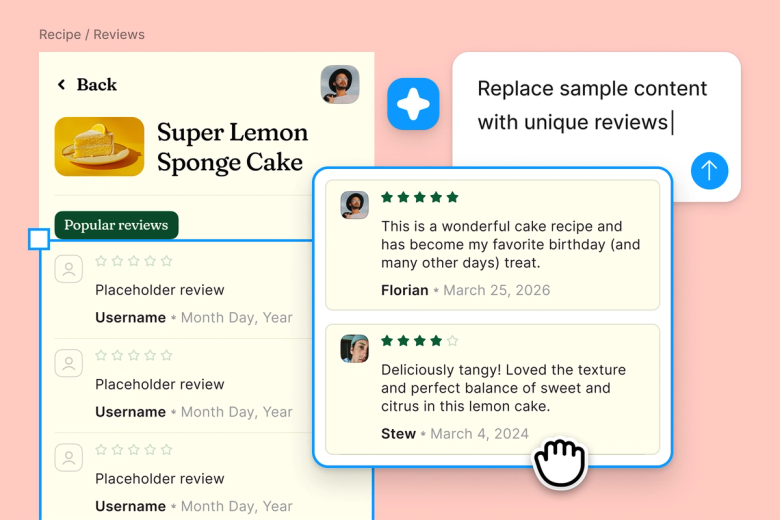
Skip the export-transform-import cycle. Describe the style you want, point to a reference on canvas if it helps, and let the agent handle the heavy lifting while you focus on design decisions.

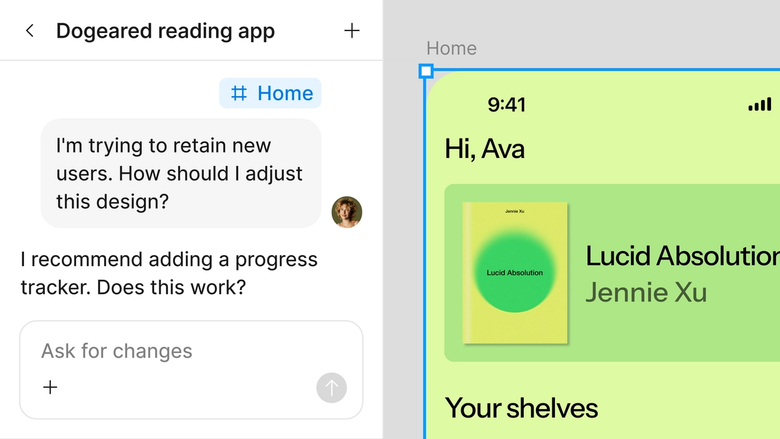
Style transformations happen in the same file your team works in. Everyone sees the latest version, the prompt history behind it, and can build on it immediately.
A closer look at what sets Figma's agent apart, built for the way design teams actually work.
Add style references directly to your canvas so the agent can match the aesthetic, texture, and visual language you're aiming for.


First pass not quite right? Adjust the style, intensity, or details with another prompt in the same thread, or try a parallel direction.


Share your thread and teammates see the full prompt, reference images, and iteration history. No separate handoff or explanation needed.


Transformed illustrations land on your canvas as editable layers. Fine-tune by hand, adjust colors, or prompt again—nothing gets flattened.
Figma feels like a natural extension of my hand. I do my design ideation on the canvas, and now the agent takes it the last mile. With my design libraries connected, I can move from design to code faster than ever before.
Andy Madrick
Product Designer, Notion

Open your file in Figma Design and select the illustration or visual you want to restyle.
Tell the agent what style you want—hand-drawn, flat vector, vintage poster—and add a reference image to the canvas if it helps.
Check the restyled illustration on your canvas. Refine in the same thread or open a parallel one to explore a different direction.
Everything stays editable on the canvas. Adjust by hand, prompt again, or try another style until it's exactly what you need.
Watch Figma's AI Agent in action and see how to put it to work in your own workflows.


Hands-on playground to explore Figma agent's capabilities — from bulk edits to feedback implementation — with step-by-step guidance built right in.
Learn how to use Figma agent in your design workflows with a step-by-step tutorial from the Figma team.
An AI illustration style changer transforms the visual style of your illustrations—shifting aesthetics from flat to textured, minimalist to detailed, or matching a specific reference. Figma's agent does this directly on your design canvas, so you can explore styles without leaving your file or rebuilding artwork from scratch.
The AI analyzes your illustration's structure and applies a new visual treatment based on your prompt or reference image. Figma's agent works with your actual design layers, preserving editability while transforming the look. You describe the style you want, and the agent handles the translation.
Select your illustration on the canvas, open the agent from the left side rail or hit CMD + Enter, then describe the style you want. Add a reference image if it helps. The agent transforms your illustration in place, and you can refine with follow-up prompts until it matches your vision.
Yes. Figma's agent can transform illustrations across a range of styles—hand-drawn, geometric, vintage, modern flat, and more. Point to a reference on your canvas or describe the aesthetic in words. The transformation happens on your existing layers, keeping everything editable.
Figma's agent is available on all paid Figma plans. You'll find it in the left side rail in Figma Design. During the current open beta, it doesn't consume AI credits—so it's a good time to explore, experiment, and share your feedback with us.
Build faster with Figma's agent


