

Scan for unused elements
The agent audits your file for orphaned components, detached instances, hidden layers, and elements that aren't connected to anything—surfacing clutter you'd miss manually.
Skip to main content
Let Figma's agent audit your file for unused components, hidden layers, and duplicate elements—then remove the clutter in a few clicks. Keep your files lean without the manual hunt.


Figma's agent handles the tedious file cleanup so you can focus on the work that matters, not hunting for orphaned layers.


Hand off the audit to Figma's agent—it scans for unused components, detached instances, hidden layers, and duplicate elements so you're not clicking through every frame to find what's slowing things down.

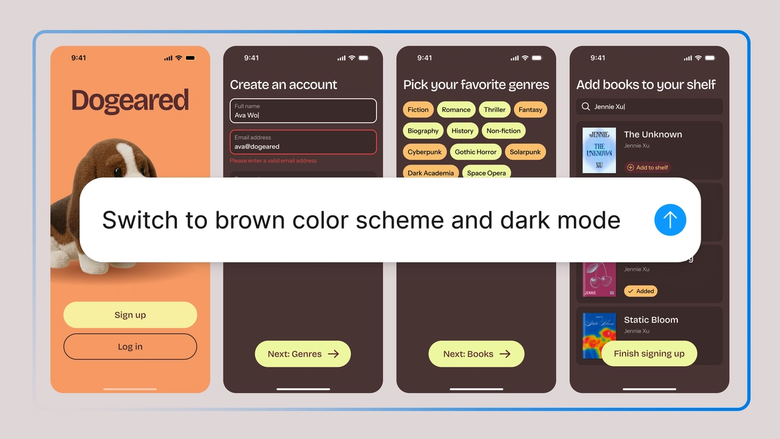
The agent identifies what's unused, but you stay in control. Review suggestions before anything gets removed, so you don't accidentally delete something a teammate is using.

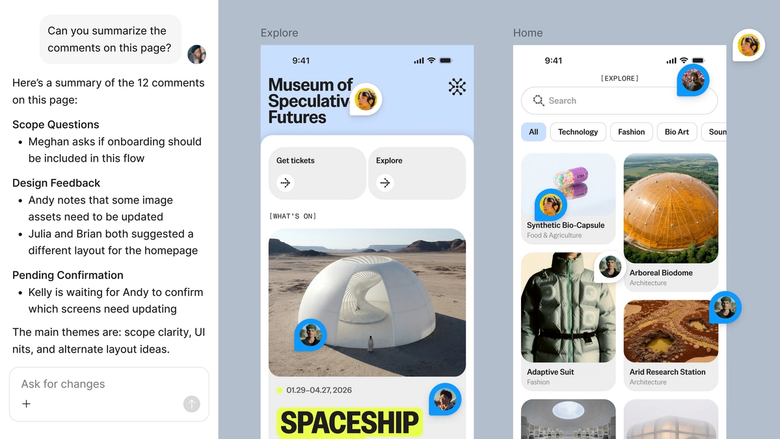
Cleanup happens in the same file your team shares, so everyone benefits from a leaner, faster file. No exports, no versioning confusion—just a cleaner workspace for the whole team.
A closer look at what sets Figma's agent apart, built for the way design teams actually work.
The agent audits your file for orphaned components, detached instances, hidden layers, and elements that aren't connected to anything—surfacing clutter you'd miss manually.


Not sure about a suggestion? Ask the agent to explain why something's flagged, or tell it to skip certain layers. Adjust the cleanup scope in the same thread.


Share the audit thread with your team so everyone sees what was flagged, what was removed, and why. Full context, no separate cleanup report needed.


Nothing gets permanently deleted without your approval. Review each suggestion on the canvas, keep what you need, and remove only what's truly unused.
Figma feels like a natural extension of my hand. I do my design ideation on the canvas, and now the agent takes it the last mile. With my design libraries connected, I can move from design to code faster than ever before.
Andy Madrick
Product Designer, Notion

Select Agents in the left side rail or hit CMD + Enter. Navigate to the file you want to clean up.
Tell the agent what to look for—unused components, hidden layers, duplicate elements, or all of the above. Be specific about what to keep if needed.
The agent flags clutter on your canvas. Review each suggestion, ask follow-up questions in the same thread, and decide what stays and what goes.
Approve the cleanup or adjust the scope. Everything stays editable, so you can restore layers or prompt again if you change your mind.
Watch Figma's AI Agent in action and see how to put it to work in your own workflows.


Hands-on playground to explore Figma agent's capabilities — from bulk edits to feedback implementation — with step-by-step guidance built right in.
Learn how to use Figma agent in your design workflows with a step-by-step tutorial from the Figma team.
Figma's agent scans your design file for unused components, detached instances, hidden layers, and duplicate elements that add bloat. It surfaces what's cluttering your file so you can review and remove it without hunting through every frame manually. The goal is a leaner, faster file that's easier for your whole team to work in.
The agent audits your file structure and flags elements that aren't connected to anything visible—orphaned components, layers hidden and forgotten, instances detached from their source. It uses the context of your actual file, not generic rules, so the suggestions are specific to what you've built. You review everything before deletion.
Yes. Tell Figma's agent to scan for unused components, and it identifies instances that aren't placed anywhere in your file or components that have been detached and left behind. You can review the list on your canvas and remove them in bulk, or ask the agent to explain why something was flagged before you decide.
Figma's agent doesn't delete anything without your approval. It flags what looks unused and lets you review each suggestion before removal. You stay in control of every decision, and because cleanup happens in your shared file, teammates can see the audit thread and weigh in if something should stay.
Figma's agent is available on all paid Figma plans. You'll find it in the left navigation bar in Figma Design. During the current open beta, it doesn't consume AI credits—so it's a good time to explore, experiment, and share your feedback with us.
Build faster with Figma's agent


