

Connect a design library
Point the agent to your design system so generated grids use your real spacing tokens, breakpoints, and layout components—not generic defaults.
Skip to main content
Create responsive grids, card layouts, and structured arrangements with AI—directly in Figma Design. Describe what you need, and the agent builds it using your real components and spacing tokens.


Skip the tedious setup and let the agent generate grid options that actually use your design system, so you can focus on the bigger decisions.


Figma's agent generates real grid structures using your components, spacing tokens, and variables—not placeholder boxes. See multiple layout directions at once, all ready to use and refine on your shared canvas.

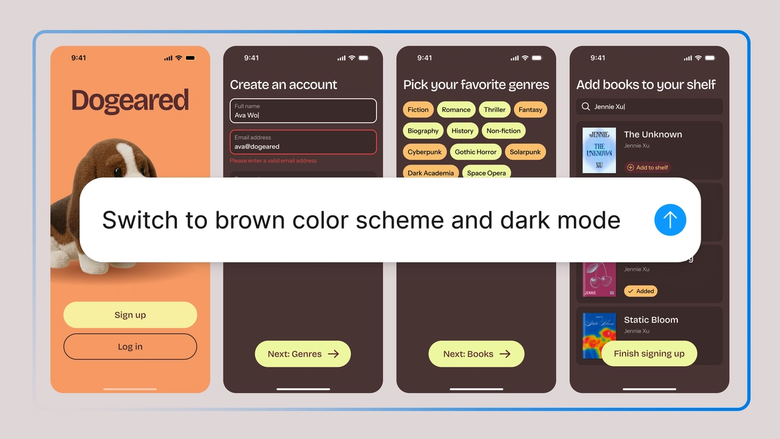
Describe the grid you need—a photo gallery, a card layout, a responsive content grid—and let the agent handle the math. Spend less time on manual alignment and more time designing what goes inside.

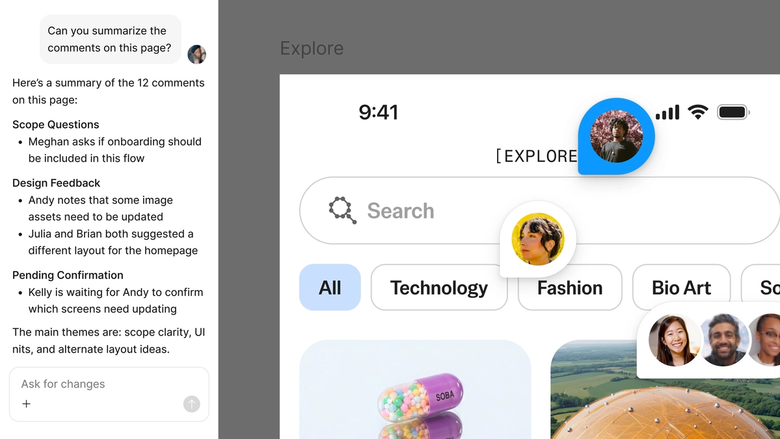
Generated grids live in the same file your team works in, so everyone sees the layout system and can build on it immediately. No separate handoff or specification docs needed.
A closer look at what sets Figma's agent apart, built for the way design teams actually work.
Point the agent to your design system so generated grids use your real spacing tokens, breakpoints, and layout components—not generic defaults.


Explore multiple grid directions at once. Run several prompts simultaneously and compare a photo grid, a card layout, and a content grid side by side.


Share a thread and your team sees the full prompt, context, and iteration history behind any grid. Everyone understands the structure decisions.


Turn your favorite grid workflows into reusable commands. Package prompts for responsive layouts or gallery structures and run them again with a single slash command.
Figma feels like a natural extension of my hand. I do my design ideation on the canvas, and now the agent takes it the last mile. With my design libraries connected, I can move from design to code faster than ever before.
Andy Madrick
Product Designer, Notion

Select Agents in the left side rail or hit CMD + Enter. Create a frame on the canvas where you want the grid to appear.
Tell the agent what kind of grid you need—a three-column card layout, a responsive photo gallery, a content grid with specific gaps. Reference your design library for accurate spacing.
Check the generated grid structure. Not quite right? Refine in the same thread or start a parallel one to explore a different column count or arrangement.
Everything stays editable. Adjust spacing by hand, swap in real content, or prompt again until the structure fits your layout perfectly.
Watch Figma's AI Agent in action and see how to put it to work in your own workflows.


Hands-on playground to explore Figma agent's capabilities — from bulk edits to feedback implementation — with step-by-step guidance built right in.
Learn how to use Figma agent in your design workflows with a step-by-step tutorial from the Figma team.
An AI grid generator creates structured layouts—like card grids, photo galleries, or content arrangements—based on a text description. Figma's agent builds these grids directly on your canvas using your design system's spacing tokens and components, so you get production-ready structures instead of placeholder boxes.
You describe the grid you need—column count, spacing, content type—and the agent calculates the structure and places it on your canvas. Figma's agent references your connected design library to use real variables and components, making the output immediately usable in your file.
Figma's agent can generate various grid types: responsive column layouts, card arrangements, photo galleries, dashboard structures, and content grids. You describe the structure and constraints, and the agent builds it using your design system's spacing and layout components.
Yes. Figma's agent generates grids directly on your canvas in Figma Design. Select Agents from the left side rail, describe the grid you need, and the agent builds it using your connected design library. Everything stays fully editable so you can refine by hand or prompt again.
Figma's agent is available on all paid Figma plans. You'll find it in the left side rail in Figma Design. During the current open beta, it doesn't consume AI credits—so it's a good time to explore, experiment, and share your feedback with us.
Build faster with Figma's agent


