Node-based workflows that keep you in control
Every step in your 3D scene generation is a node on the canvas. Feed in an image, generate the 3D model, then send that output into your next step. Adjust the chain as the scene comes together.
Skip to main content
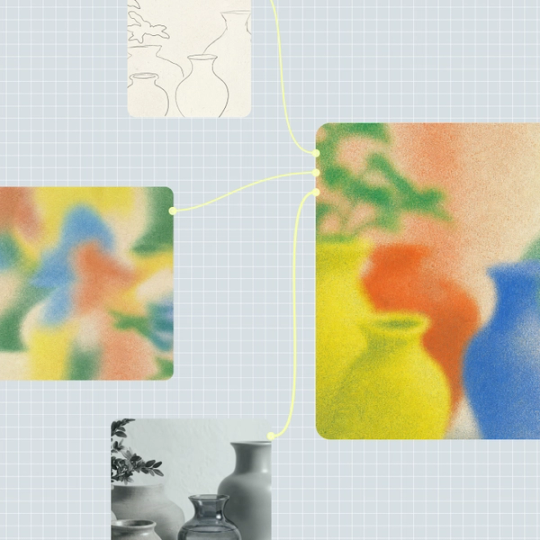
Most 3D generators hand you an AI model and stop there. In Figma Weave, that model becomes a node in your workflow, ready to edit or send further down the chain.
Every step in your 3D scene generation is a node on the canvas. Feed in an image, generate the 3D model, then send that output into your next step. Adjust the chain as the scene comes together.

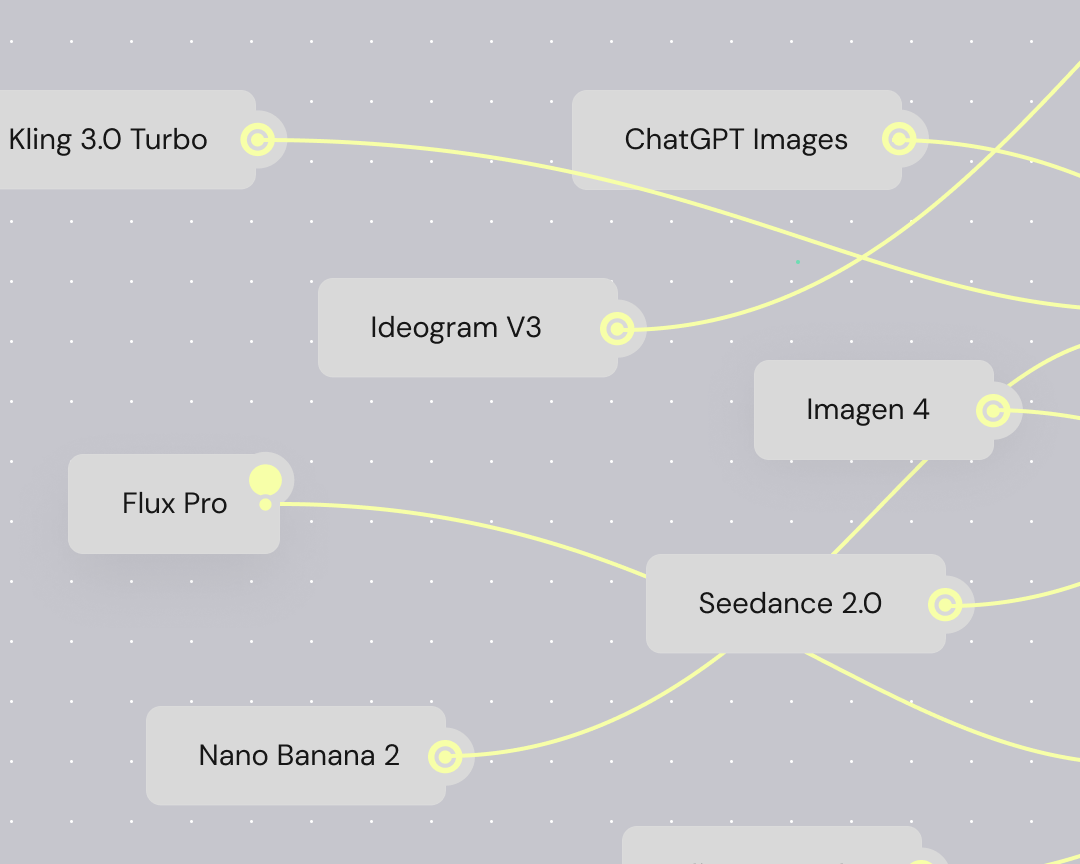
Send the same image to multiple 3D models at once. Compare outputs side by side, then pick the model that captures the scene you’re after.


A generated 3D model is one piece of the scene, not the whole picture. Crop, mask, blur, or upscale the surrounding elements with Figma Weave’s editing nodes, giving the model a fully composed backdrop to sit inside.

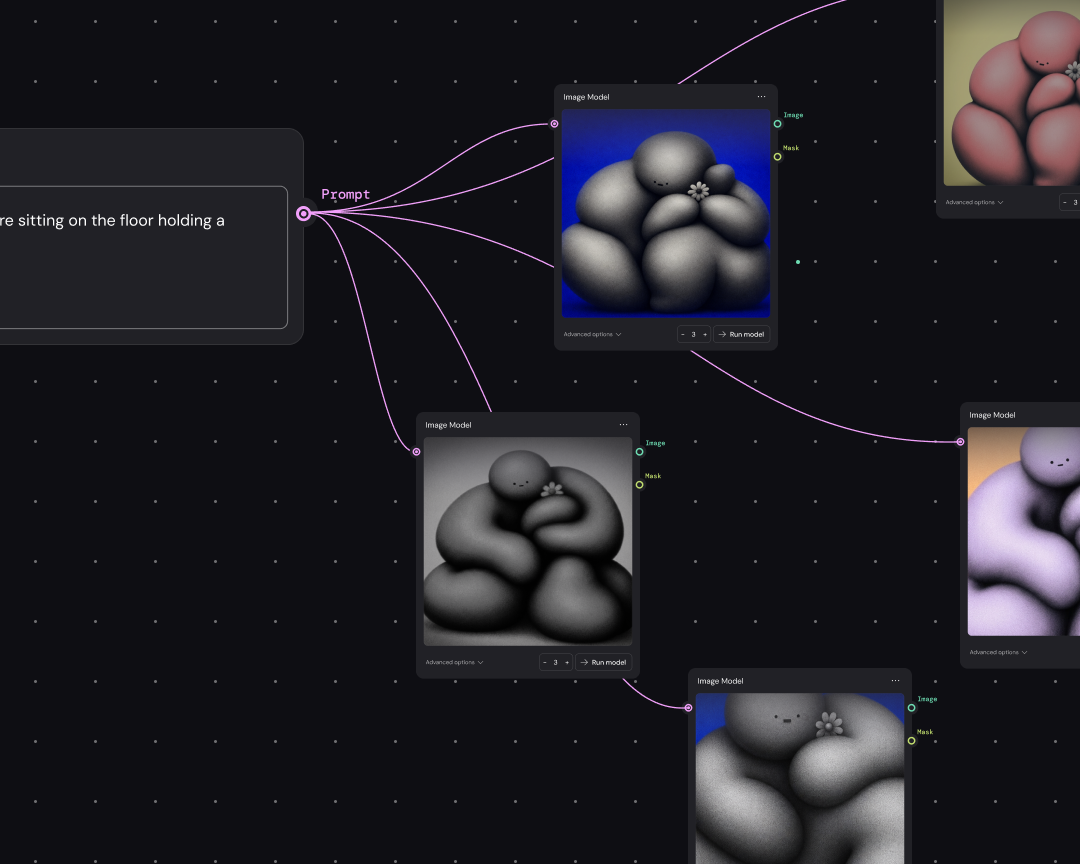
Set up a workflow, then rerun it on new images or variations. That same setup can become a tool with its own mini interface, so teammates can run it themselves.
Choose an AI model built for turning images into 3D. Because multiple models sit on the same canvas, you can pick based on the image or style you’re working with.
Bring in the image you want turned into a 3D model, or add a prompt node and type a text prompt. Either way, the AI 3D image generator uses this input to start building the model.
Run the generation. Send the same image through a second model and compare which output fits the scene you’re building.
Once the AI 3D model generator produces a result you like, position it alongside the other elements in your scene. Move or align it like any other piece on the canvas.
Connect the 3D model to an editing tool to adjust color or detail, then keep adjusting until the scene holds together. Nothing is locked—every node stays editable as the scene changes.
More resources
See how the Figma Community is using Figma Weave to create AI-generated images, video, and 3D.
In Figma Weave, either works. You can start from an image, or add a prompt box node instead. Both paths feed into the same 3D generation node.
Yes. You can generate the same input across several models, then compare the results before choosing one, which is what makes it function as an AI 3D scene generator. Generate the same input using different models and compare the results before choosing one.
Yes. Figma Weave is node-based, so your generated 3D model stays connected to the rest of the workflow. Keep adjusting placement, combine it with other elements, or connect it to another node as the scene comes together.
No. The 3D generation step works like any other node in Figma Weave, fitting into the same process as image or video generation.
Yes. The Figma Weave Community publishes templates for different workflows, including 3D model generation, so a scene doesn’t need to be built entirely from scratch.

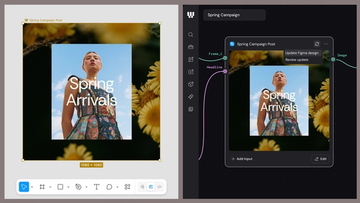
Figma Weave brings AI generation and editing tools together into connected, reusable workflows, giving you a process your team can shape, refine, and repeat. Here’s what it unlocks for creative teams and how to get the most out of it.
Design systems can power more than just designs. This workflow shows you how to turn raw materials into brand campaign collateral using the Gen Effect and Figma nodes.

Community publishing is now live for Weave tools. Here are a few tools that stand out, from turning a moodboard into a realistic room mockup to previewing your next nail set.

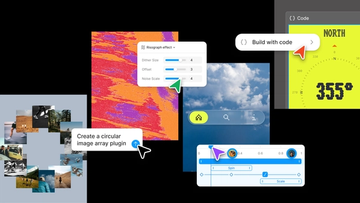
Push past what you thought was possible with code layers, Figma Motion, shaders, generative plugins and Weave tools, all on the canvas.

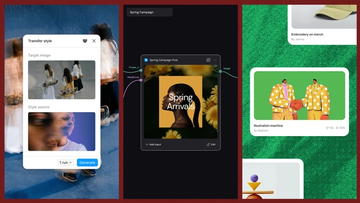
Today, we’re announcing new ways your Weave creative workflows can live alongside your Figma frames.
Aleph 2.0 brings frame-level creative direction to the Figma Weave canvas.