Every AI model, one canvas
Different shots call for different strengths. Pick the model that handles a clean studio headshot, then swap to another for a full-body pose. You won’t need to leave Figma Weave or open a separate tool to get that range.
Skip to main content
Build an agency-ready comp card with the AI model that fits the shot.
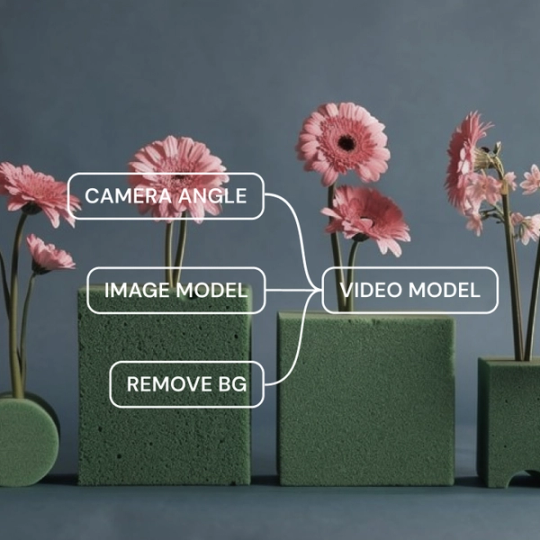
A comp card only works if the layout, lighting, and details are consistent from headshot to full-body shot. In Figma Weave, every major model is available on the same canvas, along with the editing tools to get there.
Different shots call for different strengths. Pick the model that handles a clean studio headshot, then swap to another for a full-body pose. You won’t need to leave Figma Weave or open a separate tool to get that range.


Skin retouching, background swaps, and color matching don’t require a separate trip to Photoshop. Adjust lighting, clean up a backdrop, or match skin tone across shots. It’s all in the same workflow you used to generate the image.


Build your comp card layout once as a chain of connected steps, then swap models or reference photos without starting over. You can see every stage a shot passes through, and adjust any of them before you export.

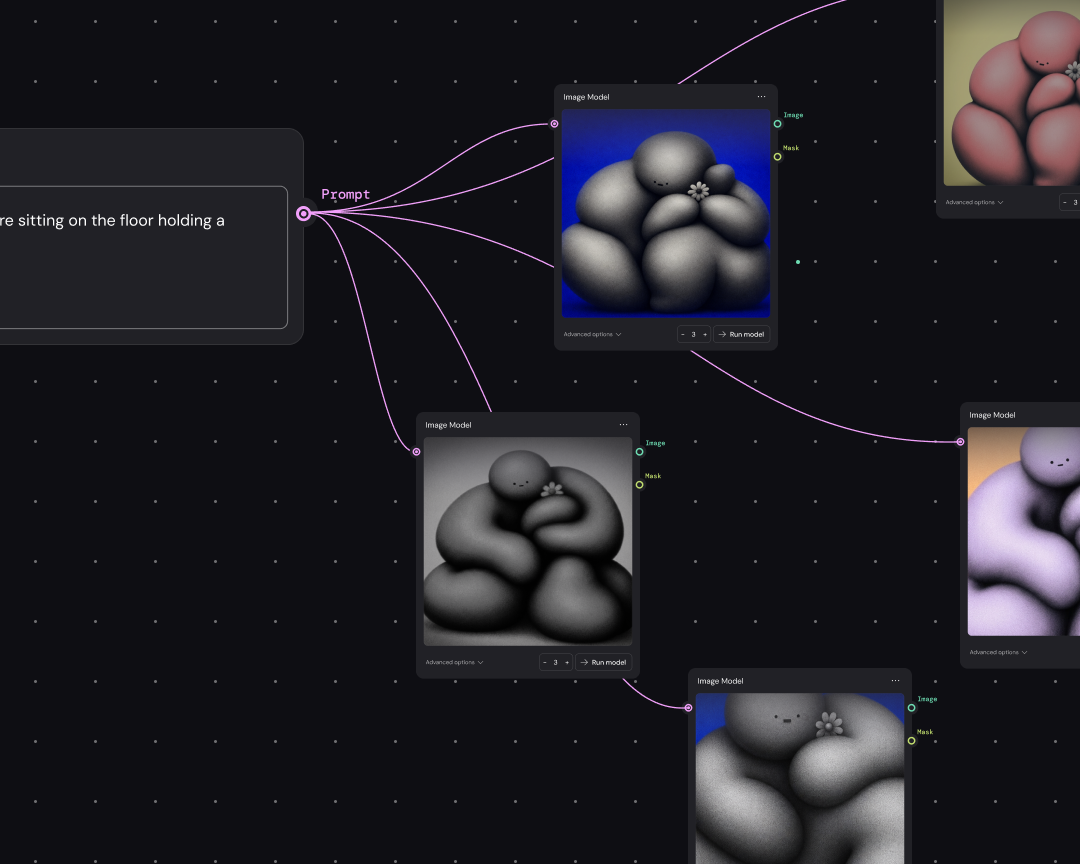
If you’re working with an agency roster or shooting new looks each season, you won’t rebuild the layout from scratch every time. You can reuse the same comp card workflow for every new set of photos.
Start with the photos you already have. The model comp card generator works from your real shots, a clean headshot, a full-body shot, and any additional angles your agency asks for.
Different models handle lighting, skin tone, and detail differently, so compare them side by side. Pick the one that keeps the shot looking like the real person.
Arrange headshot, full-body shot, and detail shots alongside name, stats, and agency contact. Save it as a template once, and you can reuse it for every new card or update.
More resources
See how the Figma Community is using Figma Weave to create AI-generated images, video, and 3D.
A comp card is a one-page sheet that models and actors give to agencies and casting directors. It typically includes a professional headshot, a few additional photos, and basic stats like height and measurements, plus contact info.
Most comp cards print at 5.5 x 8.5 inches, though some agencies request the standard postcard size of 4 x 6 inches. Check with your agency or casting director before finalizing a layout, because requirements vary by market.
A comp card generally includes a strong headshot, a full-body shot, and one or two more images that show range or a different look. Below the photos, it lists your name, agency contact, and key stats such as height, measurements, shoe size, hair color, and eye color.
Yes, the same workflow that builds a model comp card works for actors, influencers, and other talent who need a similar reference sheet. The layout and stats fields in the comp card maker just need to match what that industry expects, like reel links for actors or follower counts for influencers.
Most comp cards use four to six images on the front and back of the card. That usually breaks down to one lead headshot on the front, then a mix of full-body, lifestyle, and detail shots on the back.
Yes, and that’s the advantage of building it as a Figma Weave workflow rather than a one-off file. Swap in a new reference photo or update stats, and you can rerun the workflow instead of rebuilding the layout from scratch.

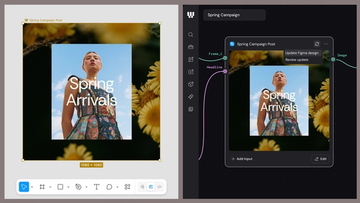
Figma Weave brings AI generation and editing tools together into connected, reusable workflows, giving you a process your team can shape, refine, and repeat. Here’s what it unlocks for creative teams and how to get the most out of it.
Design systems can power more than just designs. This workflow shows you how to turn raw materials into brand campaign collateral using the Gen Effect and Figma nodes.

Community publishing is now live for Weave tools. Here are a few tools that stand out, from turning a moodboard into a realistic room mockup to previewing your next nail set.

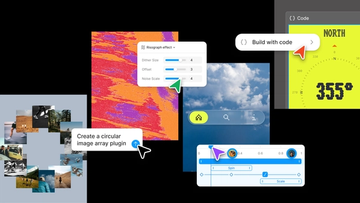
Push past what you thought was possible with code layers, Figma Motion, shaders, generative plugins and Weave tools, all on the canvas.

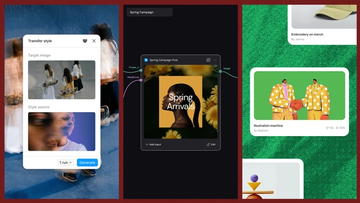
Today, we’re announcing new ways your Weave creative workflows can live alongside your Figma frames.
Aleph 2.0 brings frame-level creative direction to the Figma Weave canvas.