Build once. Scale across any volume.
Set up a batch workflow, then run it again whenever you need more. Whether it’s ten images or a hundred, bulk image generation
Skip to main content
Turn one prompt into a full batch of image variations across every AI model.
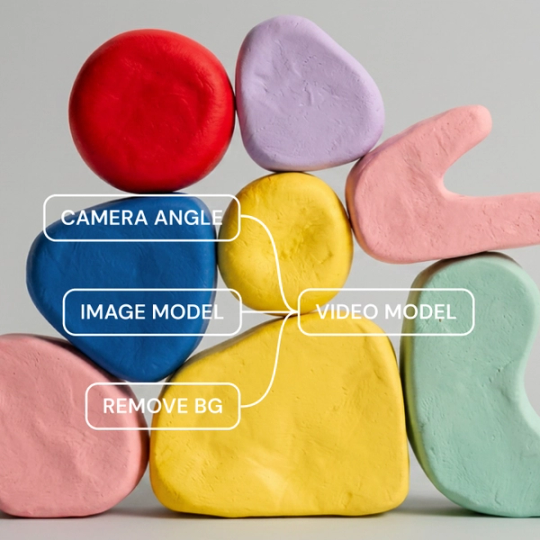
Figma Weave turns one prompt into dozens of variations—and you can still fine-tune the ones you like.
Set up a batch workflow, then run it again whenever you need more. Whether it’s ten images or a hundred, bulk image generation


Once a batch workflow feels right, turn it into a tool with its own mini interface. Teammates can run it on new subjects without touching the underlying nodes.


Run the same prompt across multiple AI models at once. Figma Weave lets you compare results and pick your favorite instead of settling for whatever the first model gives you.


Figma Weave’s AI image editor handles batch processing, too—crop, upscale, mask, and relight your favorites in the same canvas. Only spend time refining the ones that made the cut.
Pick one AI model, or run the same prompt across several at once. Every major AI model is in one canvas, so you can compare as you go.
Add your prompt, then choose how many runs or variations you want. This is where you set what stays consistent across the batch and what’s free to vary from image to image.
Click generate, and Figma Weave produces the full set at once. Whether you asked for ten images or a hundred, the workflow handles the whole run.
More resources
See how the Figma Community is using Figma Weave to create AI-generated images, video, and 3D.
Yes, you can capture a style once as a reusable description, then apply it to every image in a batch. This keeps the same visual direction across a full set of variations.
Yes. Once a workflow is set up in Figma Weave, you can resize a favorite output to whatever aspect ratios you need by adjusting the settings in each node. A single batch can cover a square crop and a widescreen version without separate setups for each.
Yes, a batch workflow in Figma Weave can run the same prompt across multiple AI models, so you can compare results side by side.
No. You can reuse a bulk AI image generator workflow you’ve built in Figma Weave, or turn it into a tool with its own mini interface. This lets teammates run it again without touching the underlying nodes.
Yes, Figma Weave’s editing tools apply directly to batch outputs, so you can touch up your favorites without leaving the canvas. Generation doesn’t have to be the last step.
You do. Set the number before generating, so the batch size can match whatever your project needs.

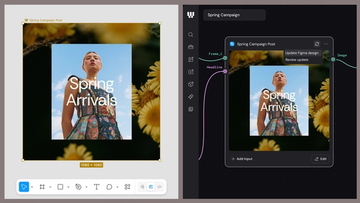
Figma Weave brings AI generation and editing tools together into connected, reusable workflows, giving you a process your team can shape, refine, and repeat. Here’s what it unlocks for creative teams and how to get the most out of it.
Design systems can power more than just designs. This workflow shows you how to turn raw materials into brand campaign collateral using the Gen Effect and Figma nodes.

Community publishing is now live for Weave tools. Here are a few tools that stand out, from turning a moodboard into a realistic room mockup to previewing your next nail set.

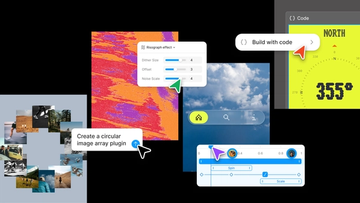
Push past what you thought was possible with code layers, Figma Motion, shaders, generative plugins and Weave tools, all on the canvas.

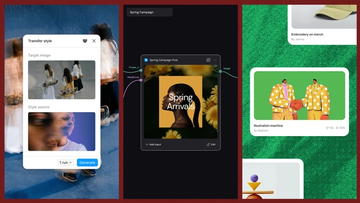
Today, we’re announcing new ways your Weave creative workflows can live alongside your Figma frames.
Aleph 2.0 brings frame-level creative direction to the Figma Weave canvas.