

Reference images on canvas
Add screenshots directly to your canvas so the agent can analyze structure, spacing, and visual hierarchy while converting to editable layers.
Skip to main content
Convert any screenshot into real design layers with Figma's agent—directly on your canvas in Figma Design. No tracing, no rebuilding from scratch, no switching between tools.


Figma's agent converts screenshots into workable layers on your canvas, so you can start building instead of rebuilding.


Figma's agent works as a screenshot to design converter right on your canvas. Drop an image, describe what you need, and get editable layers without exporting to another tool or rebuilding everything by hand.

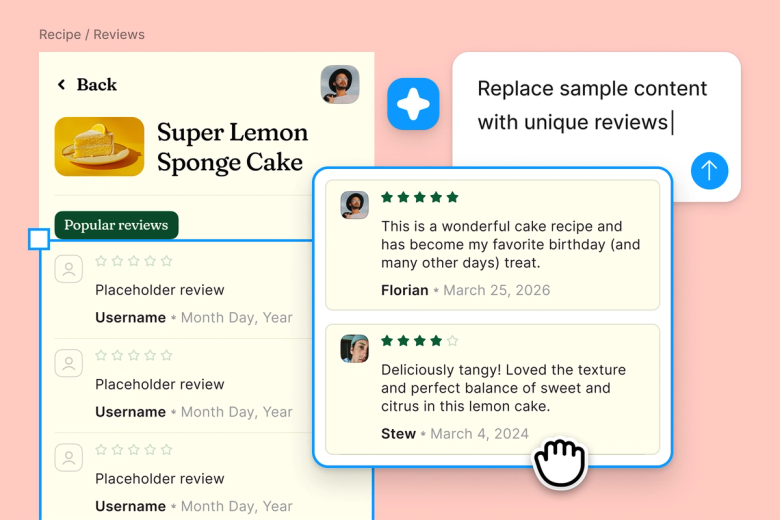
Skip the tedious process of recreating designs from reference images. Let the agent extract structure, spacing, and hierarchy so you can focus on refining and making it yours.

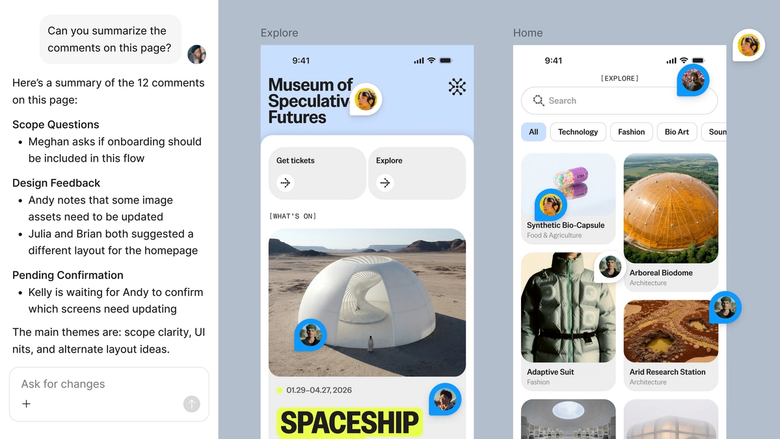
Converted designs land in the same file your team works in. Everyone sees the same layers and can iterate immediately—nothing gets lost in a separate export or handoff.
A closer look at what sets Figma's agent apart, built for the way design teams actually work.
Add screenshots directly to your canvas so the agent can analyze structure, spacing, and visual hierarchy while converting to editable layers.


Conversion not quite right? Adjust with another prompt in the same thread, or open a parallel one to try a different interpretation.


Share a thread and your team sees the original screenshot, prompts, and every iteration. Full context without a separate handoff.


Every converted element lands as editable layers—text, shapes, frames—so you can tweak, restyle, or completely rework anything.
Figma feels like a natural extension of my hand. I do my design ideation on the canvas, and now the agent takes it the last mile. With my design libraries connected, I can move from design to code faster than ever before.
Andy Madrick
Product Designer, Notion

Drop the screenshot you want to convert onto your canvas in Figma Design, or select one already in your file.
Tell the agent what to convert—the full layout, specific components, or just the structure. Point to your design library if you want it to use your existing styles.
Check the converted design on your canvas. Refine in the same thread or start a parallel one to explore a different interpretation.
Everything stays editable, so you can adjust layers by hand, swap in your own components, or prompt again until it's exactly what you need.
Watch Figma's AI Agent in action and see how to put it to work in your own workflows.


Hands-on playground to explore Figma agent's capabilities — from bulk edits to feedback implementation — with step-by-step guidance built right in.
Learn how to use Figma agent in your design workflows with a step-by-step tutorial from the Figma team.
A screenshot to design converter transforms static images—like screenshots of websites, apps, or mockups—into editable design files. Figma's agent does this directly on your canvas, turning pixel images into real layers, text, and shapes you can modify. Instead of tracing or rebuilding manually, you get a working starting point in seconds.
In Figma Design, drop your screenshot onto the canvas and open Figma's agent from the left side rail or press CMD + Enter. Describe what you want to extract—whether that's the full layout or specific elements. The agent analyzes the image and generates editable layers you can refine with follow-up prompts or by hand.
Accuracy depends on the screenshot's clarity and complexity. Figma's agent does well with clean layouts and recognizable UI patterns, but it may need guidance on custom or ambiguous elements. The output is always editable, so you can refine anything that doesn't match your intent—either with another prompt or manual adjustments.
Yes. When prompting Figma's agent, you can specify exactly what to extract—a navigation bar, a card component, just the typography structure. This gives you control over what becomes editable layers, so you're not stuck with an all-or-nothing conversion. Refine your selection with follow-up prompts as needed.
Figma's agent is available on all paid Figma plans. You'll find it in the left side rail in Figma Design, or open it with CMD + Enter on Mac or CTRL + Enter on Windows. During the current open beta, it doesn't consume AI credits—so it's a good time to explore, experiment, and share your feedback with us.
Build faster with Figma's agent


