

Connect a design library
Point the agent to your design system so generated dashboards use your real chart components, color tokens, and typography—not generic placeholders.
Skip to main content
Drop a CSV into Figma Design and let the agent build charts, tables, and data visualizations directly on your canvas. No switching tools, no manual rebuilding—just describe what you need and see it take shape.


Figma's agent reads your CSV and generates dashboard components using your actual design system, so outputs are ready to refine and ship.

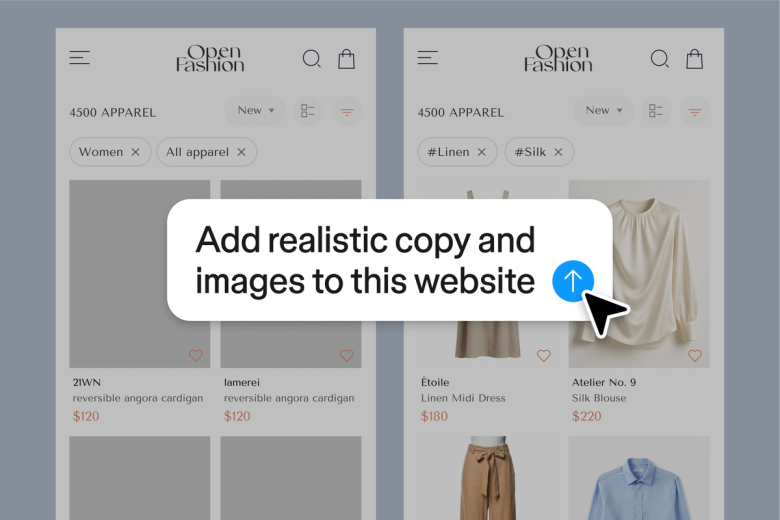
The agent generates real dashboard variations—charts, tables, data cards—using your connected design library. You're reviewing actual UI options on your canvas, not placeholder wireframes you'll have to rebuild later.

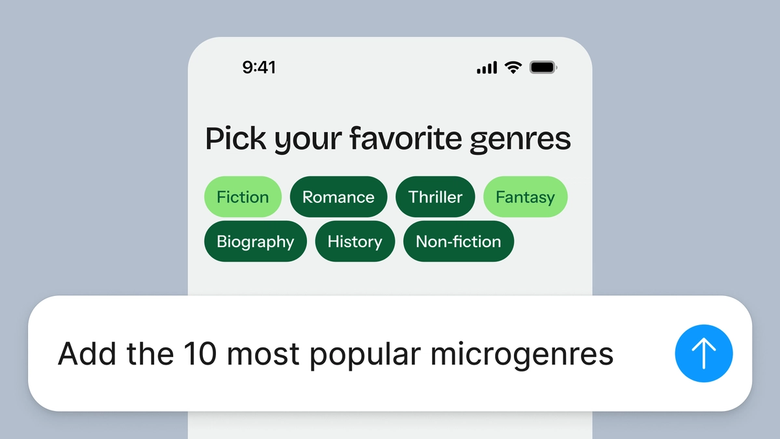
Skip the tedious work of manually creating chart after chart. Describe the data story you want to tell, and the agent scaffolds the visualization so you can focus on the design decisions that matter.

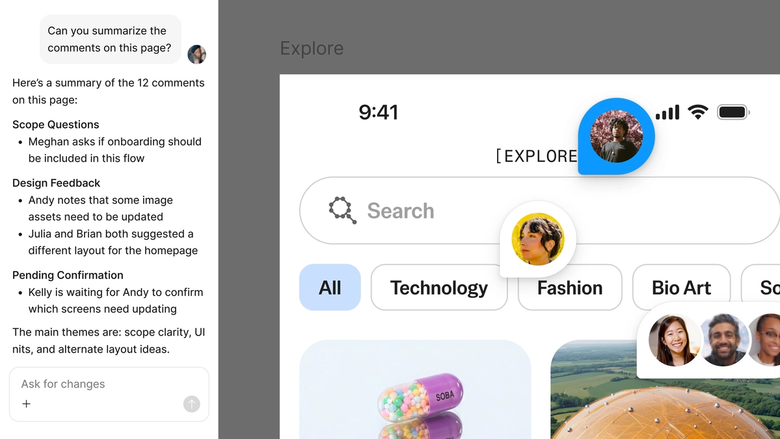
Dashboard concepts generate in the same file your team works in. Stakeholders see real data visualizations, not static mockups, and can give feedback where the design already lives.
A closer look at what sets Figma's agent apart, built for the way design teams actually work.
Point the agent to your design system so generated dashboards use your real chart components, color tokens, and typography—not generic placeholders.


Explore multiple dashboard layouts at once. Try a dense data table alongside a card-based overview without waiting for one to finish before starting the next.


Share a thread and your team sees the full prompt, CSV context, and iteration history behind any dashboard. No separate handoff needed.


Package your dashboard generation workflow into a reusable skill. Run it again with new data or share it with your team to standardize how you build data views.
Figma feels like a natural extension of my hand. I do my design ideation on the canvas, and now the agent takes it the last mile. With my design libraries connected, I can move from design to code faster than ever before.
Andy Madrick
Product Designer, Notion

Drop your CSV file onto the canvas in Figma Design, or paste the data directly. The agent reads your columns and values to understand the dataset.
Tell the agent what to visualize—revenue trends, user metrics, comparison tables—and point to your design library so it uses your real components.
Check the generated charts, tables, and layouts on your canvas. Refine in the same thread or start a parallel one to explore a different data story.
Prompt again to adjust visualizations, swap chart types, or add new data views. Everything stays editable so you can fine-tune by hand.
Watch Figma's AI Agent in action and see how to put it to work in your own workflows.


Hands-on playground to explore Figma agent's capabilities — from bulk edits to feedback implementation — with step-by-step guidance built right in.
Learn how to use Figma agent in your design workflows with a step-by-step tutorial from the Figma team.
With Figma's agent, you drop a CSV file directly onto your canvas in Figma Design and describe the dashboard you want to create. The agent reads your data columns and generates charts, tables, and visualizations as real design layers. You can iterate with follow-up prompts until the layout matches your vision.
Figma's agent can generate dashboard components from CSV data you add to your canvas. Describe the metrics you want to visualize, and it builds charts, data tables, and summary cards using your connected design library. The output lands on your canvas as editable layers you can refine.
Start by adding your data file to your canvas in Figma Design, then open the agent and describe the story you want to tell—trends over time, comparisons, key metrics. The agent generates the visualizations for you. Refine with follow-up prompts or parallel threads to explore different layouts.
Figma's agent can generate a range of data visualizations including bar charts, line graphs, pie charts, data tables, and metric cards. The specific components available depend on your connected design library. You can prompt for different chart types and the agent will build them using your system's tokens and styles.
Figma's agent is available on all paid Figma plans. You'll find it in the left navigation bar in Figma Design. During the current open beta, it doesn't consume AI credits—so it's a good time to explore, experiment, and share your feedback with us.
Build faster with Figma's agent


