YouTube thumbnail A/B testing

Generate thumbnail variants, refine each one, and build a repeatable testing workflow.

Build a thumbnail testing workflow that scales

Stop recreating variants from scratch for every video. Weave lets you build a thumbnail generation and editing pipeline once, then run it across your entire content calendar — consistent quality, faster iteration, more tests.

  • Professional editing after every generation

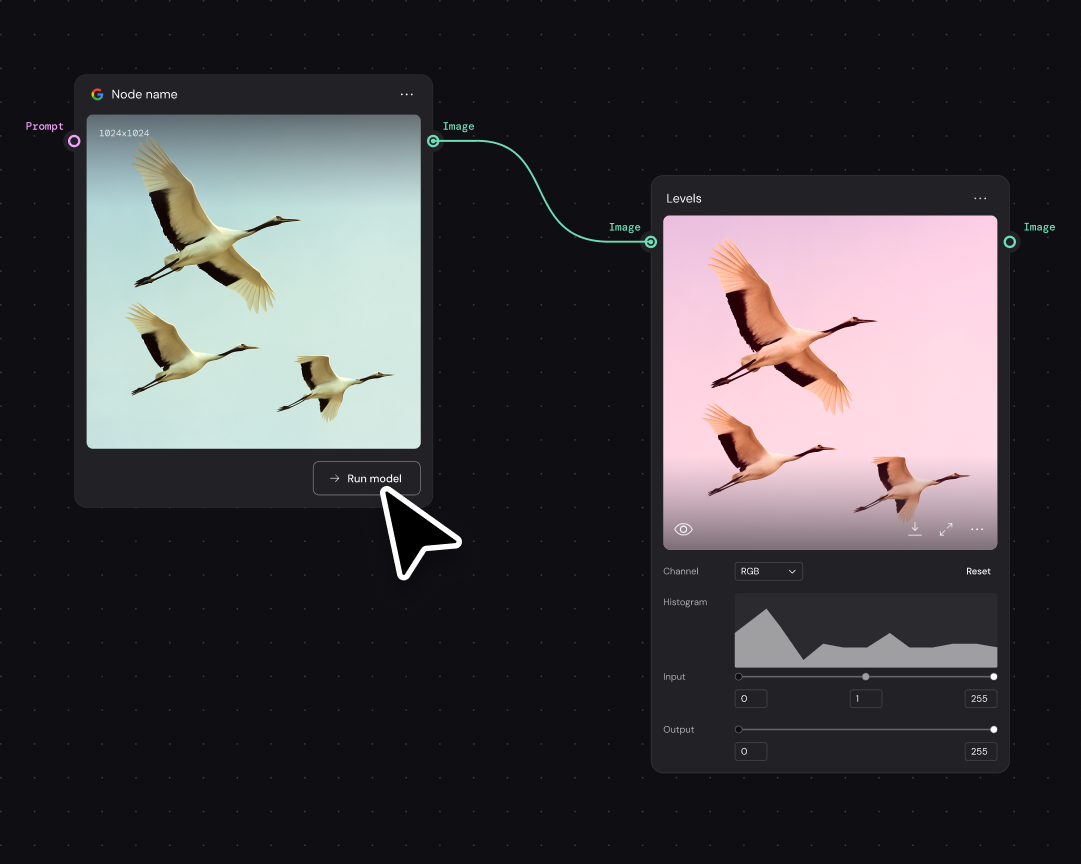
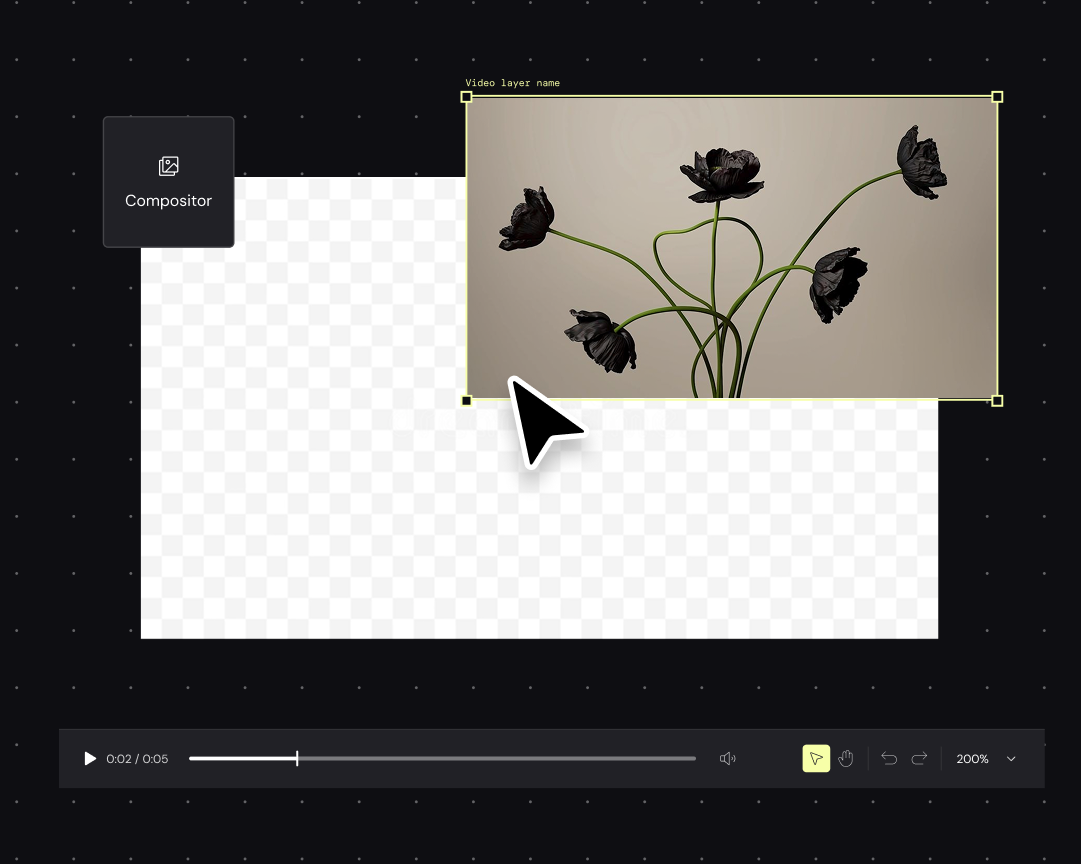
    Color grade, composite, and refine each thumbnail variant without leaving Weave. Layers, masking, and adjustment tools are built into the pipeline — the same precision you'd expect from dedicated editing software.

  • Control every step of your variant pipeline

    See exactly how each thumbnail variant gets made. Adjust a single node to change expressions, swap backgrounds, or shift color palettes across the entire batch — your creative decisions stay visible and editable.

  • Scale thumbnail testing across your channel

    Build one workflow that handles your thumbnail testing system. Run it across every new video — same quality standards, same variant types, same on-brand output — without rebuilding from zero each time.

  • Let your team run tests without rebuilding

    Encode your thumbnail testing logic into a reusable workflow. Team members supply the new video assets, the pipeline outputs the variants — no bottleneck on one person's design skills or availability.

How to build a thumbnail testing workflow in Figma Weave

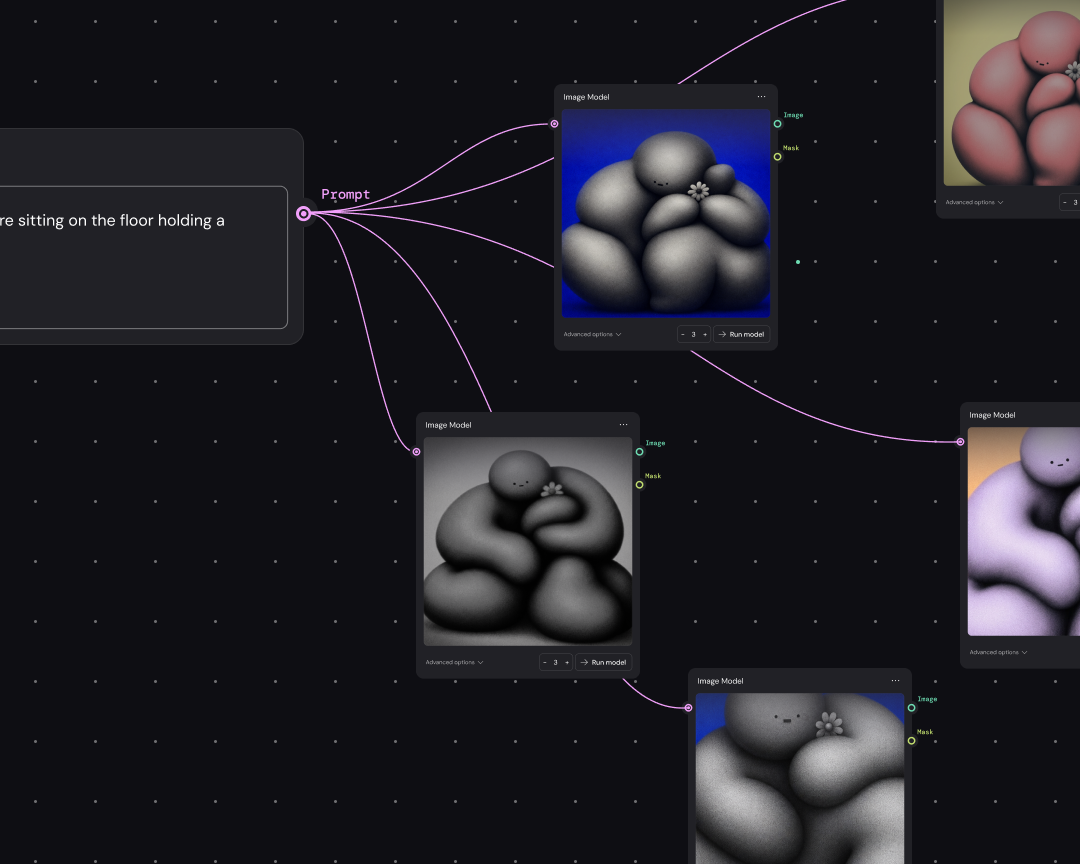
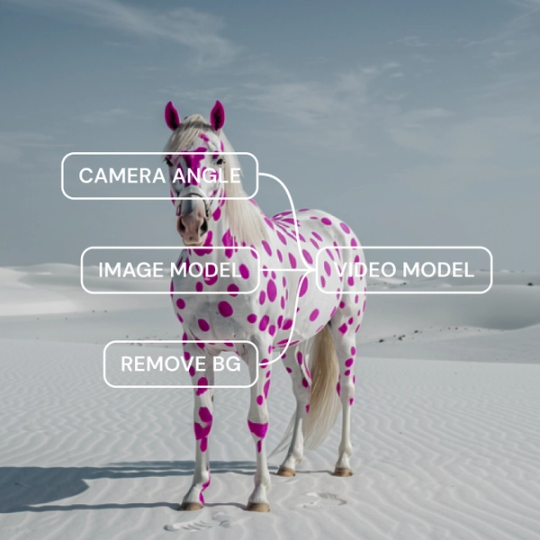
Connect image generation models and define your thumbnail template — faces, backgrounds, text treatments. Each element becomes a node you can swap or adjust independently.

Run the pipeline to create multiple thumbnail options. Use built-in editing tools to color grade, composite, and polish each variant to upload-ready quality.

Save your workflow. When your next video drops, feed in new assets and generate fresh variants — same process, new content, faster testing cycles.

Built by our community

See how the Figma Community is using Figma Weave to create AI-generated images, video, and 3D.

FAQ

Thumbnail A/B testing means creating multiple thumbnail variants for the same video to see which drives higher click-through rates. Figma Weave helps you generate, edit, and iterate on those variants faster — so you can test more options and learn what resonates with your audience.

Build a node-based workflow that combines AI generation with professional editing. Define your template elements — subject, background, text — then generate variants by adjusting individual nodes. Each variant gets the same polish without starting over.

Most creators run tests for 24-72 hours to gather meaningful data, depending on their view volume. Figma Weave helps you prepare multiple variants in advance so you can swap quickly and keep testing without production delays.

Click-through rates vary by niche, but most creators aim for 4-10%. Systematic A/B testing helps you understand what works for your specific audience. Weave makes it faster to produce the variants you need to run those tests consistently.

Yes, you can update thumbnails on published videos anytime. Figma Weave helps you maintain a library of ready-to-test variants so you can swap thumbnails quickly based on early performance data.

Track click-through rate and watch time in your analytics. Having more variants to test — which Weave helps you produce efficiently — means more data points and faster learning about what drives clicks for your content.

Become an agent expert

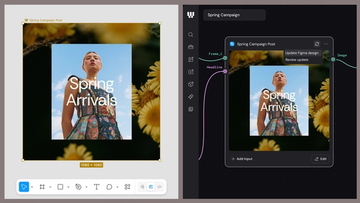
A “Spring Arrivals” campaign design shown in Figma Design beside its connected Figma node in Weave, with options to update the Figma design or review an update.A “Spring Arrivals” campaign design shown in Figma Design beside its connected Figma node in Weave, with options to update the Figma design or review an update.

The TL;DR on Figma Weave: Make your creative process repeatable

Figma Weave brings AI generation and editing tools together into connected, reusable workflows, giving you a process your team can shape, refine, and repeat. Here’s what it unlocks for creative teams and how to get the most out of it.

Learn more

Workflow lab: From design system to campaign in Figma Weave

Design systems can power more than just designs. This workflow shows you how to turn raw materials into brand campaign collateral using the Gen Effect and Figma nodes.

Learn more
Colorful abstract illustration of interlocking geometric shapes, including loops, arrows, a starburst, and grid patterns, suggesting connected tools and workflows.Colorful abstract illustration of interlocking geometric shapes, including loops, arrows, a starburst, and grid patterns, suggesting connected tools and workflows.

Try these 5 Weave tools—and share your own

Community publishing is now live for Weave tools. Here are a few tools that stand out, from turning a moodboard into a realistic room mockup to previewing your next nail set.

Learn more
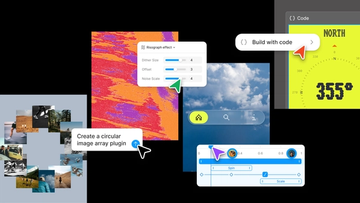
Collage-style product graphic showcasing AI-assisted design and development workflows, with plugin creation prompts, visual effect controls, code generation tools, and interactive UI components arranged across a creative workspace.Collage-style product graphic showcasing AI-assisted design and development workflows, with plugin creation prompts, visual effect controls, code generation tools, and interactive UI components arranged across a creative workspace.

Config 2026: New materials, new tools and a more expressive canvas

Push past what you thought was possible with code layers, Figma Motion, shaders, generative plugins and Weave tools, all on the canvas.

Learn more
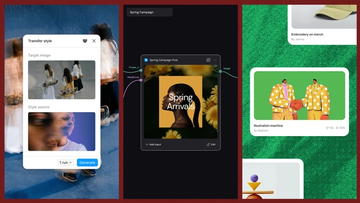
Three-panel product graphic demonstrating AI-powered style transfer. On the left, a "Transfer style" interface displays a target image of people carrying skateboards and a blurred portrait used as the style source. In the center, a workflow canvas labeled "Spring Campaign" shows a connected post-generation node producing a floral-themed social media graphic titled "Spring Arrivals." On the right, a gallery-style layout displays generated creative assets, including an illustrated handshake artwork and merchandise design cards, showing how transferred styles can be applied across a campaign.Three-panel product graphic demonstrating AI-powered style transfer. On the left, a "Transfer style" interface displays a target image of people carrying skateboards and a blurred portrait used as the style source. In the center, a workflow canvas labeled "Spring Campaign" shows a connected post-generation node producing a floral-themed social media graphic titled "Spring Arrivals." On the right, a gallery-style layout displays generated creative assets, including an illustrated handshake artwork and merchandise design cards, showing how transferred styles can be applied across a campaign.

Connecting Figma and Weave

Today, we’re announcing new ways your Weave creative workflows can live alongside your Figma frames.

Learn more

Direct every frame with Runway Aleph 2.0, now in Figma Weave

Aleph 2.0 brings frame-level creative direction to the Figma Weave canvas.

Learn more
Powered by Fruition