

Connect a design library
Generate skeleton loaders that reference your design system's spacing, corner radii, and layout patterns—so every loading state feels native to your product.
Skip to main content
Turn any frame into a polished skeleton loading state with AI—directly in Figma Design. No manual tracing, no separate mockups, just describe what you need and see it built on your canvas.


Figma's agent generates skeleton loaders using your real components and spacing, so every loading state feels native to your product.

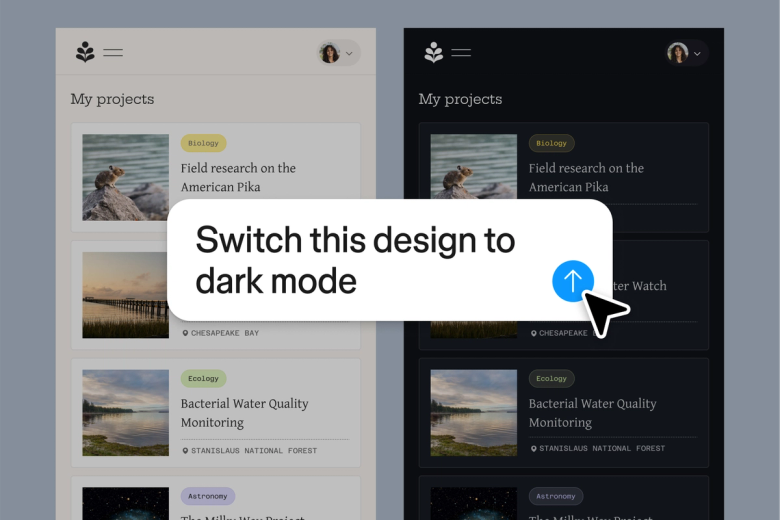
Point the agent at any frame and it creates skeleton loading states that follow your existing structure, spacing, and proportions. No manual tracing or placeholder rectangles—just loading states that actually match your designs.

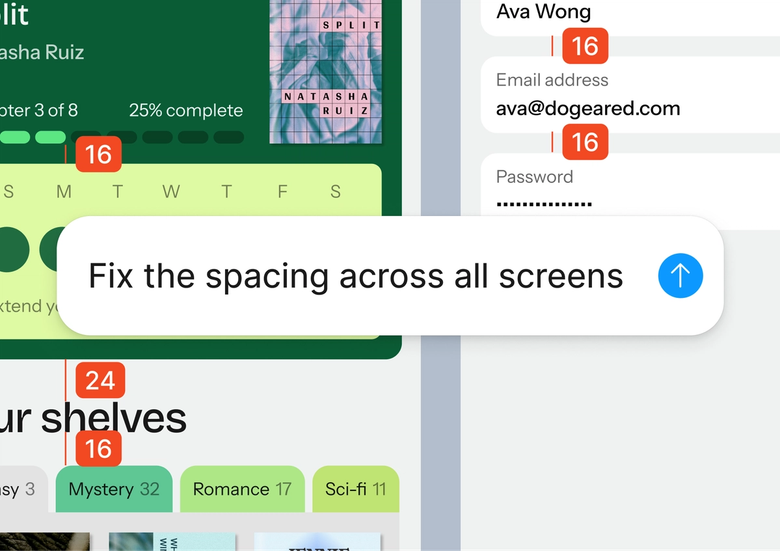
Skip the tedious process of duplicating frames, stripping content, and adding shimmer effects by hand. Describe the loading state you need, and the agent builds it while you focus on the interactions that matter.

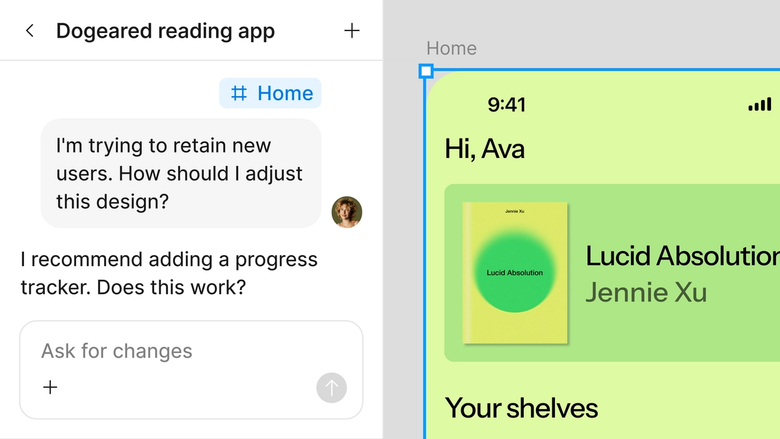
Every skeleton loader lives in the same file your team works in. Developers see exactly how loading states map to final designs, with no confusion about spacing, sizing, or structure.
A closer look at what sets Figma's agent apart, built for the way design teams actually work.
Generate skeleton loaders that reference your design system's spacing, corner radii, and layout patterns—so every loading state feels native to your product.


Explore multiple skeleton styles at once—different shimmer treatments, placeholder shapes, or animation hints—without waiting for one to finish before starting another.


Share a thread and your team sees the full prompt and iteration history behind each loading state. No guessing how a skeleton was built.


Every generated skeleton loader lands on your canvas as editable layers, so you can adjust shapes, tweak spacing, or refine details by hand.
Figma feels like a natural extension of my hand. I do my design ideation on the canvas, and now the agent takes it the last mile. With my design libraries connected, I can move from design to code faster than ever before.
Andy Madrick
Product Designer, Notion

Open your file in Figma Design and select the frame you want to create a skeleton loader for.
Tell the agent what kind of skeleton you need—which elements to show as placeholders, what to omit, and any specific styling like rounded shapes or shimmer areas.
Check the generated skeleton loader against your original design. Refine in the same thread or try a parallel direction for a different approach.
Everything stays editable, so you can adjust by hand or prompt again. When it's ready, developers can inspect the same file.
Watch Figma's AI Agent in action and see how to put it to work in your own workflows.


Hands-on playground to explore Figma agent's capabilities — from bulk edits to feedback implementation — with step-by-step guidance built right in.
Learn how to use Figma agent in your design workflows with a step-by-step tutorial from the Figma team.
An AI skeleton loader generator creates loading state mockups from your existing designs automatically. Instead of manually tracing layouts and adding placeholder shapes, the AI analyzes your frame's structure and generates a matching skeleton. Figma's agent does this directly on your canvas, using your real design context to build accurate loading states.
Skeleton loaders give users a preview of content structure while data loads, making wait times feel shorter and more intentional. They reduce perceived latency by showing the page layout immediately rather than a blank screen or spinner. Figma's agent helps teams create these states quickly, so loading experiences get the same attention as the final designs.
Yes. Figma's agent can analyze any frame on your canvas and generate a skeleton loading state that matches its layout, spacing, and proportions. You describe what elements should appear as placeholders, and the agent builds the skeleton directly in your file. Everything stays editable so you can refine the result.
Skeleton loaders often feel faster than spinners because they show users the structure of incoming content rather than an abstract animation. They work especially well for content-heavy interfaces where layout matters. That said, spinners still make sense for quick actions or indeterminate waits. Figma's agent can help you prototype both approaches to see what works best for your product.
Figma's agent is available on all paid Figma plans. You'll find it in the left navigation bar in Figma Design. During the current open beta, it doesn't consume AI credits—so it's a good time to explore, experiment, and share your feedback with us.
Build faster with Figma's agent


