


AI design review assistant for modern designers
Design, critique, and refine ideas faster—with an AI design review assistant built right into your workflow. Get contextual feedback on layout, hierarchy, accessibility, and UX decisions, so you can move from first draft to polished experience in fewer iterations.
Design smarter with an AI design review assistant

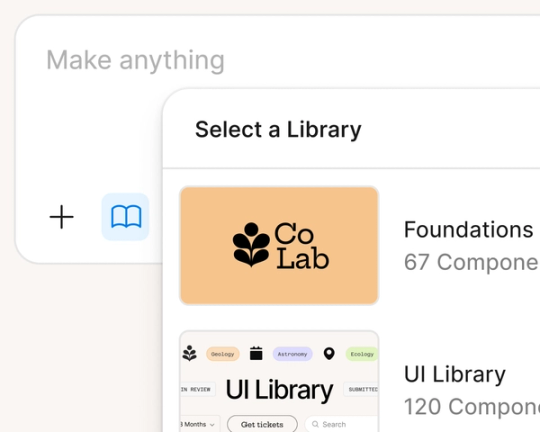
Get instant, contextual feedback
Scan frames, flows, and components in seconds. The AI UI consistency checker flags visual and structural mismatches—so you can fix issues before review.

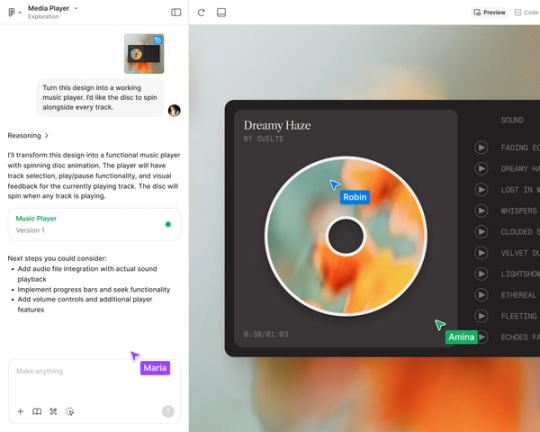
Validate UX decisions early
Pressure-test flows, edge cases, and states before handoff. Use AI to surface usability risks and clarify intent—so your reviews are proactive, not reactive.

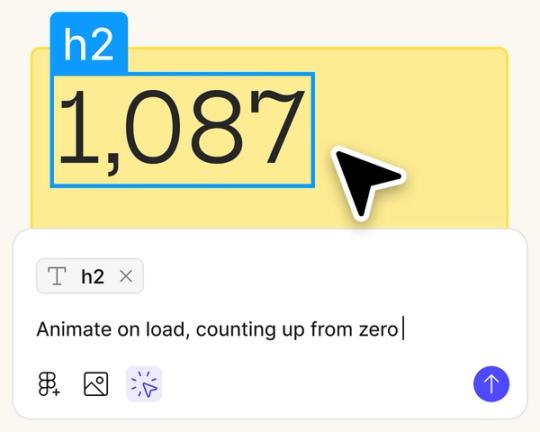
Stay in flow while you iterate
Ask for critique, alternative layouts, or microcopy suggestions without switching tools. The AI design review assistant keeps your design and feedback loop in one place.

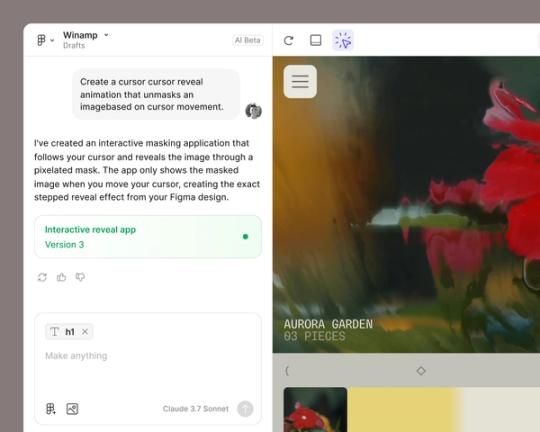
Align design with product thinking
Prompt for feedback on user journeys, logic, and edge cases—not just visuals. Turn abstract ideas into clear, testable design decisions your team can rally around.
Built by real teams.
See how makers, designers, and PMs are using Figma Make to build no-code web apps—from internal tools to product MVPs.
- Jeffrey Lee-Chan
- Gui Seiz

- Matty Williams

- Sahil Ahuja









How to use an AI design review assistant in Figma
Start with a screen, component set, or full user journey in Figma. The AI design review assistant works best when it has clear context.
Example prompt: “Review this onboarding flow for usability gaps and unclear states.”
Describe the type of critique you want—visual hierarchy, accessibility, UX writing, or interaction design.
Example prompt: “Evaluate this dashboard layout for visual hierarchy and suggest improvements to spacing and grouping.”
The AI design review assistant highlights areas to refine, such as contrast issues, inconsistent components, or friction in the flow. Use the feedback as guidance—not a mandate.
Adjust your design directly in Figma, then prompt again to validate changes.
Example prompt: “Re-review this updated version and check whether the navigation is clearer for first-time users.”
FAQs
An AI design review assistant is a tool that provides automated, contextual feedback on UI and UX decisions. In Figma, it can evaluate layouts, flows, accessibility considerations, and interaction patterns directly within your design file.
It helps designers move faster by identifying potential usability issues, inconsistencies, and hierarchy problems early. Instead of waiting for formal reviews, designers can validate ideas and refine work in real time.
It can review both. Designers can prompt the assistant to analyze individual frames, component sets, or complete flows to assess clarity, logic, and edge cases across the experience.
No. An AI design review assistant supports the review process but does not replace human judgment. It offers additional perspective, surfaces patterns, and helps teams prepare stronger work before collaborative critique.
Yes. Designers can prompt the assistant to evaluate color contrast, readability, labeling clarity, and microcopy tone. It provides suggestions to improve inclusivity and usability while keeping the final decisions in the designer’s hands.
From the blog

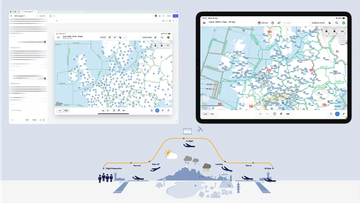
How Lufthansa Systems prototypes realistic maps for the cockpit with Figma Make
Pilots depend on in-flight software to navigate routes, see air traffic, avoid turbulence, and more. To bring more dynamic prototypes to user testing, Lufthansa Systems turned to Figma Make.
Create, ship, and manage data-backed websites with Payload in Figma
With Payload in Figma, teams can go from prototype to production together, managing their content and data all in one place.
Measuring time savings from Figma Make
The Figma Data Science team assumed that AI saves users time—but quantifying it required a new approach to research design.
A properties panel and annotations, now in Figma Make
With visual editing and annotations, Figma Make is bridging the gap between design and code. Select any element you want to change, adjust it directly in the properties panel, or write in-context prompts with annotations.
Workflow lab: Deploying designs directly with Figma Make
The handoff from design to code doesn't have to be a one-way street. This workflow shows how a designer can connect a codebase to Figma Make, make the changes directly, and bring the whole team into review—right up to the PR.

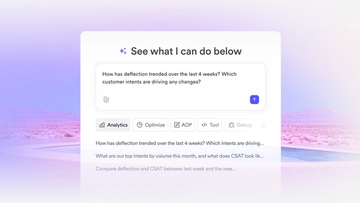
How Decagon uses AI for design system saturation
The fast-growing customer experience platform explains how Figma MCP and Figma Make helped them scale a new design system and keep pace with customer requests.
More resources

What is MCP?
Read articleLearn about Model Context Protocol (MCP), the open standard that simplifies AI integration like a USB-C for data.


What is Vibe coding?
Read articleVibe coding combines mood-driven design with seamless coding to create immersive digital experiences that connect emotionally and function flawlessly.


How to design an app in five steps
Read articleBuilding an app requires research and constant iteration to meet customer needs. Learn how to design an app and how Figma can help in this guide.